
You are here:
Create a Custom Query with User-Defined Values
Use custom queries to apply user-defined values to dimensions, measures, and limits of other queries. For example, you can create a toggle widget that filters case records based on the following user-defined values: High Priority Cases, Medium Priority Cases, and Low Priority Cases. To enable these custom values to filter your data, you map them to your data using a binding.
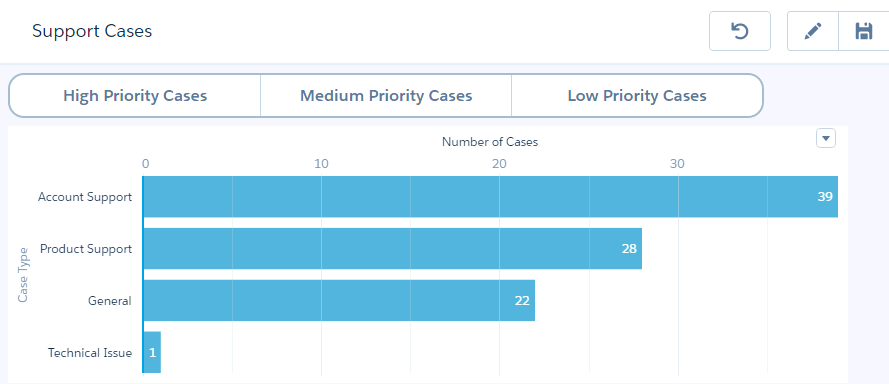
- To open the queries panel, click an empty space in the dashboard canvas in the dashboard designer.
-
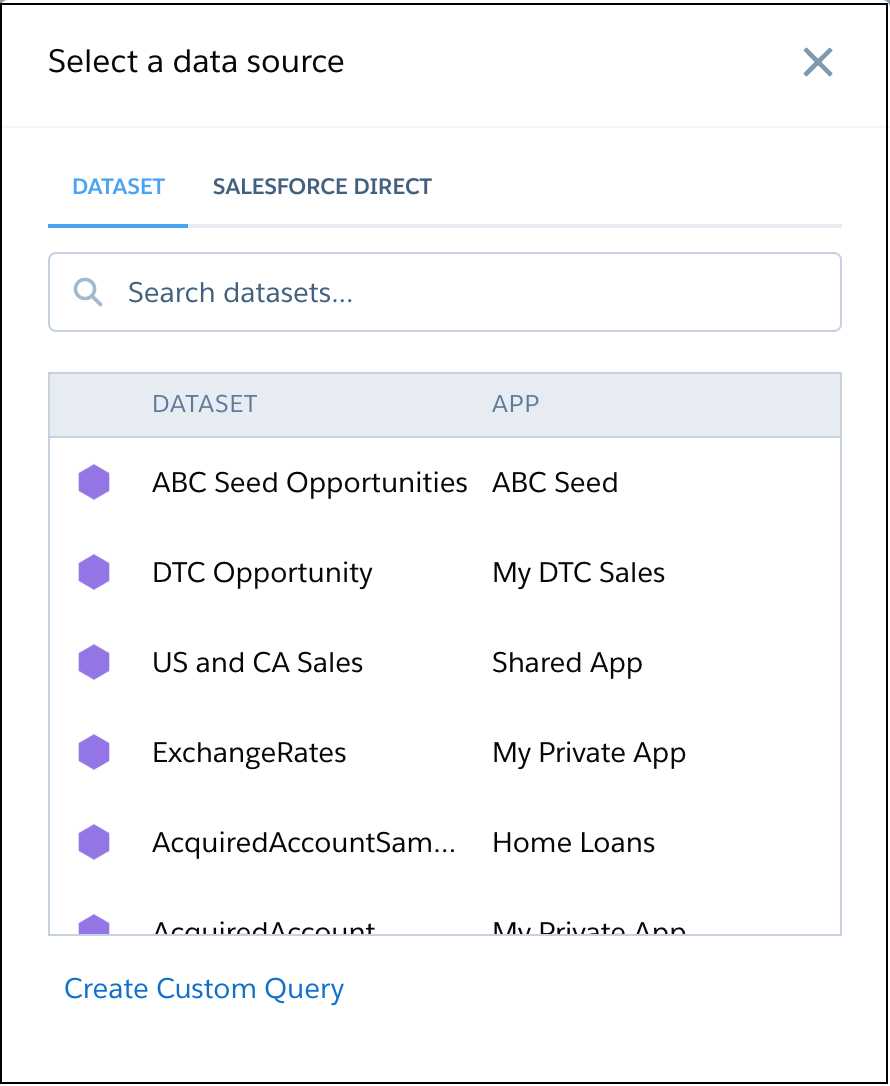
Click Create Query.
-
Click Create Custom Query.
-
Click
 to change the query
label.
to change the query
label.
-
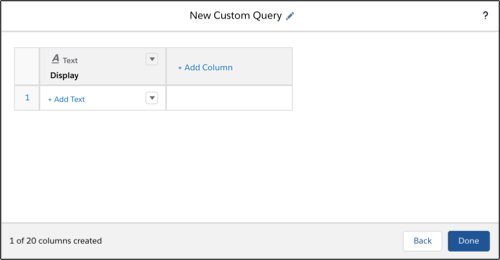
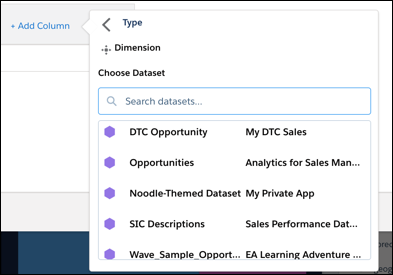
Click +Add Column to add a dimension, measure, text, or number
as a column to your custom query.
- For a dimension or measure, choose a dataset.
-
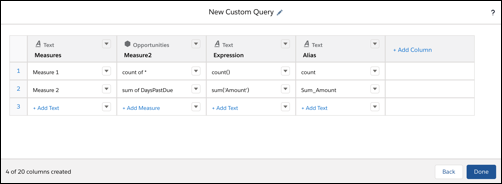
Click +Add to add rows to your custom query.
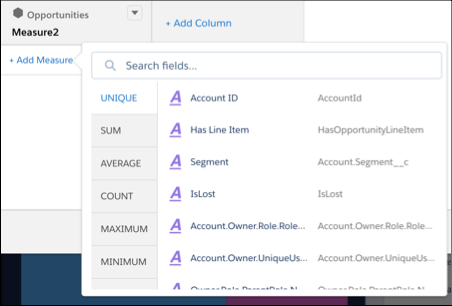
- For a measure, choose a function. For a dimension or measure, choose a field.
-
Add up to 20 columns and click Done.
CRM Analytics adds the query to the query panel, making it available for use by other widgets in the dashboard.
 Note To create SAQL bindings, your custom query requires two additional text columns. One column determines the value of the field and the other column is for the field label.
 -
To make changes, find the query in the query panel, click
 , then
Edit.
You can change the query name, add and remove columns, add row and column values, reorder columns, and pick values from a dataset.Note To use a custom query for linking, make the column the first column in the dialog.
, then
Edit.
You can change the query name, add and remove columns, add row and column values, reorder columns, and pick values from a dataset.Note To use a custom query for linking, make the column the first column in the dialog. -
To apply this custom query to a list or toggle widget:
- Drag the list or toggle widget from the widget toolbar to the dashboard canvas.
-
Drag the custom query on top of the widget.
The widget shows the custom display values as selection options.
-
To change the widget and query properties, select the widget.
The Widget panel groups the widget properties into sections. So that you don’t accidentally overlook any properties, expand any collapsed sections.
- To customize the appearance of the widget, set the widget properties.
-
To preview your changes to the dashboard, click
 .
.
- Save the dashboard.
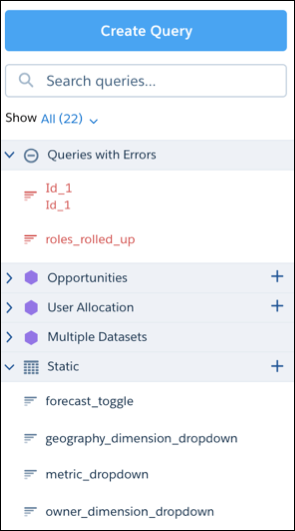
If you applied the custom query to a list or toggle widget, you can see the widget in the dashboard. To specify how a selection in this query affects other widgets, bind the values of the custom query to other widgets. For example, create a binding that filters the other widgets based on a value in the list or toggle widget. For more information about binding queries, see the CRM Analytics Interactions Developer Guide .
