You are here:
Build and Use Interactions to Navigate Through Product Data
You can add interactions to widgets to guide users through multiple levels of data. For example, start at a large scale, such as a country, and navigate a user through more granular areas, such as a business segment or account owner. You can also use this pattern to create longer, deeper flows, such as configuring a dimension to navigate by, or set a new product’s dashboard to open when you select a product. This example explains how to create a flow that shows the revenue for account owners who work in a specific part of a business, in the United States.
Create an Interaction and Navigate to the Details Page
To add an interaction that moves from a selection on the map to the Details page in the Dashboard Editor, select the map widget. In the Widget Properties panel on the right, click Interaction.
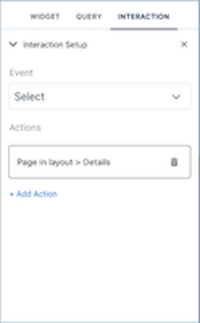
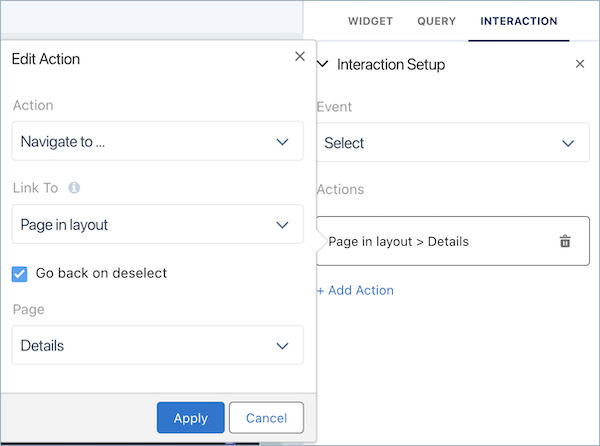
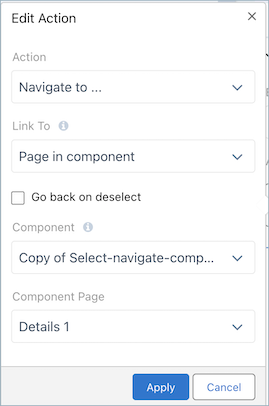
Click Add Action, and create an interaction that navigates from the map to the Details page in the layout. To let users go back to the default map setting when they deselect a component, select Go back on deselect.
To try out the interaction, click Apply and then click Preview. On the map of the world that appears, select the United States.
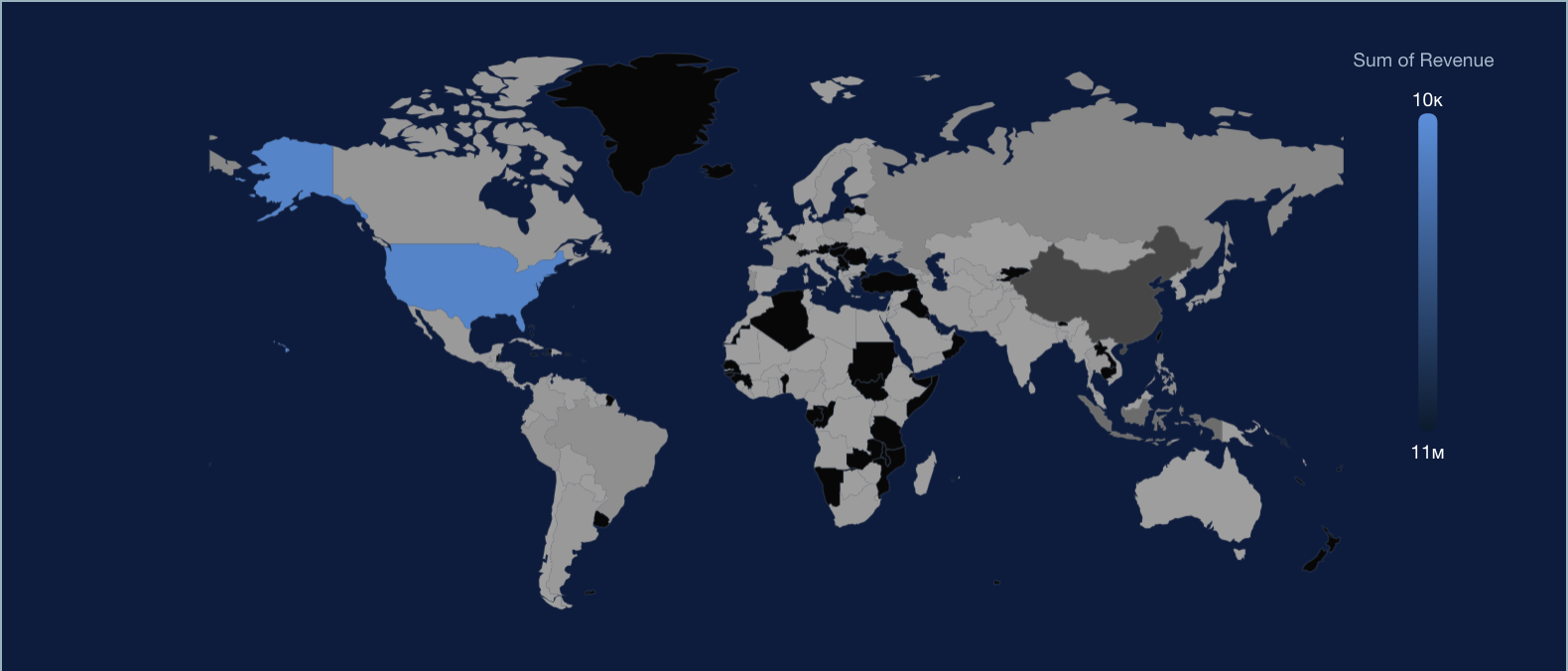
This select interaction navigates the user to the Details page. On the Details page, the user sees filtered value charts, segment and account owner data, and a product dashboard.
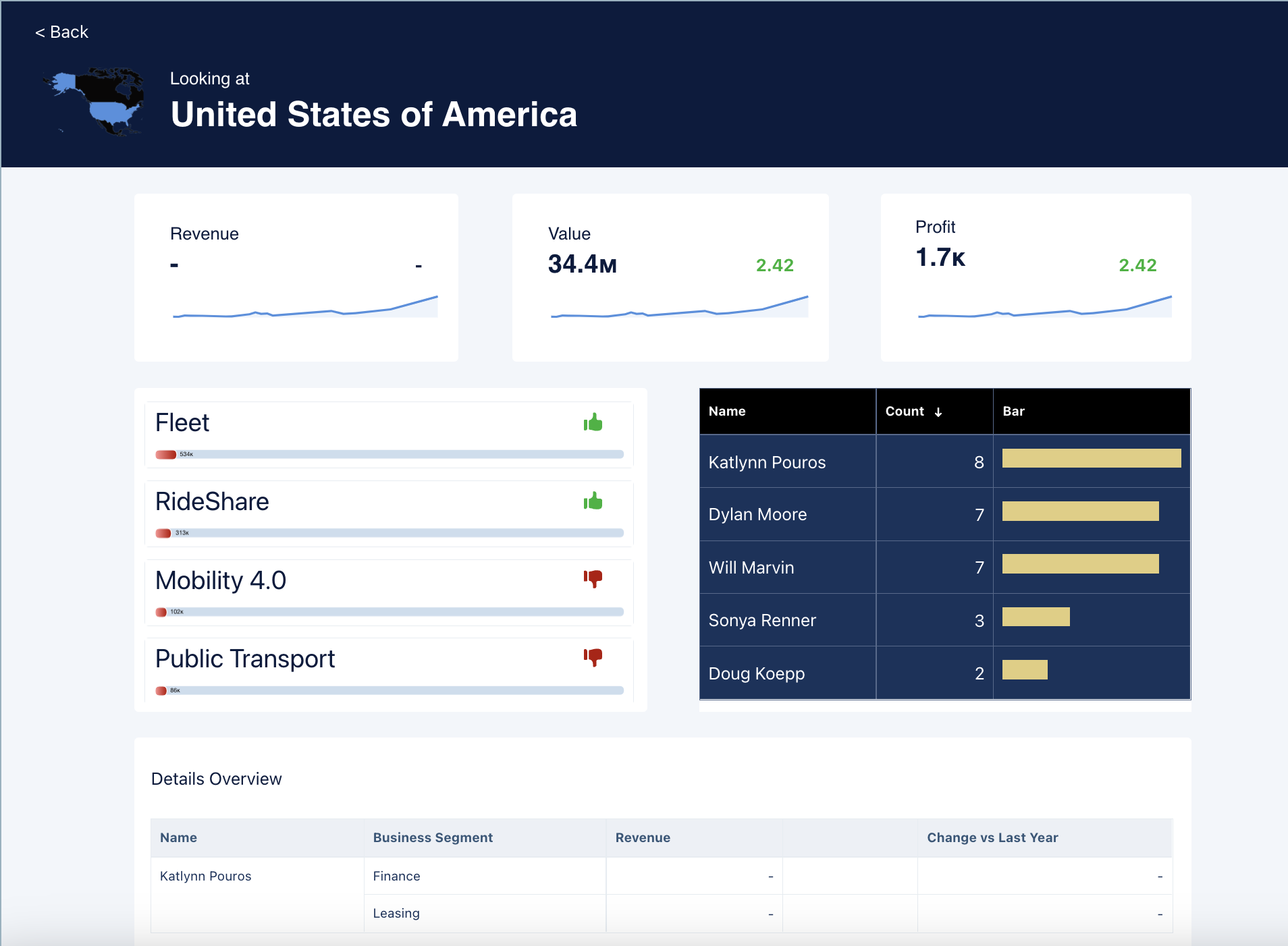
To provide easy navigation of granular data, you can add interactions to some of the widgets.
Navigate to the Product Dashboard Data
Add another interaction to navigate to the product dashboard data. In the Dashboard editor, move to the Details dashboard page, and click a repeater widget, such as Fleet. On the Interactions tab, click Add Action, and create an interaction that navigates to the component page in the layout where the product dashboard data is stored.
To view this interaction, click Preview, navigate to the Details page, and click Fleet (1). This select interaction changes to the Product Details dashboard page (2). The dashboard now shows a list of car types and the revenue for each.
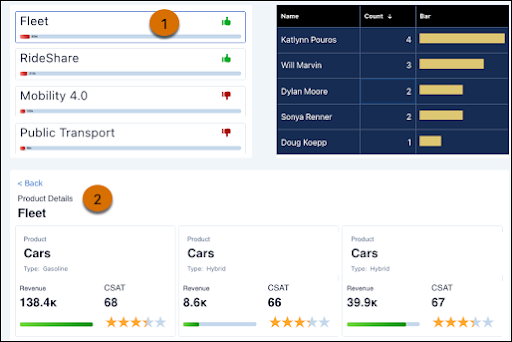
Now add the same interaction to each repeater widget.
Navigate to a Component Page
To navigate even deeper into the component pages, you can add an interaction that shows the account owner’s details. Create an interaction on the chart widget that navigates to the component page Details 2 in the layout.
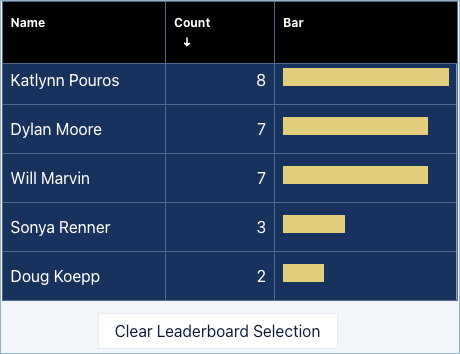
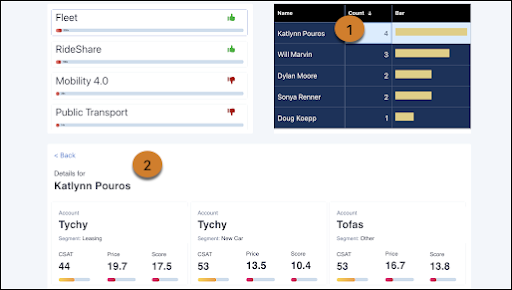
To view this interaction, click Preview, navigate to the component page, and click Count for a name in the table (1). The click interaction navigates to the Account Owner Details dashboard page (2).
The Clear Selection Interaction
If you want to clear queries at any level, you can add a Clear Selection interaction to a text box. In this journey, add a text box called Clear Leaderboard Selection. From the Action dropdown, select Clear Selections.
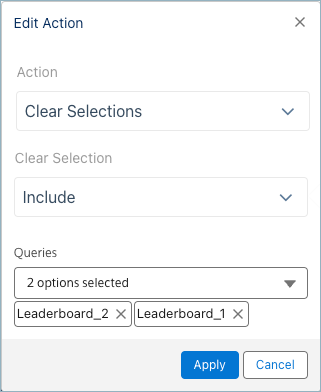
This example clears two queries: Leaderboard_2 and Leaderboard_1.
Now, when your user wants to clear the account owner selection and pick another one, they can click Clear Leaderboard Selection and make another selection.