
You are here:
Add a Dynamic Interaction to a Widget
You can connect a user action to a dashboard action. For example, when you select a bar in an overview chart, a dashboard page with the details of the selection opens. You can create an interaction for a chart, container, image, number, repeater, table, and text widget.
-
To edit the dashboard, click
 and select the widget.
- In the right panel, click Interaction.
- Click Create Interaction.
- Select the interaction.
-
For Event, select the type of action that triggers the interaction, such as selecting a row
or clicking the widget.
You can’t create a select event for a container, image, number, or text widget.
-
Click Add Action.
A widget can have multiple actions. When more than one action exists, the actions are performed sequentially when you click or select the item.
-
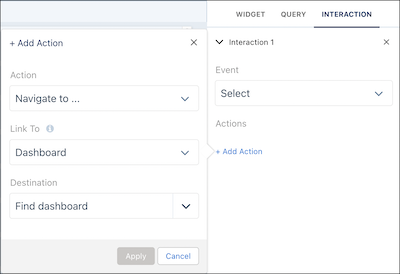
From the Action dropdown, select Navigate to.
-
For Link To, select the destination to link to, such as a dashboard, lens, or page.
A layout page is available only if the dashboard has more than one page. To navigate between dashboard pages, add a Back button on the destination page so that you can return to the overview page.
-
If the destination is a page, select Go back on deselect.
This setting controls whether navigation takes you back to the original page when the selection is removed.
- Select the destination. The options are based on your Link To selection.
-
For Link To, select the destination to link to, such as a dashboard, lens, or page.
-
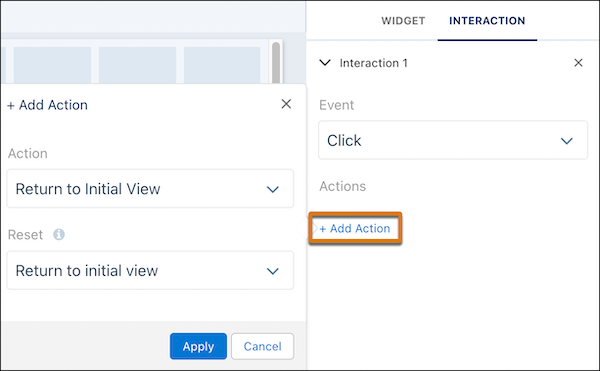
From the Action dropdown, select Return to Initial View, and then
select Return to initial view for Reset.
-
From the Action dropdown, select Clear Selections.
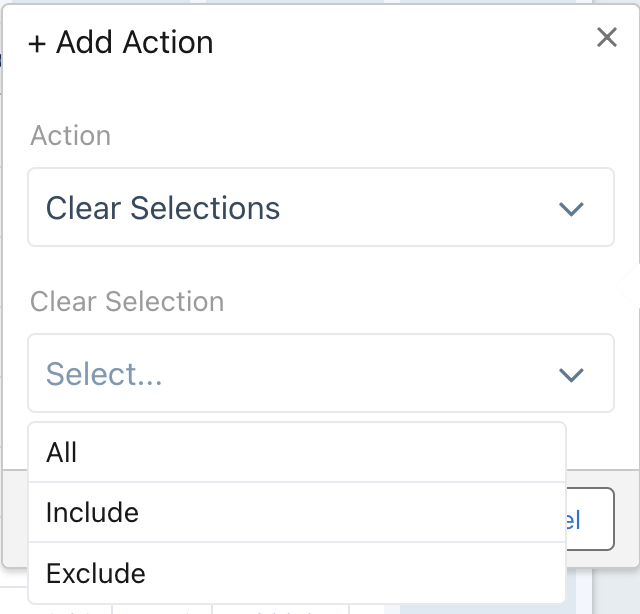
- To clear selections for all queries on the page, select All.
- To clear selections for specific queries only, select Include. Choose the queries to clear
- To exclude query selections from the clear action, select Exclude. Choose the queries to exclude.
- Click Apply.
- To test the interaction, preview the dashboard. Then save the dashboard.
Did this article solve your issue?
Let us know so we can improve!
