
You are here:
Filter Dashboard Results with Faceting
Faceting makes dashboards interactive. For example, select a sales region in a list widget and see accounts from that region in a table widget. When you enable faceting, selections made on chart, date, list, range, and toggle widgets automatically filter other widgets in the dashboard. You can also use targeted faceting to include or exclude specific queries from your faceting selections.
By default, queries from the same dataset are faceted. To facet queries between different
data sources such as different datasets or custom queries, first connect them. Queries with a mix of datasets facet widgets
based on the first dataset specified in the datasets
field in the dashboard JSON only.
-
To edit the dashboard, click
 .
.
-
Select the widget that uses the query.
The panel shows the widget properties.
-
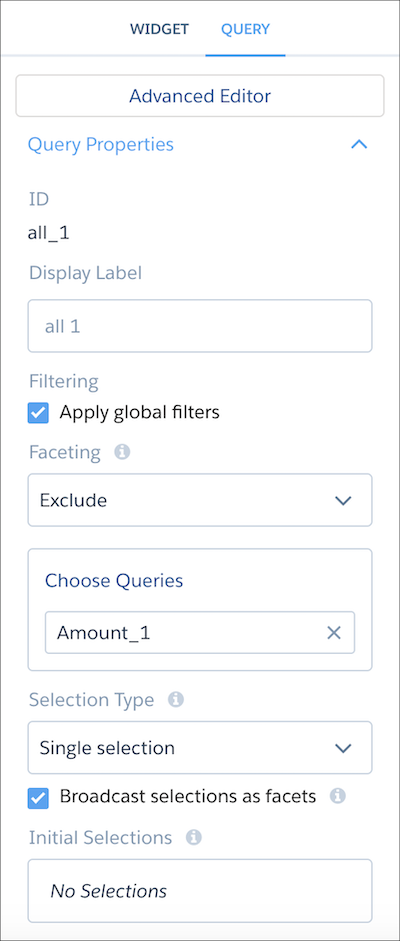
Click Query.
-
In the Faceting section, select All,
Include, Exclude, or
None.
For Include or Exclude, click Choose Queries and then select from the list of queries in your dashboard. To apply external filters when you open an embedded dashboard, set faceting to All.
-
Broadcast selections as facets is enabled by default.
Controls whether the query’s selections are broadcast as facets.
Keep the following considerations in mind when configuring faceting for queries.
- Set query faceting on the receiving query. For example, to prevent faceting in query A when data from query B is selected, open query A, set faceting to Exclude, and then choose query B. Alternately, to facet specific queries, use Include.
- The Broadcast selections as facets appears as read only for
the
apexandsoqlquery types because they don’t support faceting. - Broadcast selections as facets appears as read only for the
aggregate,grain, andstaticquery types because they don’t support these options. To change the faceting behavior for these query types, edit theisFacetproperty in the dashboard JSON. For a list of the supported faceting JSON properties for each query type, see the CRM Analytics Dashboard JSON Reference. - For Include, faceting applies to only the selected queries. For Exclude, faceting applies to all queries except those selected.
- When faceting is disabled, selections aren't broadcast to other widgets. Each widget operates independently, and the selections you make in one won't update others.
- When faceting is set to None, a table or list widget selection is local to that widget. No broadcast is sent to other widgets, so you won’t see any other filters or widgets update in response to your selection.
- There's no global filter reset to remove filter selections. If you want to remove a filter selection or filter a widget with faceting turned off, they must be done manually. To reset a list widget, select All. To reset a widget selection or toggle widget, click the selected item to return all values.
- Saved views that contain filter or widget selections still apply when faceting is turned off. Selections remain until they are manually reset. The only difference is that other widgets will not respond to that selection.
- Save the dashboard.
- Configure Cross-Dataset Faceting with Connected Data Sources
By default, queries from the same dataset are faceted—automatically filtering each other. To facet queries from different datasets or even custom queries in the dashboard designer, connect them using common fields between them. - Configure Faceting on Related Salesforce Objects
Surface trends between Salesforce objects with parent-child relationships in a single dashboard. For example, on a dashboard that’s set up to monitor Salesforce account records, you can track related opportunities and cases. To facet queries based on parent-child relationships in the dashboard designer, connect them using common fields between them. - Facet Queries with Multiple Datasets
You can use a query with multiple datasets in a widget and then facet the query. The query receives filters from all of its datasets, but broadcasts selections from its first loaded dataset. - Considerations for Connected Data Sources
Keep these considerations in mind when faceting queries from different datasets.
