Add an Image Widget to Display Graphics in the Dashboard
You can include company logos to brand the CRM Analytics dashboard, icons to categorize
results, or graphics to animate the dashboard.
Required Editions
User Permissions
Needed
To add images to CRM Analytics dashboards:
Create CRM Analytics Applications
Create and Edit CRM Analytics Dashboards
To upload image files to CRM Analytics, Chatter must be enabled in the org.
You can also add images as backgrounds for container widgets and layouts. CRM Analytics
in a web browser supports .svg, .png. jpeg, .jpg, .gif, .bmp. The CRM Analytics mobile app
supports all these file types, except .svg.
Tip To overlay one image on top of
another, place an image widget inside a container widget. To display a background image for
the entire dashboard, add a background image in the layout properties. Click in the upper left corner to show the layout
properties.
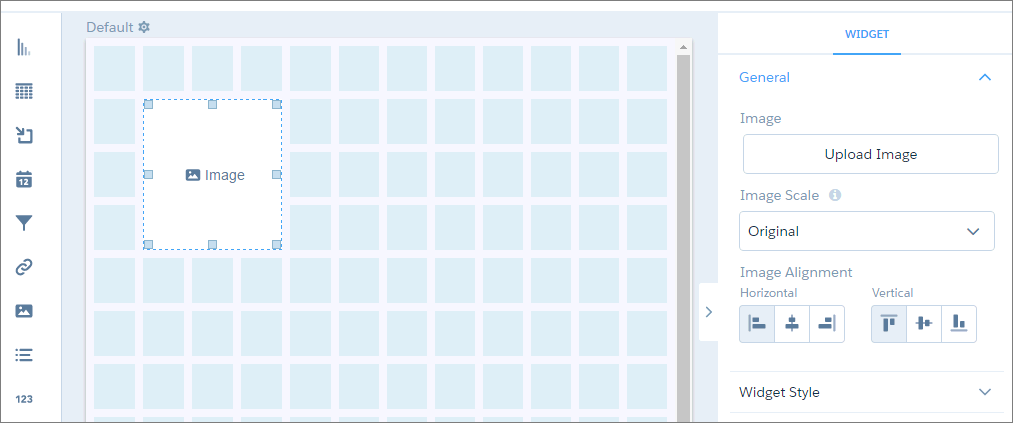
Drag the image widget to the dashboard canvas.
Click Image inside the image widget.
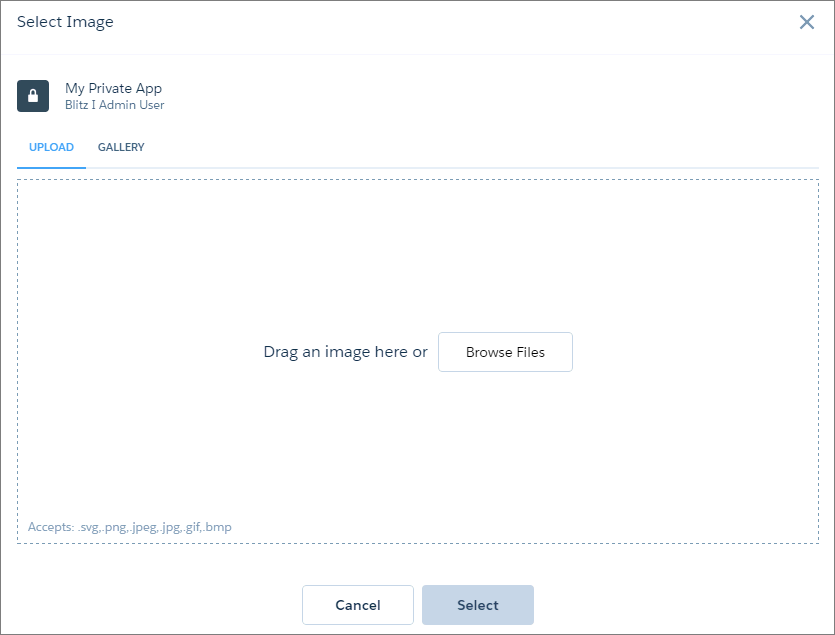
To upload a new image, click Browse Files. Or, select an
uploaded image from the Gallery tab.
CRM Analytics uploads images to the gallery for the app displayed at the
top-left corner of the screen. Each image file must be no more than 2 GB.
Note When moving a dashboard with images to another app with different users and
permissions, the images must be uploaded to the new app.
To change the widget properties, select the
widget.
The Widget panel groups the widget properties into sections. So
that you don’t accidentally overlook any properties, expand any collapsed sections.
To preview your changes to the dashboard, click the Preview button.
Save the dashboard.
Note If the Image widget doesn’t render images, verify that third-party cookies in
your browser are enabled.
We use three kinds of cookies on our websites: required, functional, and advertising. You can choose whether functional and advertising cookies apply. Click on the different cookie categories to find out more about each category and to change the default settings.
Privacy Statement
Required Cookies
Always Active
Required cookies are necessary for basic website functionality. Some examples include: session cookies needed to transmit the website, authentication cookies, and security cookies.
Functional Cookies
Functional cookies enhance functions, performance, and services on the website. Some examples include: cookies used to analyze site traffic, cookies used for market research, and cookies used to display advertising that is not directed to a particular individual.
Advertising Cookies
Advertising cookies track activity across websites in order to understand a viewer’s interests, and direct them specific marketing. Some examples include: cookies used for remarketing, or interest-based advertising.