
You are here:
Add a Link Widget to Link to Other Assets
Take dashboard viewers straight to where they need to go with links to specific assets, like dashboards, pages, queries, lenses, and even web pages. You can also use links to create analysis paths for users to follow, helping them navigate your analytics app, or to perform mass quick actions on record lists.
In the CRM Analytics Studio, clicking a link widget in a dashboard opens the link in a new tab. In presentation mode and in the Analytics tab (in Lightning Experience or Salesforce Classic), the link opens in the same window. For embedded dashboards, you can set a link to open in the same or new window.
- Drag the link widget to the dashboard canvas.
-
To change the widget properties, select the widget.
The Widget panel groups the widget properties into sections. So that you don’t accidentally overlook any properties, expand any collapsed sections.
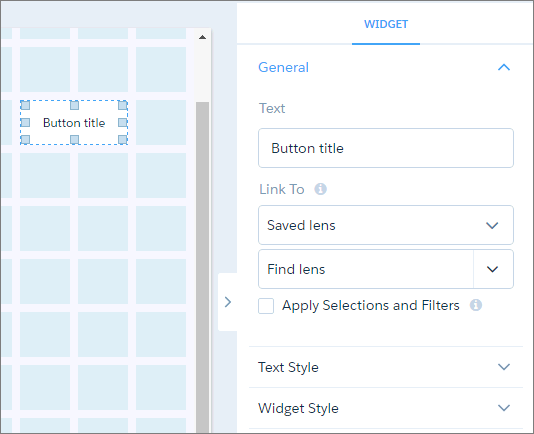
- In the Text field, enter the label that appears on the link widget.
-
In the Link To field, select whether you want to link to a query, lens, dashboard,
page, URL, or mass action, and then select the asset.
If you link to a dashboard that has multiple pages, you can specify which page to view when the dashboard first opens.
-
To pass global filters and selection-based filters (also called facets) to a linked
CRM Analytics asset, select Apply Selections and Filters.
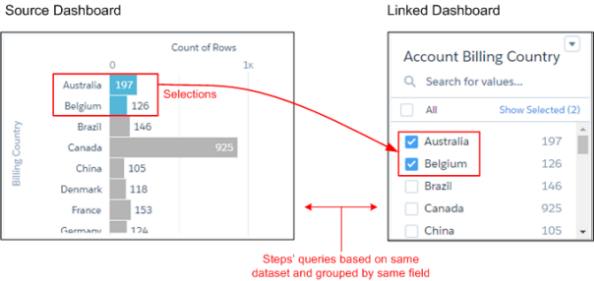
CRM Analytics passes selections in chart, list, toggle, range, and date widgets as selections in the linked asset if they apply. For example, you select North America in a list widget based on the Region dataset field. CRM Analytics applies that same selection to faceted queries in the linked dashboard that have a grouping based on the Region field in the same dataset.
 Note A selection is applied to a query in the linked dashboard only if the selected value exists in the initial result set for that query. If your selection isn’t applied, try increasing the limit for the query in the linked dashboard so that the value can be found.
CRM Analytics passes global filters as filters to a linked asset as long as the filters apply. CRM Analytics ignores a global filter if the linked asset doesn’t use the dataset that the global filter is defined on. If the global filter is locked and the incoming filter is defined on the same field, CRM Analytics ignores the incoming filter. If it’s unlocked, the incoming filter overrides the global filter defined in the dashboard.
When you open a linked dashboard, the passed global filters appear as external filters. To view the external filters, click
 as highlighted in the screenshot. The External
Filters panel shows filters passed from linked dashboards (and filters preconfigured
in embedded dashboards). You can remove external filters while viewing the
dashboard.
as highlighted in the screenshot. The External
Filters panel shows filters passed from linked dashboards (and filters preconfigured
in embedded dashboards). You can remove external filters while viewing the
dashboard.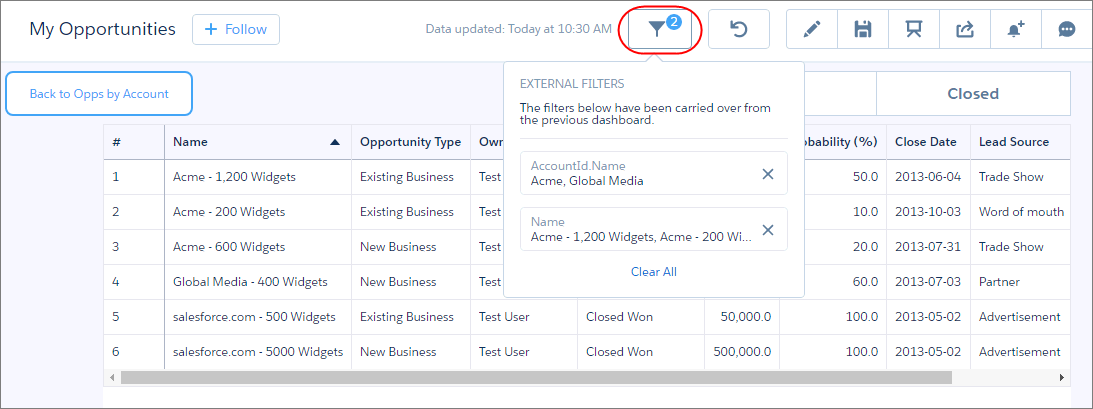
To pass a filter selection to a linked asset, the asset must contain a query based on the same dataset and grouping used to define the filter.
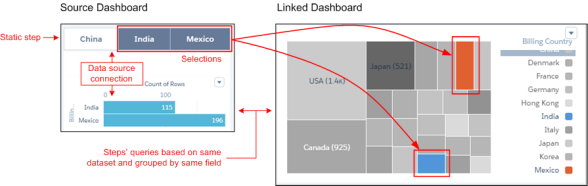
To pass a filter selection based on a custom query to a linked asset, the custom query must be linked to the dataset using a data source connection. Also, the linked asset must contain a query based on the same dataset and grouping used to define the data source connection.
-
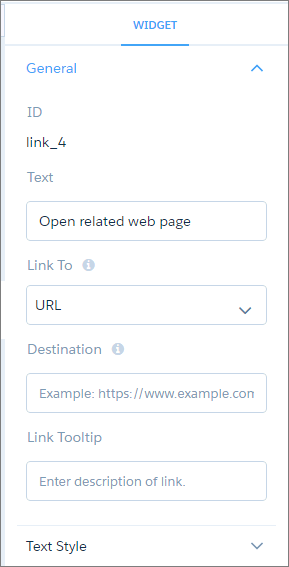
If the link is to a URL, enter the following properties.
- Destination: Enter the full URL. The URL field supports http, https, relative links, and dynamic links with bindings. It doesn’t support passing Salesforce parameters in the URL, like Salesforce object or CRM Analytics dataset fields.
- Link Tooltip: Enter a description of the link or the URL so users know where the link takes them.
To create a relative link, enter a valid URL that starts with a slash. For example, use
/lightning/o/Account/list?filterName=Recentto open recently viewed accounts in Lightning Experience.To create a dynamic link, click Advanced Editor in the link widget properties panel. Edit the JSON to add the
destinationLinkwith aurlparameter that is a binding. The binding must be for an existing step that contains valid URL values. An example binding is{{cell(step_1.selection, 0, \"url\").asString()}}, whereurlis a valid URL.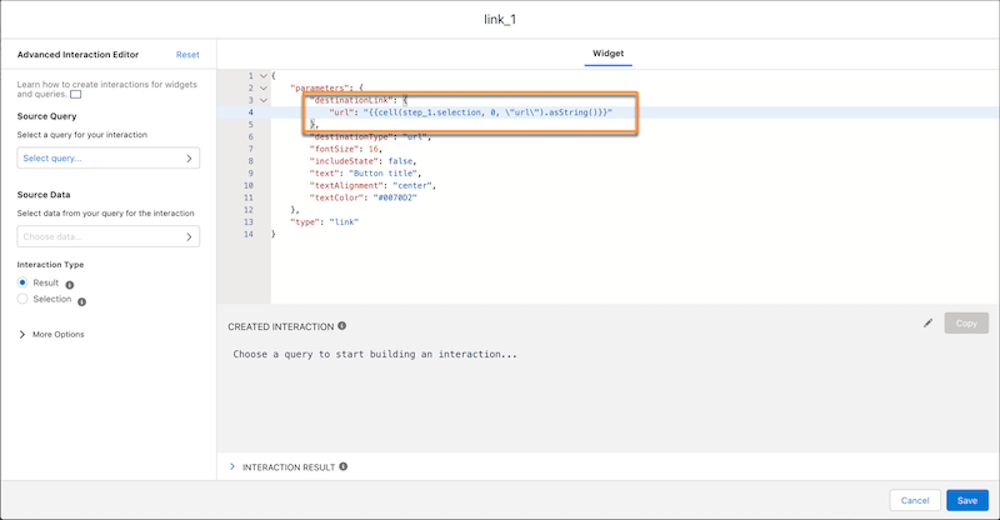
- If the link is for a mass action, see Configure Mass Quick Actions on Multiple Salesforce Records from CRM Analytics Dashboards for configuration steps.
-
To pass global filters and selection-based filters (also called facets) to a linked
CRM Analytics asset, select Apply Selections and Filters.
- To customize the appearance of the widget, set the widget properties.
- To preview your changes to the dashboard, click the Preview button.
- Save the dashboard.
