
You are here:
Add a Navigation Widget to Access Dashboard Pages
Give dashboard viewers an easy way to navigate dashboard pages with a navigation widget. Reuse your navigation widget for a consistent look across dashboard pages.
For example, here’s a navigation widget that provides access to each of the 5 defined pages.
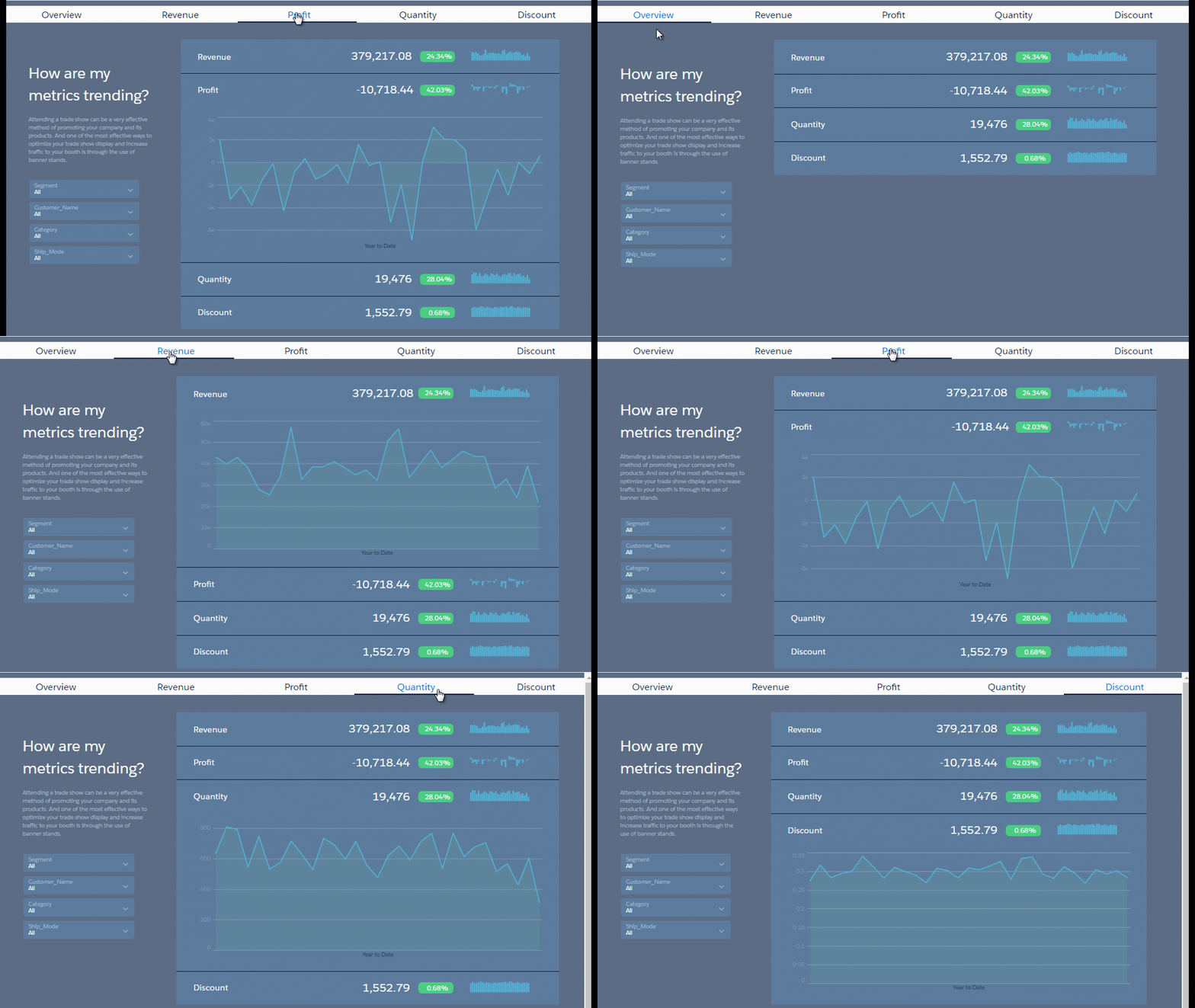
-
Drag the navigation widget to the dashboard canvas.
The widget shows all pages in the dashboard. The underlined page in the widget is the one that you’re currently viewing.
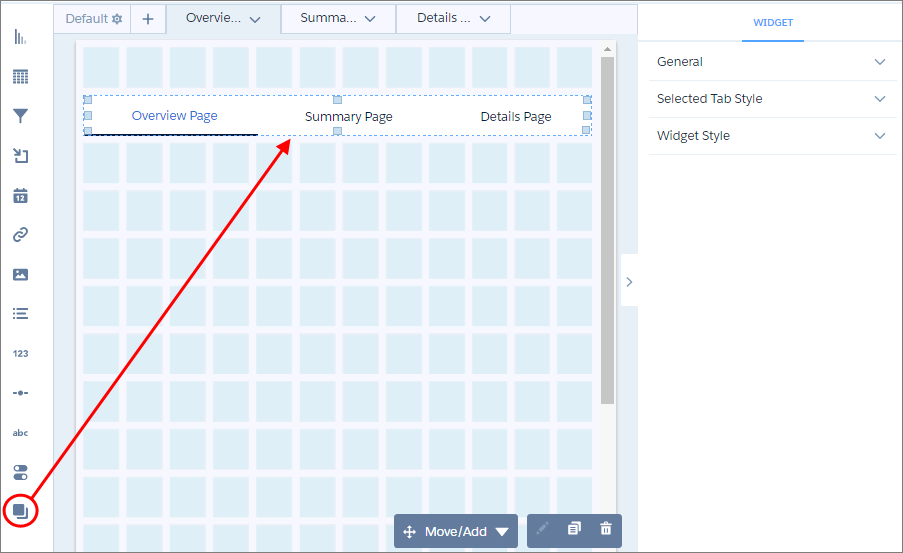
-
To hide a page while viewing the dashboard, click
 and then
Hide from Navigation.
Dashboard viewers see only visible pages. The link to the hidden page remains hidden from the navigation widget until you show it again.
and then
Hide from Navigation.
Dashboard viewers see only visible pages. The link to the hidden page remains hidden from the navigation widget until you show it again.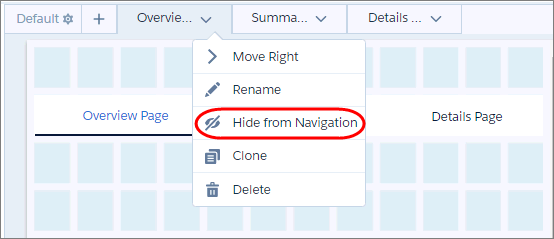
-
From the same page menu, you can also move, rename, clone, and delete pages.
The order of the page tabs determines the order of the page links in the navigation widget.
 Tip To avoid truncation, keep page names short.
 -
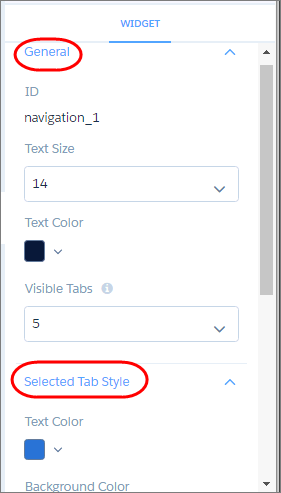
To set the widget properties, select the navigation widget.
For example, set the styling properties for all page links in the “General” section, except the selected page’s link. Set that under the “Selected Tab Style” section. You can choose different styling for the selected page to indicate which page is selected while viewing the dashboard.
-
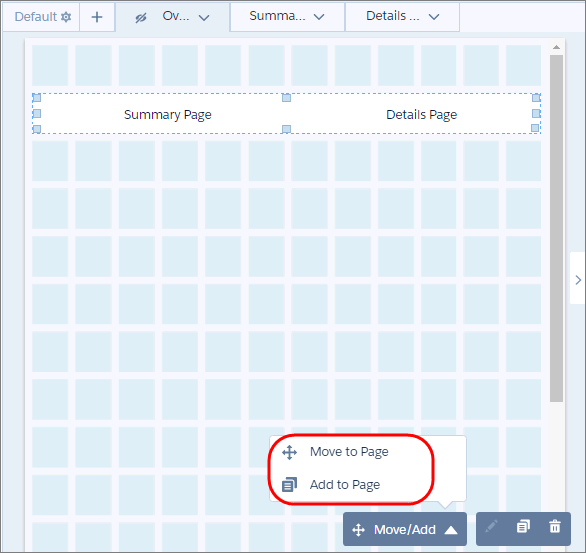
To enable navigation from all pages, select the navigation widget that you created on
this page and use the Add to Page action to add it to other
pages.
Using Add to Page ensures that all of the styling properties are consistent across pages.
Did this article solve your issue?
Let us know so we can improve!
