
You are here:
Add a Global Filter Panel Widget to Filter Data from the Dashboard
The panel can contain single or multiple global filters. Use a global filter to apply the same filter to multiple queries in the dashboard. For example, a dashboard has two charts comparing two sales reps’ performance. To compare apples to apples, both charts must have the same filters. When possible, use a global filter instead of a selection-based filter to improve dashboard performance. If configured, users can change a global filter while viewing the dashboard.
Each global filter must be based on a single measure, dimension, or date field. You can’t create a composite filter based on multiple fields, like Region=“West” and Industry= “CPG.”
If multiple datasets are linked using a data source connection, only one of the common fields used in the connection can be included in a global filter. If you include multiple common fields, they can generate redundant, conflicting filters and not work properly. For example, you connect the Opportunity dataset using the Account.Name field to the Account dataset using the corresponding Name field. To filter based on account name, add one global filter based on either Account.Name from the Opportunity dataset or Name from the Account dataset. Because the datasets are connected, the global filter applies to both datasets.

Global filters only apply to widgets that accept them. To apply global filters to a widget, select Apply global filters in the query properties of the widget. By default, CRM Analytics applies global filters to all widgets that have queries based on the same dataset or connected data sources.
-
Drag the global filter panel widget to the dashboard canvas.
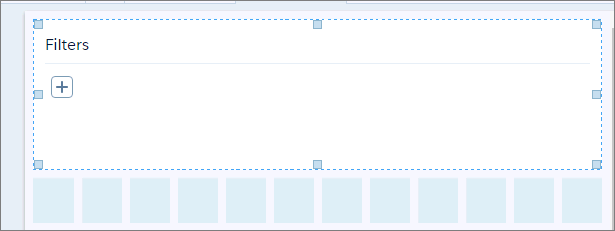
An empty panel appears in the designer.
 Note If the dashboard contains a global filter created before Winter ’18, a pop-up message asks if you want CRM Analytics to convert it to the new version. If you agree, CRM Analytics converts all global filters to the new design, showing all global filters in a panel. During the conversion, CRM Analytics doesn’t add unsupported global filters to the new global filter panel widget. Unsupported global filters are composite filters and invalid ones that reference datasets or fields that don’t exist. If you don’t convert to the new design, you can continue to use the legacy global filter, but can’t add global filters to the dashboard.
 -
To add a global filter to the panel:
-
In the global filter panel widget, click
 .
.
-
Select a dataset field and click Create.
To use a different dataset, click Change Dataset.
-
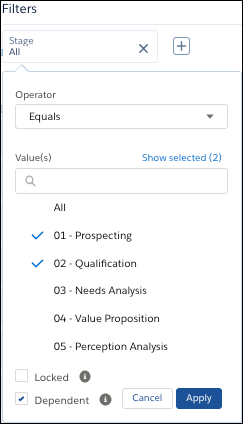
Select the filter operator and field values.
These filters apply when a user opens the dashboard.
-
To prevent users viewing the dashboard from changing the global filter, select
Locked.
The Locked option also ensures that incoming filters passed from a linked dashboard don’t override the global filter. If the global filter is locked and the incoming filter is defined on the same field, CRM Analytics ignores the incoming filter. If it’s unlocked, the incoming filter overrides the global filter defined in the dashboard.
-
To limit the global filter’s picklist values based on selections in other global
filters, select Dependent.
For example, you select an opportunity in the Opportunity Name global filter. Only products sold in the selected opportunity appear in the Product Name global filter picklist. The Dependent option applies to global filters that use the same dataset or a connected data source.
- Click Apply.
-
In the global filter panel widget, click
-
To change the widget properties, click the widget.
The Widget panel groups the widget properties into sections. So that you don’t accidentally overlook any properties, expand any collapsed sections.
-
To customize the appearance of the widget, set the widget
properties.
When you set a property, the widget immediately shows the effects of your change.
-
To edit a global filter in the panel, access the global filter panel by clicking the
 icon at the top of the dashboard.
For example, you can edit a global filter to change the selections.
icon at the top of the dashboard.
For example, you can edit a global filter to change the selections. -
To delete a global filter from the panel, click
 .
.
-
To delete all global filters from the dashboard, click Delete All Global
Filters button in the Global Filters panel.
Note If you delete the global filter panel widget, CRM Analytics removes the panel from the dashboard, but the global filters still apply. To delete the global filters later, use the global filter property panel.
- To preview your changes to the dashboard, click the Preview button.
- Save the dashboard.
