
You are here:
Enrich Your Data with Dashboard Text
Use text widgets to emphasize important data, make your dashboards more scannable, and tell a more compelling data story.
-
Drag a text widget (
 ) onto your dashboard.
- Type in the text box.
-
Select and format text.
Use standard and custom colors, adjust character size, and apply formatting to words and individual characters.
-
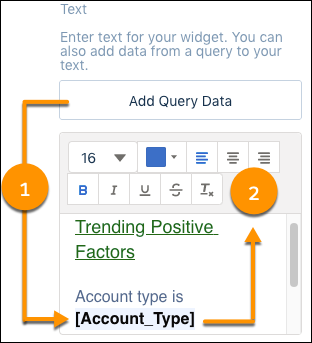
To format text that’s based on query data, first select and add the query field.
For example, add an [Account_Type] field (1). Then, highlight and format the text (2).
- When you’re done, save the dashboard.
Keep these considerations in mind when using enhanced text formatting.
- When you create a binding using a text widget, text widget controls are unavailable. Additional changes to text and text formatting must be done using JSON.
- Conditional formatting colors take precedence over colors applied using a text widget. Although conditional formatting is defined at the widget level, it gets applied at the query level. That means conditional formatting colors show up and override other colors wherever the query is used, including in text widgets. Other formats, like bold and italic, show in query-based text along with conditional formatting.
- Apply formatting to the entire portion of query-based text. For example, select and apply formatting to all of an “[Account_Type]” query, including the brackets. If you select a portion of the query (such as “[Account_Ty”) and apply a format, the query changes to plain text.
- The text widget doesn’t support multiple selections from a filter widget. By default the text widget uses the first value when multiple values are selected from the filter widget.
Did this article solve your issue?
Let us know so we can improve!
