
You are here:
Perform Actions on a Salesforce Record from CRM Analytics
As you gain insights into your business from CRM Analytics, you sometimes perform actions on an underlying Salesforce record. No need to exit CRM Analytics. You can invoke a Salesforce action on the record directly from CRM Analytics. You can also open web pages, such as search the web for the company name listed in a CRM Analytics lens or dashboard.
Required Editions
| User Permissions Needed | |
|---|---|
| To edit a dataset: | Edit CRM Analytics Dataflows |
| To create actions: | Customize Application |
You can add an action menu to any dataset field, except a measure. These actions appear in CRM Analytics chart legends and table cells.
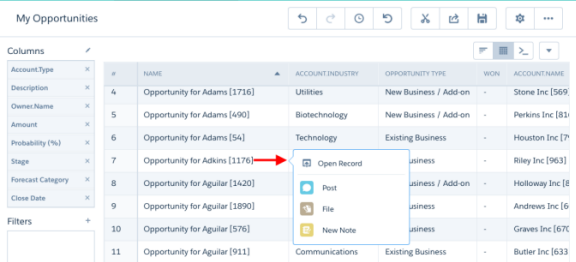
CRM Analytics supports the following object and global actions defined in Salesforce:
- Create, update, and change owner actions for object records. Global quick actions aren’t supported.
- Log a Call actions.
- Custom actions to invoke flows, Lightning components, and Visualforce Pages. Canvas apps
aren’t supported. Lightning components that use Lightning events, like
force:createRecordorlightning:navigate, are supported in embedded dashboards, but not in Analytics Studio. - Standard Chatter actions except for File.
Actions assigned to a page layout for the User object aren’t supported. Actions are only available for the local org, and aren’t supported for multi-org records. Actions are configured from a dataset or from the table chart view in a lens.

-
Configure actions from a dataset
-
Edit the dataset.
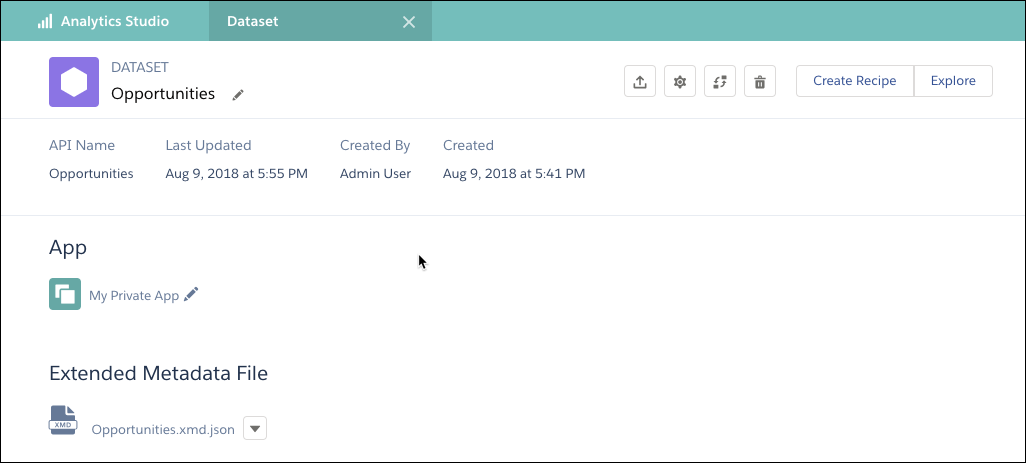
- Click the Configure Actions button (
 ).
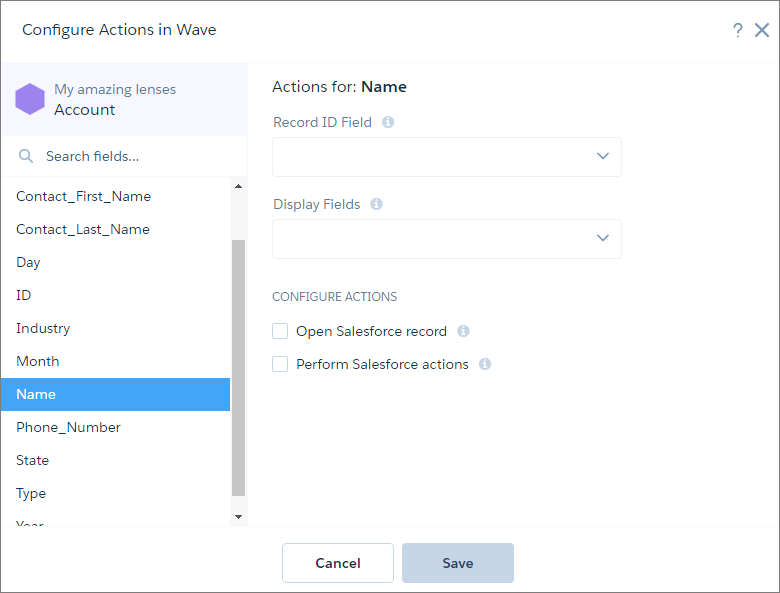
). - In the left pane, select the dataset field where you want the action menu to appear.
-
-
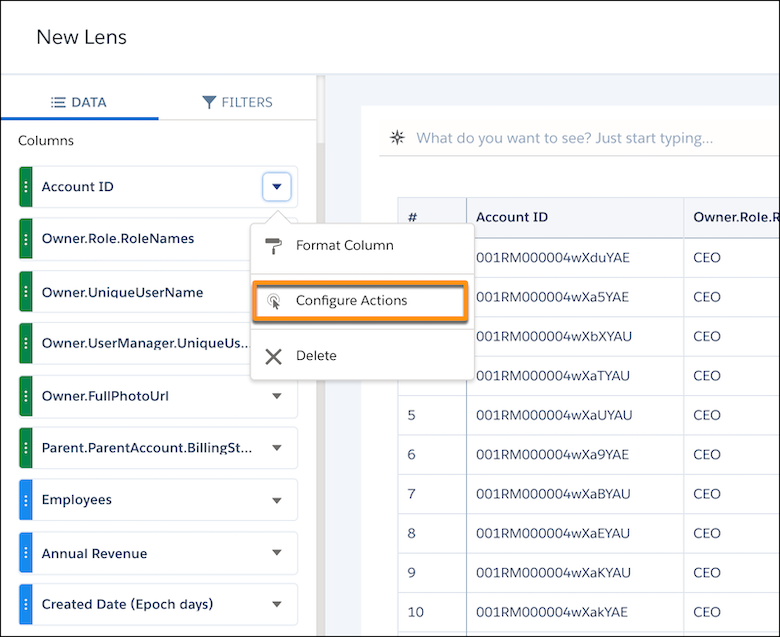
Configure actions from a table.
From the table view in a lens, from the dimension column’s action menu, select Configure Actions.
- In the Record ID Field, select the dataset field that contains the record ID of the object
that you want to perform the action on.
For instance, if the dataset has Opportunity ID and Account ID fields, select Account ID to perform actions on the account records. CRM Analytics uses the ID to identify the Salesforce object and record to perform the action on.
 Note In values tables, CRM Analytics uses the ID from the table row to perform the action on if the record ID field used in the Configure Actions setup is included in the query.
 - In Display Fields, choose which dataset fields to show users. An action can apply to
multiple Salesforce records. Specifying the dataset fields narrows the choices and helps
users pick the correct record to perform the action on.
For example, if you enable actions on opportunity records, you can show the opportunity name, account name, and opportunity owner name to help users pick the right opportunity.
- To let users open a Salesforce record or URL, select Open Salesforce
record, choose the action in the Open field, and then enter a tooltip. Users
see the tooltip when they hover over the action in a CRM Analytics lens or dashboard.
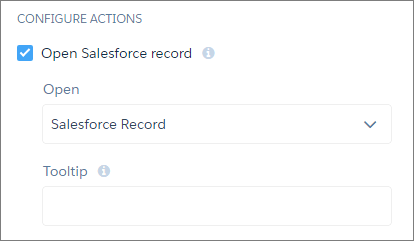
Choose one of the following actions.
Action Description Salesforce Record Opens the Salesforce record. CRM Analytics searches for the record in the same org where it’s running. Salesforce Record (Multiple Orgs) Opens the Salesforce record from another org. If the dataset contains records from multiple orgs, select this option. In the Org ID Field, select the dataset field that contains the org ID. To enable CRM Analytics to connect to each org, select Manage Orgs and specify the URL for each org. URL Opens a URL that uses HTTP or HTTPS protocols.
Use the following syntax to pass a dataset field as a parameter in the URL:
{{row.<dataset_field_dev_name>}}For example,
http://www.google.com?q={{row.AccountName}}If you don’t specify the URL, CRM Analytics uses the org’s URL. For example, you can specify the following parameter to open the Account record in Salesforce:
/{{row.AccountId}}CRM Analytics retrieves the Account ID from the AccountId field in the dataset record.
- To enable users to perform actions on a Salesforce record, select Perform
Salesforce actions and then choose the actions. The list of actions varies
based on the object identified by the Record ID Field.
Option Description All actions Adds all actions defined in the page layout for this object, including new ones created later. Choose actions Select from the list of currently available actions. Note The list contains a superset of all actions defined in all page layouts for the Salesforce object. Actions are only available for the local org, and aren’t supported for multi-org records.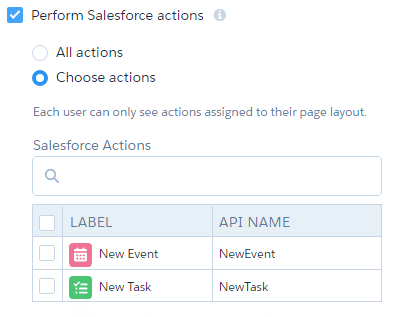 Note A CRM Analytics user sees only the actions that you select and that are assigned to their page layout. If the predefined actions are overridden for the Salesforce mobile app and Lightning Experience in a page layout, CRM Analytics displays only the actions that are added to both the Quick Actions in the Salesforce Classic Publisher and the Salesforce Mobile and Lightning Experience Actions sections of the layout.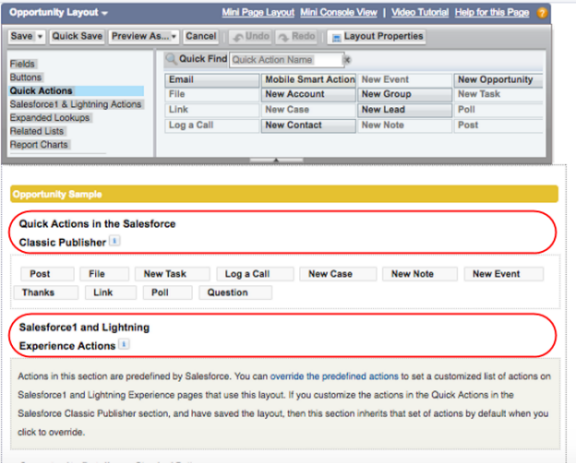
- Click Save.
- Record Actions Example
Each week, opportunity owners analyze their opportunities using a CRM Analytics dashboard. Sometimes, they must update an opportunity. To help them perform the update without going back and forth between CRM Analytics and Sales Cloud, you decide to set up CRM Analytics actions. To let CRM Analytics dashboard viewers update an opportunity record from CRM Analytics, you add the Update Opportunity action to the Opportunity Name field in a CRM Analytics dataset. The first step is to set up the action in Salesforce and then add the action to the CRM Analytics dataset field.
