
You are here:
Set Up Complex Conditional Formatting
You can set up conditions based on a single reference column in the widget properties. However, sometimes, you have to create more complex conditions. To set up rules based on multiple reference columns for number and table widgets, use SAQL.
- Set up the conditions in the SAQL query. Define the rules and output the colors to a new
column. Specify the colors in hex codes (like #CCCC00) or RGB codes (like rgb(255,255,255) or
rgba(255,255,255,0)). For example, the following query specifies the rule and outputs the hex color code for each condition in the “FormatColor” column.
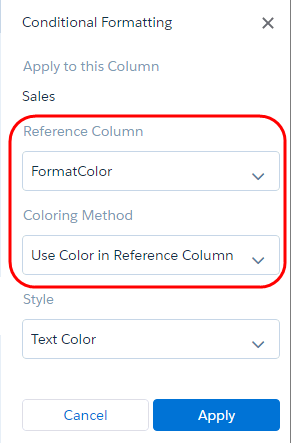
"query": "q = load \"Sample_Superstore_with_Goals\";\n result = group q by 'Segment';\n result = foreach result generate q.'Segment' as 'Segment', sum(q.'Discount') as 'Discount', sum(q.'Profit') as 'Profit', sum(q.'Quantity') as 'Quantity', sum(q.'Sales') as 'Sales', (case when Segment == \"Consumer\" and sum(q.'Discount') >= 1000 then \"#008000\" when Segment == \"Consumer\" and sum(q.'Discount') < 1000 then \"#CCCC00\" when Segment == \"Corporate\" and sum(q.'Discount') >= 500 then \"#008000\" when Segment == \"Corporate\" and sum(q.'Discount') < 500 then \"#CCCC00\" when Segment == \"Home Office\" and sum(q.'Discount') >= 200 then \"#008000\" when Segment == \"Home Office\" and sum(q.'Discount') < 200 then \"#CCCC00\" else \"#000000\" end) as 'FormatColor';\n result = order result by ('Sales' desc);\n result = limit result 2000;", - To apply the text color to the Sales table column, select the new color column
(“FormatColor”) in the Reference Column widget property and then select Use Color in
Reference Column in the Coloring Method option.
The following example conditionally colors the text in the Sales table column based on the logic used to determine the color in the “FormatColor” reference column.
Did this article solve your issue?
Let us know so we can improve!
