
You are here:
Configure Mass Quick Actions on Multiple Salesforce Records from CRM Analytics Dashboards
Sometimes users want to perform the same quick action on a list of records. With CRM Analytics mass actions, users can save time by performing a quick action on up to 100 records at once from a step in CRM Analytics.
To use mass quick actions in CRM Analytics, configure mass actions for your selected Salesforce object. See Set Up a Mass Quick Action for configuration details.
After you configure mass quick actions in your org, you can add a mass action link widget for your dashboard users.
CRM Analytics uses the ID from a values table to perform actions when the record ID field is included in the query. Actions assigned to a page layout for the User object aren't supported. These actions are only available for a local org, not multi-org records, and can be configured either from a dataset for a table chart view in a lens.

In the CRM Analytics Studio, clicking a mass action link widget in a dashboard opens the action window for a user to perform quick actions on a list of records. The list of records is returned by step query from a table or chart and can be filtered using global filters or selection facets from other charts.
- Drag the link widget to the dashboard canvas.
- To change the widget properties, select the widget.
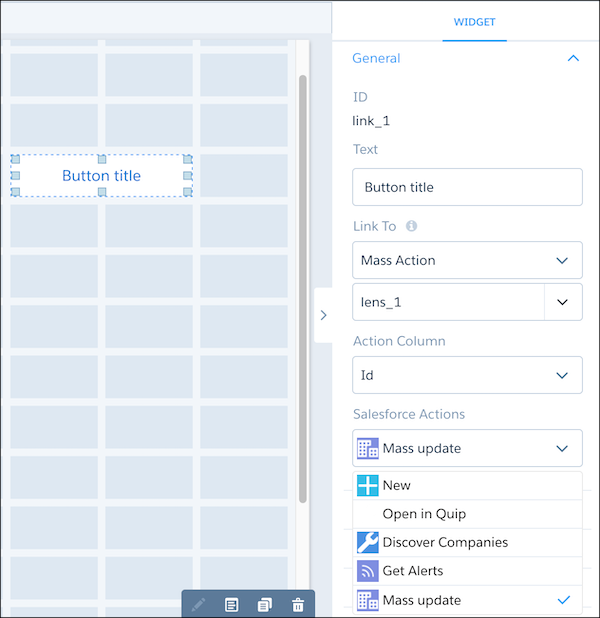
- In the Text field, enter the label that appears on the link
widget.Note It’s best practice to make the label match the selected action so the user understands what action the link performs.
- In the Link To field, select Mass Action and then the step to perform the mass action on.
- In the Action Column field, select the record ID. If the selected step query doesn’t return the record ID, the action column appears empty. Select the record ID for the mass quick action to function correctly.
- In the Salesforce Actions field, select the mass quick action to perform when your link is clicked. The action menu is only populated when mass quick actions are configured for the List View layout of the object.
- To customize the appearance of the widget, set the widget properties.
- To preview your changes to the dashboard, click
 .
. - Save the dashboard.
