
You are here:
Edit a Query
When you edit a query, you can change the details, like the query label. These changes affect all widgets that use the query. You can also change the visualization properties, like chart type. Depending on the method that you use to edit the query, CRM Analytics handles visualization changes differently.
You can use the following methods to change a query.
| Method | Handling Visualization Changes |
|---|---|
| Edit the query from the query panel | CRM Analytics saves the visualization changes in the query, but doesn’t apply them to existing widgets that use the query. |
| Double-click the widget | CRM Analytics saves the visualization changes in the query and applies them to the widget. CRM Analytics doesn’t apply them to other widgets that use the query. |

Note CRM Analytics automatically loads queries on the opened page. Click other pages to load
more queries, or click Start to load a specific query.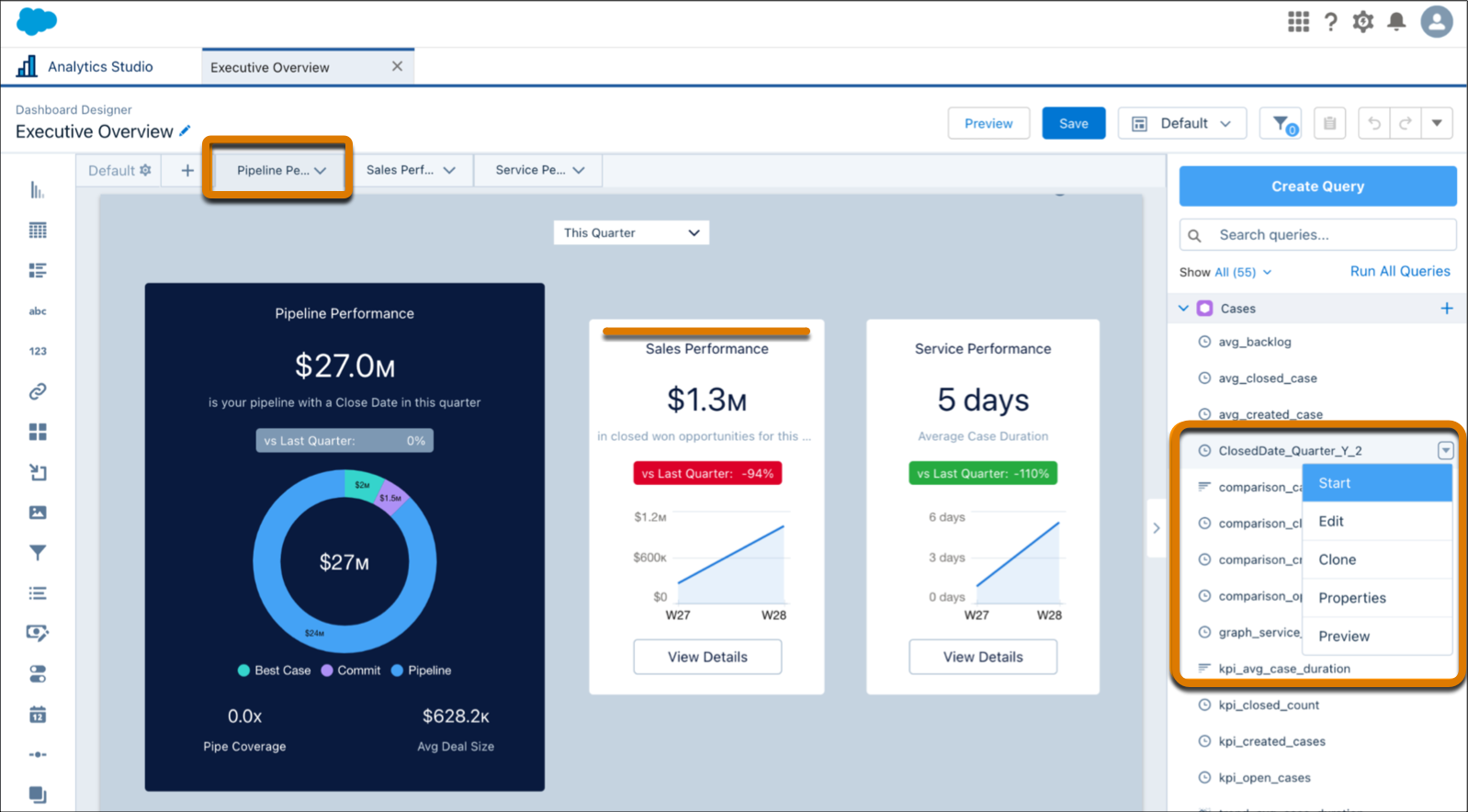
Consider the following limitations before editing a query.
- You can edit only queries with types
aggregate,aggregateflex,saql, andgrain. If you edit anaggregateoraggregateflexthat contains a SAQL query in thepigqlJSON attribute, CRM Analytics converts the query type tosaql. - You can’t edit a query that’s used in a global filter widget created before Winter ’18.
- You can edit a
saqltype query that contains interactions(bindings) to switch modes (Chart, Table, Query) or modify the query. You’re not able to switch modes or modify a query for anaggregateflextype that contains interactions. However, you can change the format, such as adding conditional formatting.
- Open the dashboard in edit mode.
-
Use one of the following methods to edit the query.
-
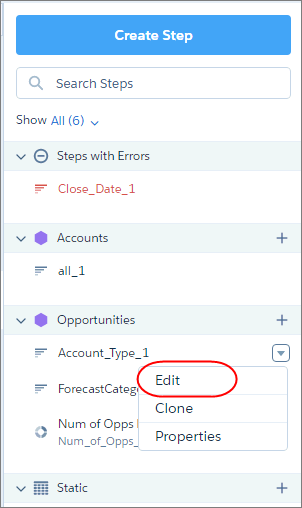
To edit the query from the queries panel, hover over the query, click the down
arrow, and then click Edit in the query actions menu.
-
Double-click the widget in the dashboard.
You can also select the widget and click
 in
the widget actions menu.
in
the widget actions menu.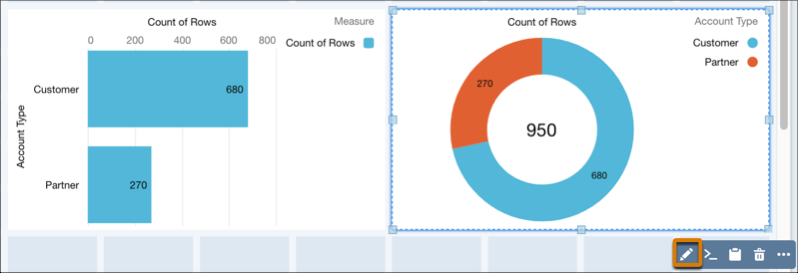
-
To edit the query from the queries panel, hover over the query, click the down
arrow, and then click Edit in the query actions menu.
-
Make your changes.
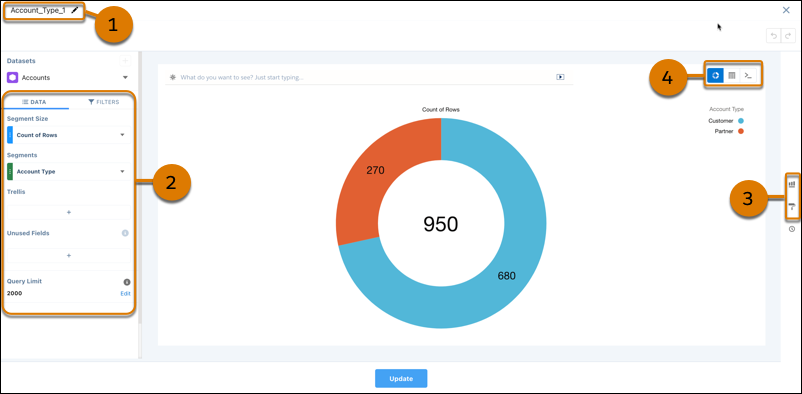
You can change the following details:
- Query label (1)
- Query (2)
- Visualization properties and formatting (3)
- Chart, table, and SAQL mode (4)
- Click Update.
- To save your changes, save the dashboard.
- Considerations When Converting Query Types
CRM Analytics treats query types differently. Before you convert anaggregateoraggregateflexquery type tosaql, review the following implications.
Did this article solve your issue?
Let us know so we can improve!
