
You are here:
Troubleshoot Unexpected Query Results
If you have questions about a query’s results, review the query details to learn how CRM Analytics determines the results. Compare the original query to the final query executed by CRM Analytics. If the query is faceted or the dashboard contains global filters, CRM Analytics applies extra filters to query. If the query contains a binding, use the bindings tracer to verify the binding results.
- Open the dashboard in view mode.
-
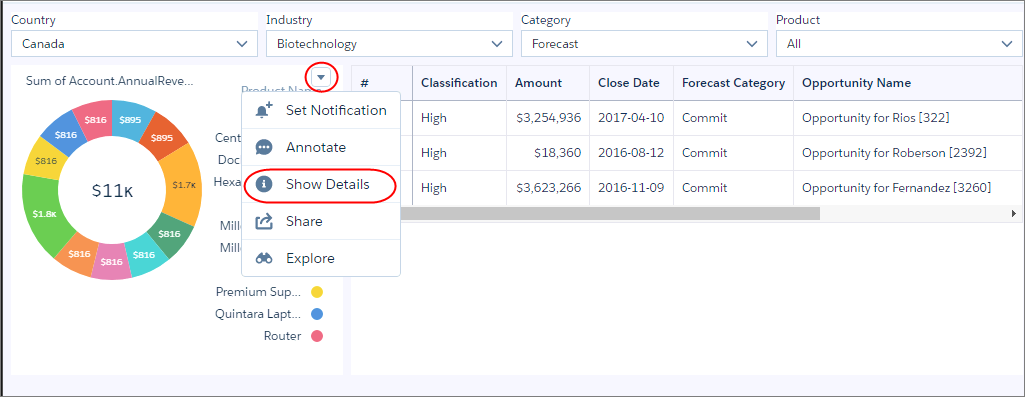
Click the drop-down arrow for the widget that uses the query that you want to analyze.
-
Select Show Details for the
widget.
 Tip To see the Show Details option for a list widget, enable the “Show explore action” widget property. The Show Details option doesn’t show for link, image, container, global filter panel, and text widget types because they don’t have queries.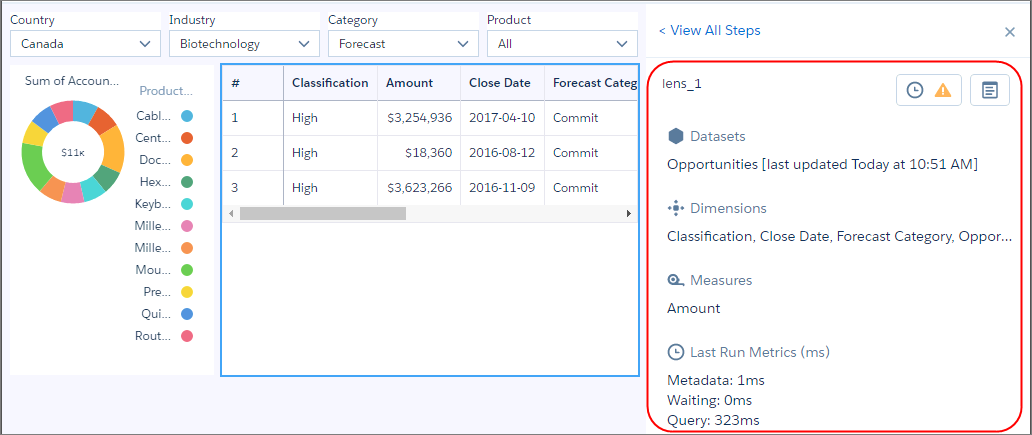
-
To compare the original query against the final one, click
 .
.
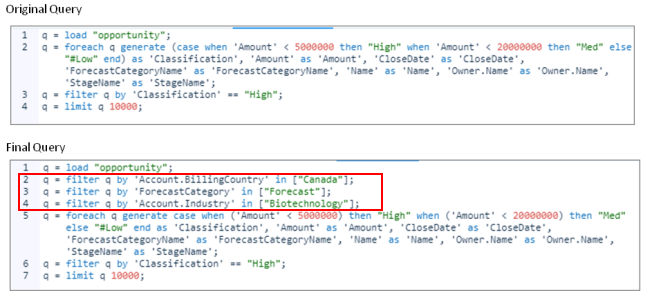
CRM Analytics modifies queries based on interactions with other widgets. It adds filters based on faceting and global filters, and can modify the query based on bindings. The final query in the following example has three filters added to the original query.
-
If the query has a binding, review the bindings trace to understand how CRM Analytics
resolves the binding.
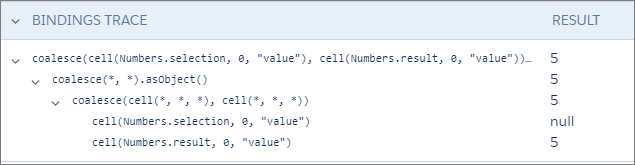
The easiest way to understand the bindings trace is to start from the bottom. In this example, you can see the results of both
cellbinding functions. You can also see that thecoalescefunction uses the results from the secondcellfunction. The final result of the entire binding, which appears at the top, shows 5.
