
You are here:
Save Your Filtered View of a Dashboard
No need to reselect the filters every time you open a dashboard because you don’t have permission to save the selections permanently. Change the filters and save your own view. Only you can see your views—other users still see the original dashboards.
You can create up to 10 views per dashboard and choose one as the default that shows when you open the dashboard. All your saved views are listed in the view menu.
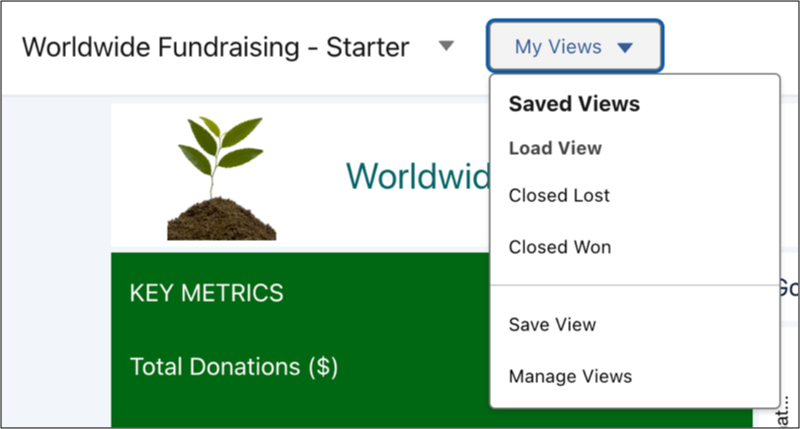
-
To create a view, open the dashboard in view mode, make your
selections, and click Save View.
The saved view includes all selections that you made to the current page in list, toggle, range, date, chart, compare table, and global filter widgets.
 Note In the CRM Analytics mobile app, you can access saved dashboard views, toggle between saved views, and share links to different views, but managing and saving views aren’t supported.
 -
To remove your changes to a dashboard or view, including selections,
click
 .
.
When you open a view and change a selection, an asterisk appears next to the view name to indicate that it’s been modified. When you change a selection while viewing a dashboard without a view, Modified appears. In either case, you can save the current selections as a new view or overwrite an existing one.
- To remove the view applied to a dashboard so you can view the original dashboard, click Clear View in the view menu.
- To set your default view or delete a view, click Manage Views.
-
To share your view with others, open the view and select .
When users open the link, they see your view of the dashboard. If they want, they can save it as one of their own views.
- Considerations When Opening a Dashboard View
There are special cases when a view doesn’t open or isn’t applied completely.
