Use Dataset Builder to create a single dataset based on data from one or more related
Salesforce objects. Dataset Builder adds the instructions for building the dataset to the
specified dataflow. The dataset is created the next time the dataflow runs, and refreshes each
time the dataflow runs thereafter. To edit the dataflow, use the Dataflow Editor.
Required Editions
Available in: Salesforce Classic and Lightning Experience
Available for an additional cost in: Enterprise, Performance, and
Unlimited Editions
User Permissions Needed
To access the dataset builder:
Edit CRM Analytics Dataflows
On the home page or on an app page, click Create | Dataset.
Click Salesforce Data.
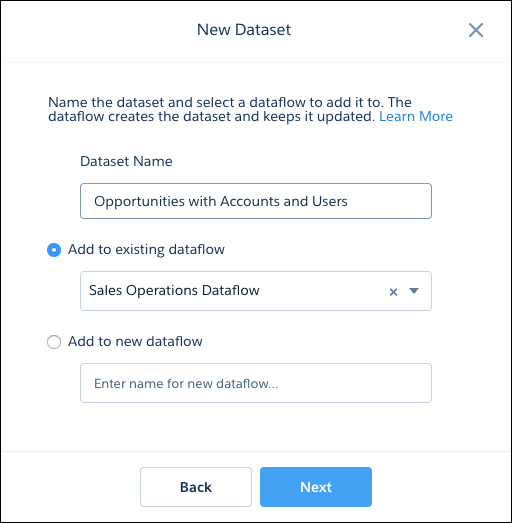
The New Dataset dialog opens.
Enter a name for the dataset.
Note If you enter a dataset name that is already used, when you create the dataset,
Dataset Builder appends a number to the dataset name. For example, if you entered
MyOpportunities, Dataset Builder creates MyOpportunities1. The dataset name can’t exceed
80 characters.
Select a dataflow to add the transformations to. You can select an existing dataflow,
or a new dataflow.
To add the transformations to an existing dataflow, select Add to
existing dataflow, and then select the dataflow from the list.
To add the transformations to a new dataflow, select Add to new
dataflow, and then enter a name for the new dataflow.
Note The option to add to a new dataflow is only available if you have enabled data sync
in your org. See Enable Data Sync and Connections.
Click Next.
Dataset Builder opens inside the Dataflow Editor.
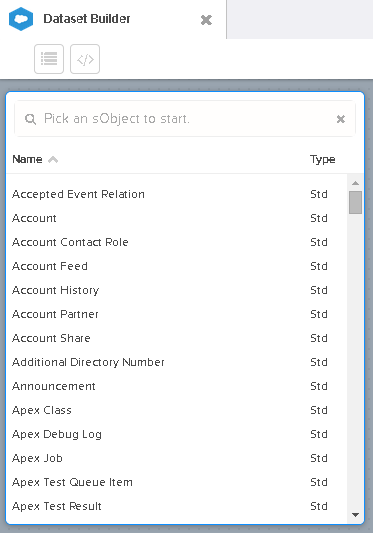
Select the root object.
The root object is the lowest level child object that you can add to the canvas. After you
select the root object, you can add only parent objects of the root object—you
can’t add its child objects. To change the root object, refresh the page and start
over.
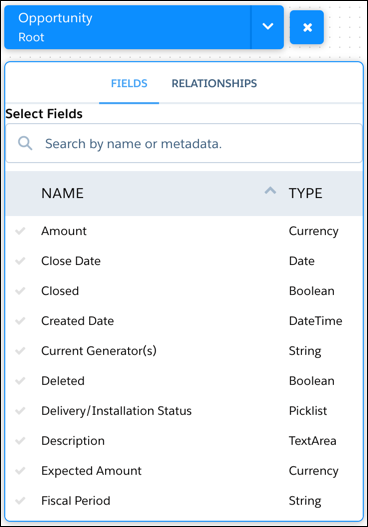
Hover over the root object, and then click .
The Select Fields dialog box appears. By default, the Fields tab appears.
Note You can view this dialog box for any object included in the
canvas.
In the Fields tab, select the fields from which you want to extract data.
To locate fields more quickly, you can search for them or sort them by name or type.
Important Select at least one field for each object that you add to the canvas.
If you add an object and don’t add any of its fields, the dataflow fails at run time.
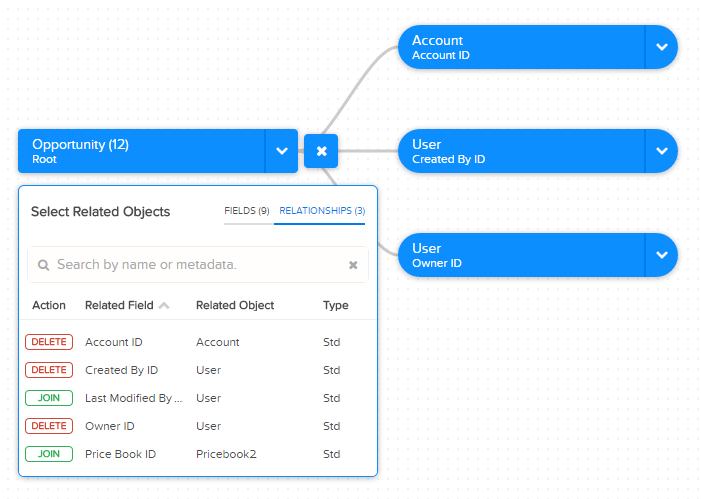
In the Relationships tab, click Join to add the related objects to
the canvas.
When you add a related object, the related object appears on the canvas.
To remove a related object, click Delete.
Warning When you delete a related object, you also delete all objects that descend
from the related object. For example, if you delete Account shown below, you delete the
branch that contains Account and User.
For each related object, select the fields from which you want to extract data.
To move the entire diagram, select a white space in the canvas and drag it.
If needed, move the diagram to view a different section.
When you finish adding objects and fields, click Next.
The transformations for the new dataset are added to the dataflow you
selected.
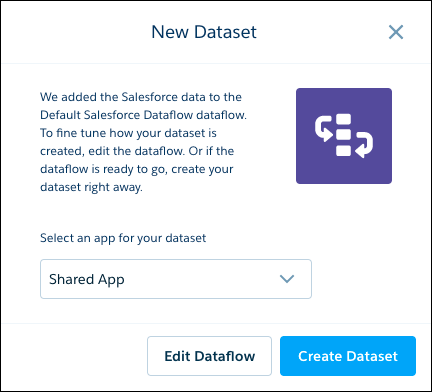
Select the app that will contain the dataset, if it’s not already selected.
To view or edit the dataflow, click Edit Dataflow.
Note To edit the dataflow, you must select the Shared App for the dataset.
To run the dataflow and create the dataset, click Create
Dataset.
We use three kinds of cookies on our websites: required, functional, and advertising. You can choose whether functional and advertising cookies apply. Click on the different cookie categories to find out more about each category and to change the default settings.
Privacy Statement
Required Cookies
Always Active
Required cookies are necessary for basic website functionality. Some examples include: session cookies needed to transmit the website, authentication cookies, and security cookies.
Functional Cookies
Functional cookies enhance functions, performance, and services on the website. Some examples include: cookies used to analyze site traffic, cookies used for market research, and cookies used to display advertising that is not directed to a particular individual.
Advertising Cookies
Advertising cookies track activity across websites in order to understand a viewer’s interests, and direct them specific marketing. Some examples include: cookies used for remarketing, or interest-based advertising.