
You are here:
Upload a CSV File to Create a Dataset
You can upload external data in a .csv format through the user interface. When you upload a .csv file, CRM Analytics infers the metadata about each column in the .csv file. Metadata describes the structure of the data in the file, like the data type, precision, and scale. If you upload a .csv from the user interface, CRM Analytics automatically generates the metadata, which you can preview and change.
Required Editions
| Available in Salesforce Classic and Lightning Experience. |
| Available with CRM Analytics, which is available for an extra cost in Enterprise, Performance, and Unlimited Editions. Also available in Developer Edition. |
| User Permissions Needed | |
|---|---|
| To upload external data: | Upload External Data to CRM Analytics |
Before uploading a .csv file:
- Review the format requirements, like date formats, in the CRM Analytics External Data Format Developer Guide.
- Ensure that the column names in the external data file don’t conflict with the generated date column names. For example, if you load a CSV with column Create_Date, CRM Analytics generates the Create_Date_Year column in the dataset. If the CSV also has a column named Create_Date_Year, CRM Analytics throws an error because the names conflict.
When you upload the file, CRM Analytics temporarily stores it for processing only. After the dataset is created, CRM Analytics purges the file. If you want to use the file again later, keep a copy.
- On the CRM Analytics Studio home tab or an app page, click Create | Dataset, and select CSV File.
- Click Select a file or drag it here, then select the file and click Open.
- Click Next.
-
In the Dataset Name field, enter a name for the dataset.
By default, CRM Analytics uses the file name as the dataset name. The name can’t exceed 80 characters.
-
Select the app where the dataset will be created.
By default, CRM Analytics selects your My Private App. To change an app, click the cross on it and select a different one.
-
In the File Properties Detected box, check that CRM Analytics has correctly identified
the properties of your file.
Usually, CRM Analytics correctly identifies your file properties. If it doesn’t, your data may not load correctly and you will see unexpected results when you preview the data on the next screen. To edit the file properties, click
 and select Edit.
 Note CRM Analytics also generates a metadata file for your data. This file contains properties such as field labels, field types, and settings. You can view and change these schema properties when you preview the data on the next screen. However, if you want to download the file first, or replace it with your own file, click
in the Data Schema File field.
Note CRM Analytics also generates a metadata file for your data. This file contains properties such as field labels, field types, and settings. You can view and change these schema properties when you preview the data on the next screen. However, if you want to download the file first, or replace it with your own file, click
in the Data Schema File field. -
Click Next.
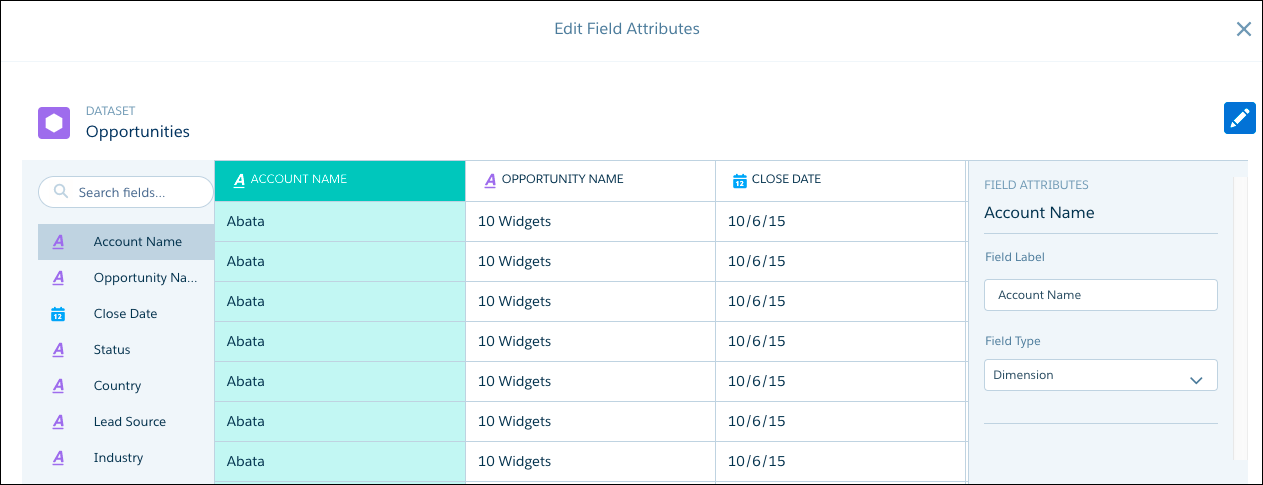
The Edit Field Attributes screen appears. Here, you can preview the data, and view or edit the attributes for each field.
-
To view or change a field’s attributes, either click the field in the list on the left,
or click the field’s column.
Field attributes appear in a panel on the right. The field attributes that you see are determined by the field type.
CRM Analytics detects the format for date fields based on a sample of values. If the sample contains values with unsupported formats or a mixture of formats, CRM Analytics sets the field type to Text. If you change the date format that CRM Analytics detects, rows with a different format will fail.
Consider this example data.
Row SIC Code SIC Description Last Updated 1 1110 Barley growing 1/10/17 2 1120 Rice growing 11/14/17 3 1130 Alliaceous vegetable growing 1/1/17 Consider this example data.CRM Analytics detects the date format for the Last Updated field as M/d/yy. This format displays months and days below 10 without leading zeros, and years as 2 digits, as in 1/1/17. If you change the format to MM/dd/yy, rows 1 and 3 will fail because CRM Analytics expects the month and day parts of the date values to have 2 digits.
-
When you finish reviewing or editing field attributes, click Upload
File.
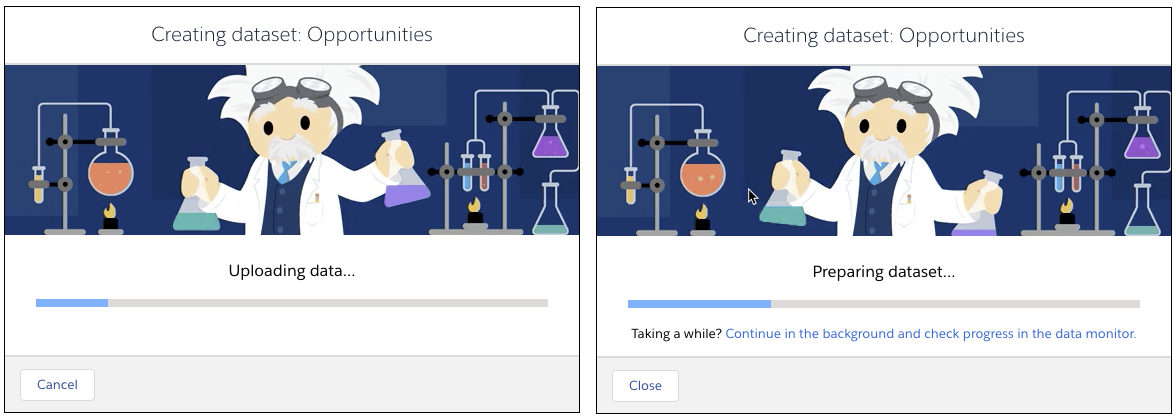
CRM Analytics uploads the data, prepares and creates the dataset, and shows you progress as it happens.
-
Choose one of these options while CRM Analytics creates the dataset.
-
To cancel the process and stop dataset creation, click
Cancel on the progress dialog.
This option is available only when the data is uploading.
- To close the progress dialog and leave the process running in the background, click Close.
- To close the progress dialog but continue monitoring progress on the Monitor tab of Data Manager, click the Continue in the background and check progress in the data monitor link.
-
Do nothing. When the dataset is created, you’re taken to the dataset’s edit page,
where you can explore the data in a lens, prepare it in a recipe, or create a story in
Einstein Discovery.

-
To cancel the process and stop dataset creation, click
Cancel on the progress dialog.
