Delete unnecessary datasets to reduce app clutter and avoid reaching your org's total
row limit for all registered datasets. You can delete datasets from shared apps on which you
have at least Editor access, your My Private App, and, with a special user permission, another
user’s My Private App.
Required Editions
Available in Salesforce Classic and Lightning Experience.
Available with CRM Analytics, which is available for an extra cost in
Enterprise, Performance, and Unlimited Editions. Also available in
Developer Edition.
User Permissions
Needed
To delete a dataset:
Use CRM Analytics AND Editor access to the dataset’s app
To delete a dataset in another user’s My Private App:
Manage CRM Analytics Private Assets
Before you delete a dataset, consider the following guidelines.
You can’t recover a deleted dataset.
Use the data manager to delete datasets from another user’s My Private App. You can’t
see or delete other users’ private datasets from the CRM Analytics home or app tabs. For
security reasons, you also can’t view the data in other users’ private datasets.
You also can’t delete a dataset that’s used in a dashboard, lens, or dataflow. Before
you delete a dataset, first remove references to it from dashboards or dataflow
transformations, and delete associated lenses.
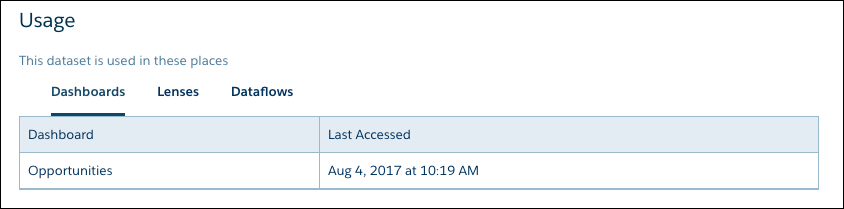
Tip To see where a dataset
is used, review the usage information on the dataset’s edit page.
Analytics doesn’t check or show if a dataset is used in recipes. Be sure to remove
dataset references from recipes as well. If you delete a dataset that's used in a
recipe, the recipe fails the next time it runs.
To locate the Delete Dataset button on the CRM Analytics home or an app page, follow
these steps.
Under the Datasets section, click next to the dataset that you want to delete.
Click Edit.
To locate the Delete Dataset button in the data manager, follow these steps.
In the data manager, click the Data tab.
On the Datasets subtab, click next to the dataset that you want to delete.
Click Edit Dataset.
On the dataset edit page, click the Delete Dataset button ().
If the dataset is in use, CRM Analytics stops the deletion and shows a list of
assets that reference the dataset. Click Got It and resolve these
references before trying again.
Click Delete Permanently.
Did this article solve your issue?
Let us know so we can improve!
Loading
Salesforce Help | Article
Cookie Consent Manager
General Information
Required Cookies
Functional Cookies
Advertising Cookies
General Information
We use three kinds of cookies on our websites: required, functional, and advertising. You can choose whether functional and advertising cookies apply. Click on the different cookie categories to find out more about each category and to change the default settings.
Privacy Statement
Required Cookies
Always Active
Required cookies are necessary for basic website functionality. Some examples include: session cookies needed to transmit the website, authentication cookies, and security cookies.
Functional Cookies
Functional cookies enhance functions, performance, and services on the website. Some examples include: cookies used to analyze site traffic, cookies used for market research, and cookies used to display advertising that is not directed to a particular individual.
Advertising Cookies
Advertising cookies track activity across websites in order to understand a viewer’s interests, and direct them specific marketing. Some examples include: cookies used for remarketing, or interest-based advertising.