
You are here:
Analyze Multiple Data Model Objects Using Joins
To explore and draw insights from multiple related data model object (DMO) records simultaneously, join these objects in a single dashboard query. Direct Data for Data 360 supports four types of joins on data model objects with defined relationships between them. You can also filter joined data and highlight the records that matter with conditional formatting.
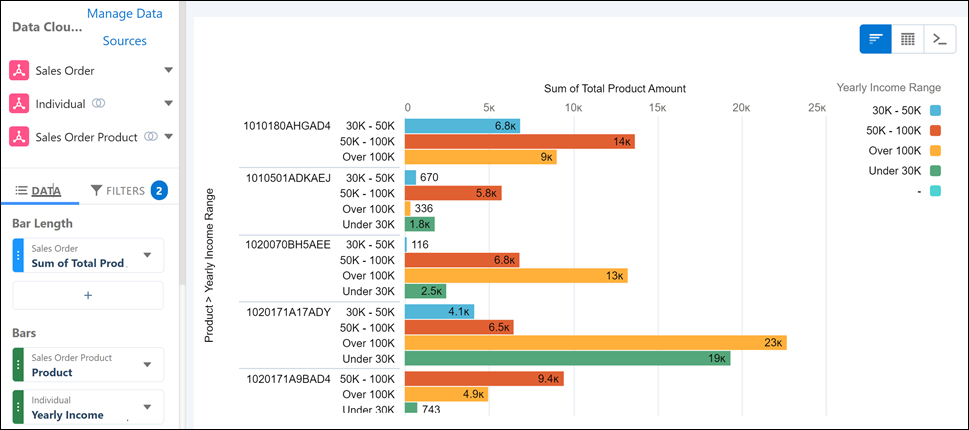
Say you want to compare sales order data with product and customer’s annual income.
-
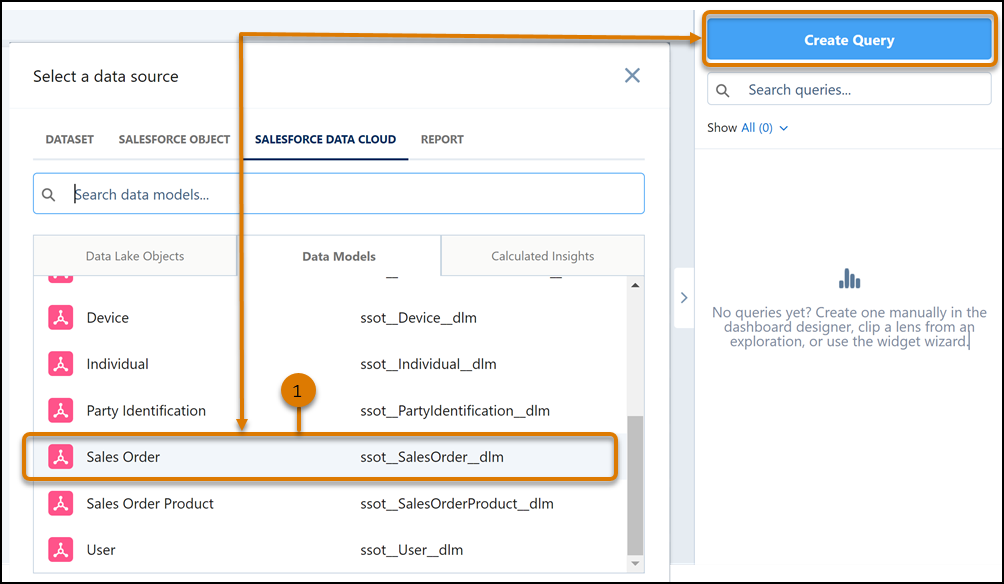
In the dashboard designer, create a query on the Sales Order DMO (1).
-
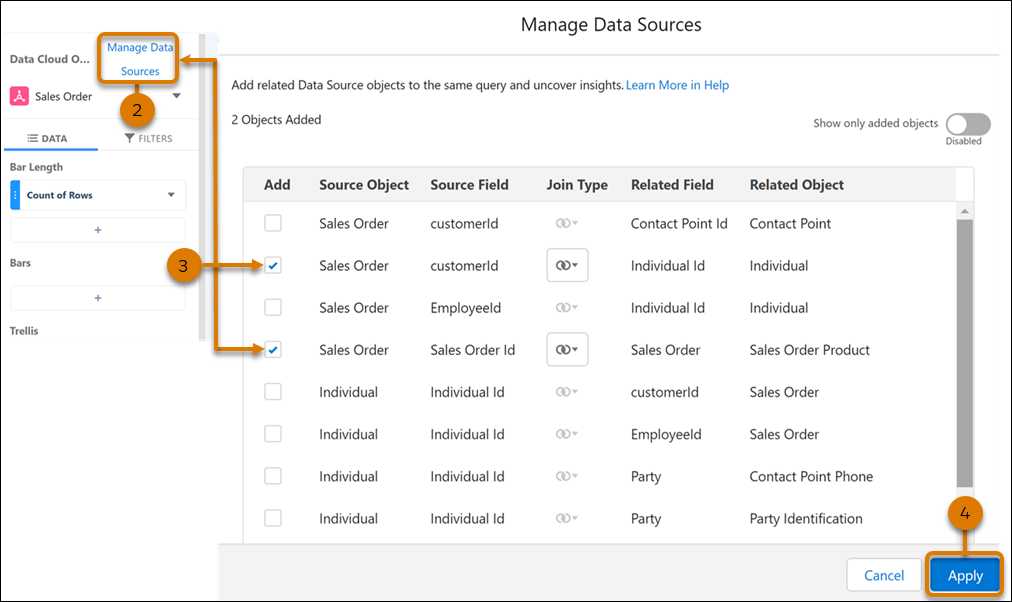
In the lens mode, click Manage Data Sources (2).
The Manage Data Sources window displays a list of related data sources.
-
Add the related Individual and Product DMOs to the query (3).
By default, the DMOs are joined using a left join.
-
Apply your changes (4).
-
Build your query on the joined DMOs in the dashboard lens.
Did this article solve your issue?
Let us know so we can improve!
