
Loading
Feature Degradation | Agentforce Voice Read More
CRM Analytics
Table of Contents
Select Filters

          No results
          No results
          Here are some search tips

          Check the spelling of your keywords.
          Use more general search terms.
          Select fewer filters to broaden your search.

          Search all of Salesforce Help
          Download CRM Analytics Images and Export Filtered Data

          Download CRM Analytics Images and Export Filtered Data

          Extract detailed insights from CRM Analytics that support collaboration and informed decision-making. You can download images and filtered data from lens explorations and dashboard widgets. Download formats include image (.png), Microsoft® Excel® (.xls), and comma-separated values (.csv) files. With the .xls format, there's also an option to include query metadata.
          Required Editions

          Available in Salesforce Classic and Lightning Experience.
          Available with CRM Analytics in Enterprise, Performance, and Unlimited Editions for an extra cost. Also available in Developer Edition.
          User Permissions Needed
          To download data from widgets and lenses using the CRM Analytics user interface: Download CRM Analytics Data
          To share images of dashboards and widgets when Secure Image Sharing and Downloading is enabled: Share CRM Analytics Images

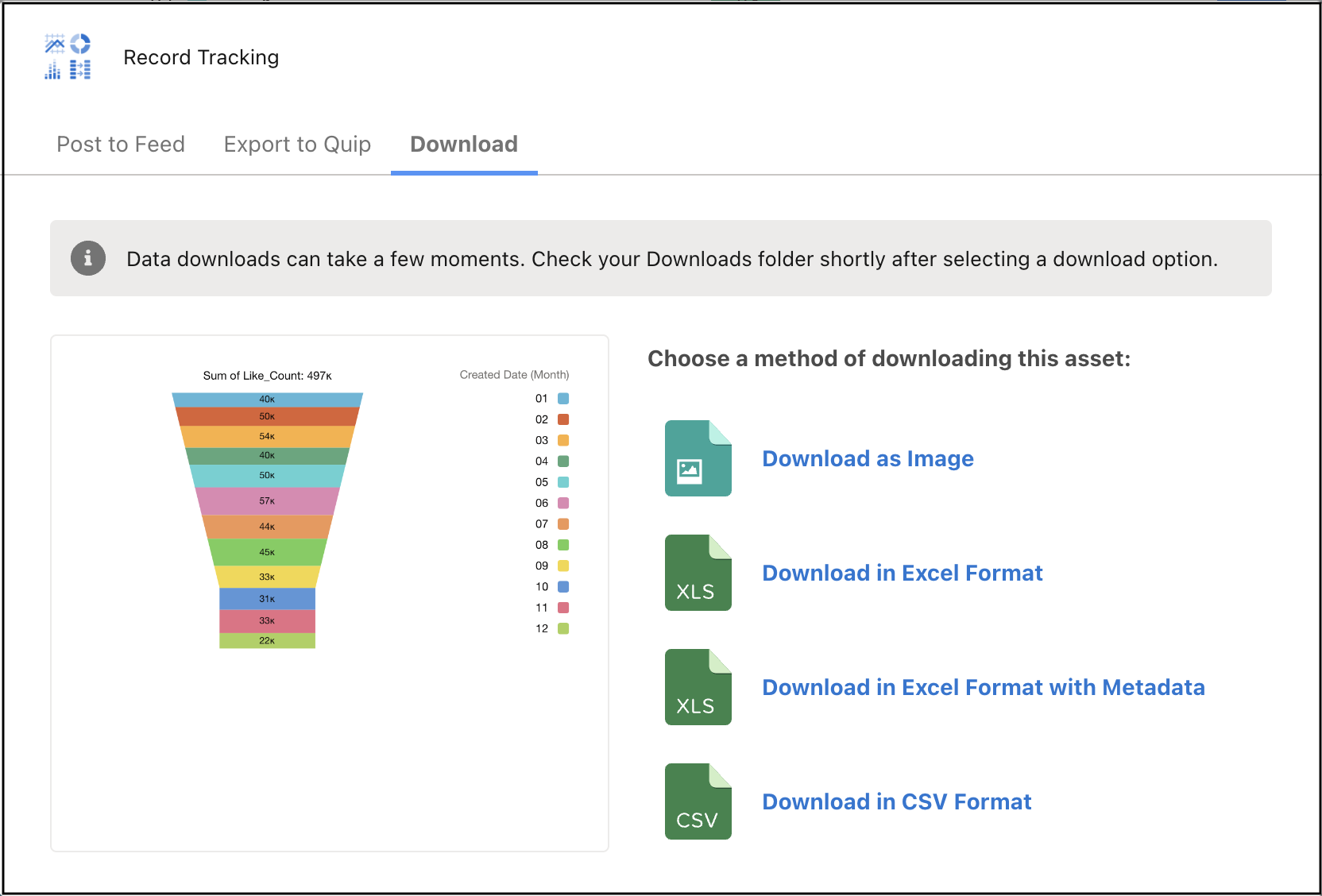
          Select Download from the menu on a dashboard widget to go directly to the Download dialog. Or from a lens, click the Share icon, and in the Share dialog, select the Download tab.

          Share dialog with download options

          To download an image of the dashboard, click the Download icon Download icon on the CRM Analytics dashboard. Then, select Download as Image to download an image in PNG format.

          Take note of these considerations when downloading data in Excel or CSV format.

          • The Excel and CSV options download the results of a displayed query (or step). The query limit determines the number of rows in the .xls or .csv file.
          • With the Download in Excel Format option, exports to Excel files are limited to 6,000,000 cells. If you want to export more data, select Download in CSV Format.
          • The Download in Excel Format with Metadata option can include the name of the user, the date and time of the export, dashboard and widget titles, groups and filters in the query, and the number of records downloaded.
          • The maximum number of concurrent downloads is one per format type (that is, one Excel download and one CSV download can be in progress at a time).
          • Downloading data isn't supported for lenses based on SQL queries or on direct data queries, such as direct queries on Salesforce objects, CDP, Snowflake, and Google BigQuery. However, you can export up to 10,000 rows as a CSV file from lenses and dashboard widgets that use Snowflake live data.
          • For table data downloads, text wrapping within tables, hidden columns, grouped column order, collapsed columns, and merged cells aren’t supported.
          • For tables based on queries with bindings, downloads show the columns as projected in the query.
          • For pivot tables, queries customized with SAQL union statements download as raw data instead of in pivot table format.
          • If a measure field has a multiplier of “0”, downloaded data shows all values for that field displaying as “0”.
          • Compact Form 2.0: Subtotal values are automatically on if Column Totals in the JSON have more than one value, or if the binding result is multi-valued. To turn off subtotals in these cases, pass a single value to the ColumnTotals attribute within the JSON by using the Advanced Editor.

          For Download as Image, the background color of the downloaded widget is white by default. For widgets with dark backgrounds and light text, this can result in non-visible text when the widget is downloaded.

           
          Loading
          Salesforce Help | Article