You are here:
Customize Prediction Text
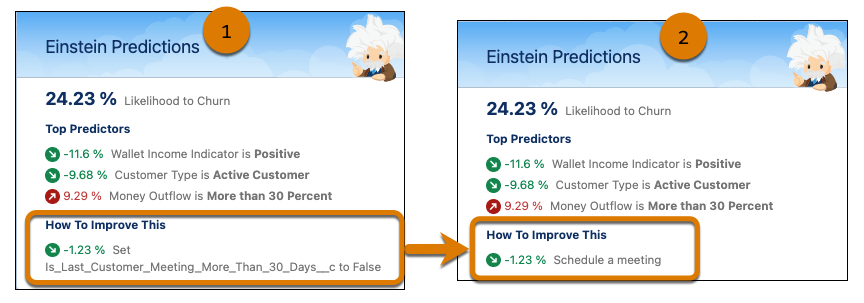
Provide custom text for variables that appear as top predictors or suggested improvements on your Salesforce records to make them easier to understand. For example, you can have Einstein explain that a top predictor for time in the sales cycle is “Repeat Purchase” instead of “Previous Closed Won Opportunity Match is True.” You can also have Einstein suggest to “Schedule a meeting” instead of “Set Last Customer Meeting More than 30 days to False.” Your custom text for top predictors and suggested improvements is configured in the model.

- Custom text isn’t localized to other languages. The custom text is displayed exactly as it’s specified.
- Other customizations to the Einstein Predictions component are available in the Lightning App Builder. To learn more, see Get Predictions on Lightning Pages
-
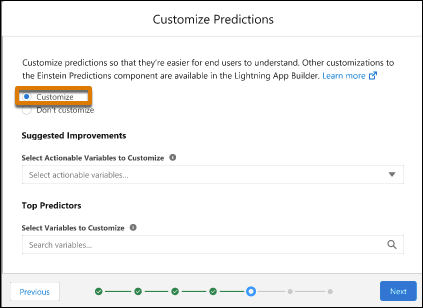
In Customize Predictions, click Customize.
-
During model deployment, use the customize predictions step.
-
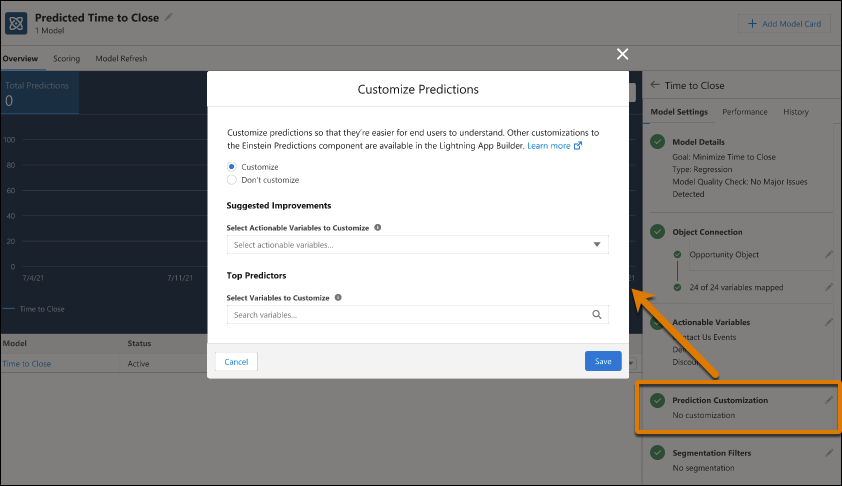
For deployed models, go to Model Manager to edit the model settings for Prediction
Customization. See Edit Model Settings.
-
During model deployment, use the customize predictions step.
-
Select a variable.
-
Use Suggested Improvements to customize the text shown when Einstein recommends
taking an action to improve the outcome. Only variables selected as actionable during
the previous deployment step can be selected.
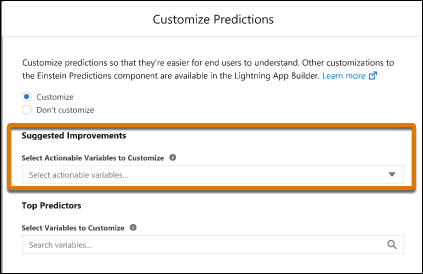 Note Custom text for Suggested Improvements is available for binary classification and regression models. It isn’t available for multiclass classification models.
 -
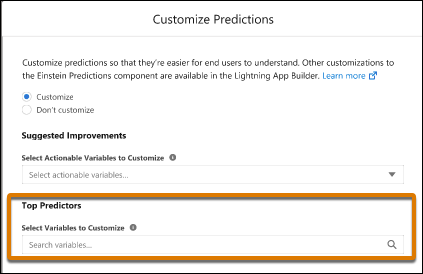
Use Top Predictors to customize the text shown when Einstein explains the factors
that contributed the most to the predicted outcome value.
-
Use Suggested Improvements to customize the text shown when Einstein recommends
taking an action to improve the outcome. Only variables selected as actionable during
the previous deployment step can be selected.
-
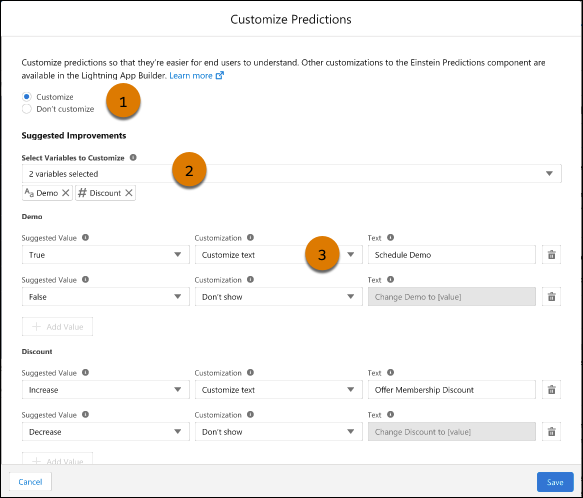
Configure custom text.
- In Suggested Value, select a value from the variable.
-
Use Customization to select a customization option.
Customization Option Description Don’t show No text is displayed. Use this option when you want to hide this value. Customize text Displays the specified custom text. Use this option when you want to control how the value appears when it’s a top predictor or suggested improvement. -
Enter the custom text.
- For variables with text values, define custom text for individual values.
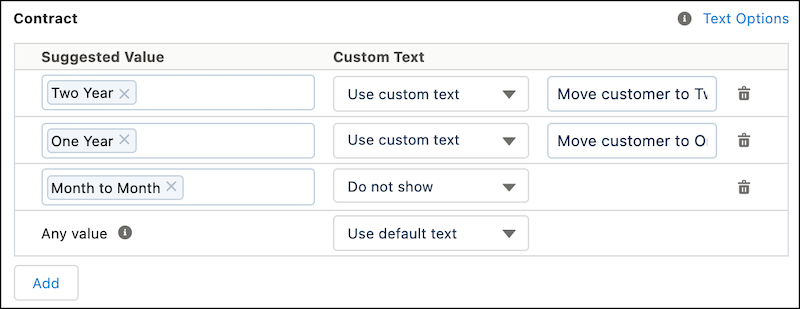
- For example, for a Service Plan variable, you can define one message for “Trial and “Basic” (“Upgrade to Premium Plan”), and another for “None” (”Sign Up for a Service Plan”).
- The Remaining Values option applies to any text value other than values customized previously.
- For variables with numeric values, define custom text for suggested changes to
the value.

-
- For example, for a Count of Activities variable, you can define a message to “Increase” (Add to Call List), and another to “Decrease” (”Don’t Disturb”).
- You can include placeholders inside the custom text.
Placeholder Description [field_name] Variable name. [value] Suggested value or range. For numbers:
- [diff]
- Difference between the current value and the suggested value or range.
For bucketed numbers:
- [value_high]
- [value_low]
- [max_diff]
- [min_diff]
- Top of the suggested range.
- Bottom of the suggested range.
- Difference between [value_high] and the current value.
- Difference between [value_low] and the current value.
- For variables with text values, define custom text for individual values.
- Optionally, click Add Value to customize text for another value in the variable. Text can be customized for one, or all, values in the variable.
- Click Save.

Recommendations from Einstein that use labels from the dataset can be difficult to understand (1). Customizing the text Einstein displays can make it easier to understand (2).