You are here:
Configure Performance Monitoring for a Prediction Definition
Configure performance monitoring if you want Einstein Discovery to display performance monitoring charts for a prediction definition. Performance monitoring is available for prediction definitions that use automated prediction writeback.
To measure model performance, Einstein Discovery compares predicted outcomes with actual outcomes. An actual outcome represents data that has reached its terminal state, such as historical data that is not expected to change. For example, after an order ships, the ship date and the number of items shipped are finalized. You define the conditions under which data has reached a terminal state so that Einstein Discovery knows which data to include in its performance analysis.
To configure performance monitoring:
- In Model Manager, view a prediction definition that uses automated writeback fields. If it's not enabled, then follow the instructions in Configure Automated Prediction Writeback for a Prediction Definition .
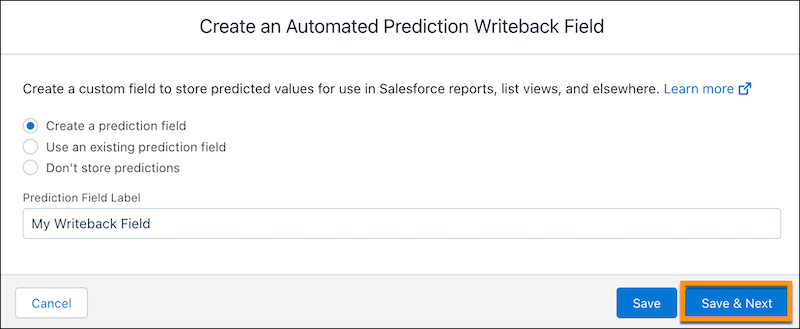
- While configuring automated writeback, click Save & Next.
-
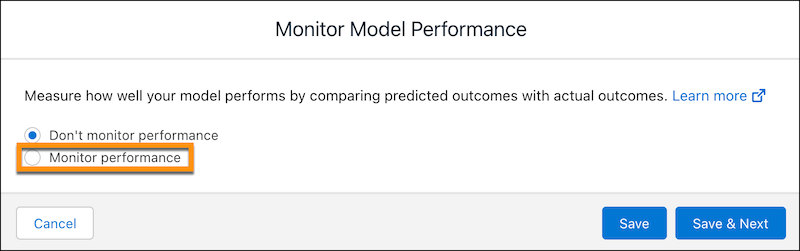
When prompted, select Monitor performance.
-
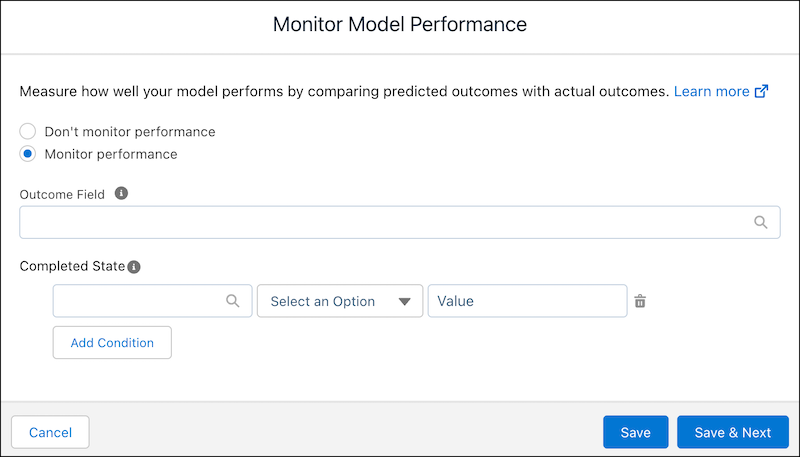
Select an Outcome Field to use for determining terminal
state.
-
Specify one or more conditions.
- For each condition, select a field, select an operator
(Equals or Not Equals), and set a value.
 Note
Note- Filter expressions are case-sensitive. The value you specify must be an exact match. For example, "software" and "Software" are different matches. If your data contains variations in capitalization, consider cleansing your data during data prep to standardize patterns of uppercase and lowercase characters. For instructions on preparing data and data integration options, see Integrate and Prepare Data for Analysis.
- Einstein displays object fields to which you have access. If you don't see an object field you expect, check the field-level security settings for your user account to ensure that you have at least read access to that field in the Salesforce object.
- To add multiple conditions, click Add Condition.
- To delete a condition, click the trash icon next to it.
- For each condition, select a field, select an operator
(Equals or Not Equals), and set a value.
- Click Save Settings.