
You are here:
Create the Accuracy Analytics App for a Prediction Definition
To analyze accuracy for a prediction, you first set up Accuracy Analytics, which you use to analyze and display prediction accuracy.
Prerequisites for Models and Prediction Definitions
Before you set up Accuracy Analytics:
- Create the model.
- Deploy the model to a prediction definition. For instructions, see Deploy Models.
- Use automated prediction writeback fields. For instructions, see Configure Automated Prediction Writeback for a Prediction Definition.
 Note All fields in the model must be mapped to fields in the Salesforce object. Mappings must be to the primary object (no mapping to features in child objects).
 - Performance monitoring must be configured for the prediction definition. Configure the terminal state for your data.
- The prediction definition must have at least one active model. It can have multiple models. Scoring occurs when records in the associated Salesforce object are created and edited. For each prediction definition, only one model is used to score a record.
Set Up the Accuracy Analytics App
-
View a Prediction Definition in Model
Manager.
If your prediction definition meets the prerequisites, you see the Analyze Accuracy button in the upper right corner of your screen. Click this button to create an app or open an existing app.
-
Click Analyze Accuracy.
The Model Manager prompts you with details about the model:
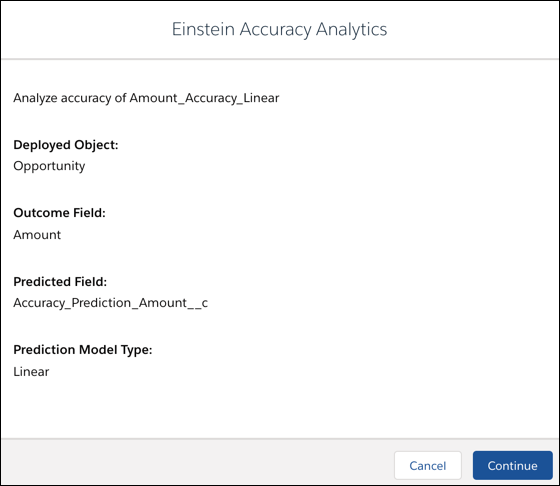
Field Description Deployed Object Salesforce object associated with this prediction definition. Outcome Field Outcome field for the model. Predicted Field Prediction field used to store the prediction value. Prediction Model Type One of the following values:
- Linear for numeric fields
- Logistic for text fields (classification use case)
-
Click Continue.
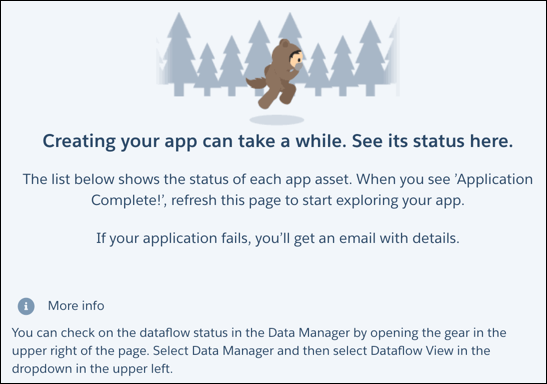
The Model Manager displays progress while creating the Accuracy Analytics app and its associated dataset and data flow.When finished, the Model Manager displays Accuracy Analytics with a dashboard, dataset, and dataflow.
Did this article solve your issue?
Let us know so we can improve!
