
You are here:
Configure the Model Card for a Prediction Definition
Model cards help you document and communicate important usage information about your predictions. A model card shows statistics associated with the data that’s used to train the model. It can also show any optional explanations you provide about the prediction’s intended use, design assumptions, target audience, capabilities and limitations, and other relevant information. Disclosing these details helps users to understand predictions and differentiate among multiple predictions. Then they can make ethical, informed decisions about whether a prediction suits their use case.
To enable and configure a model card:
- View a Prediction Definition in Model Manager.
-
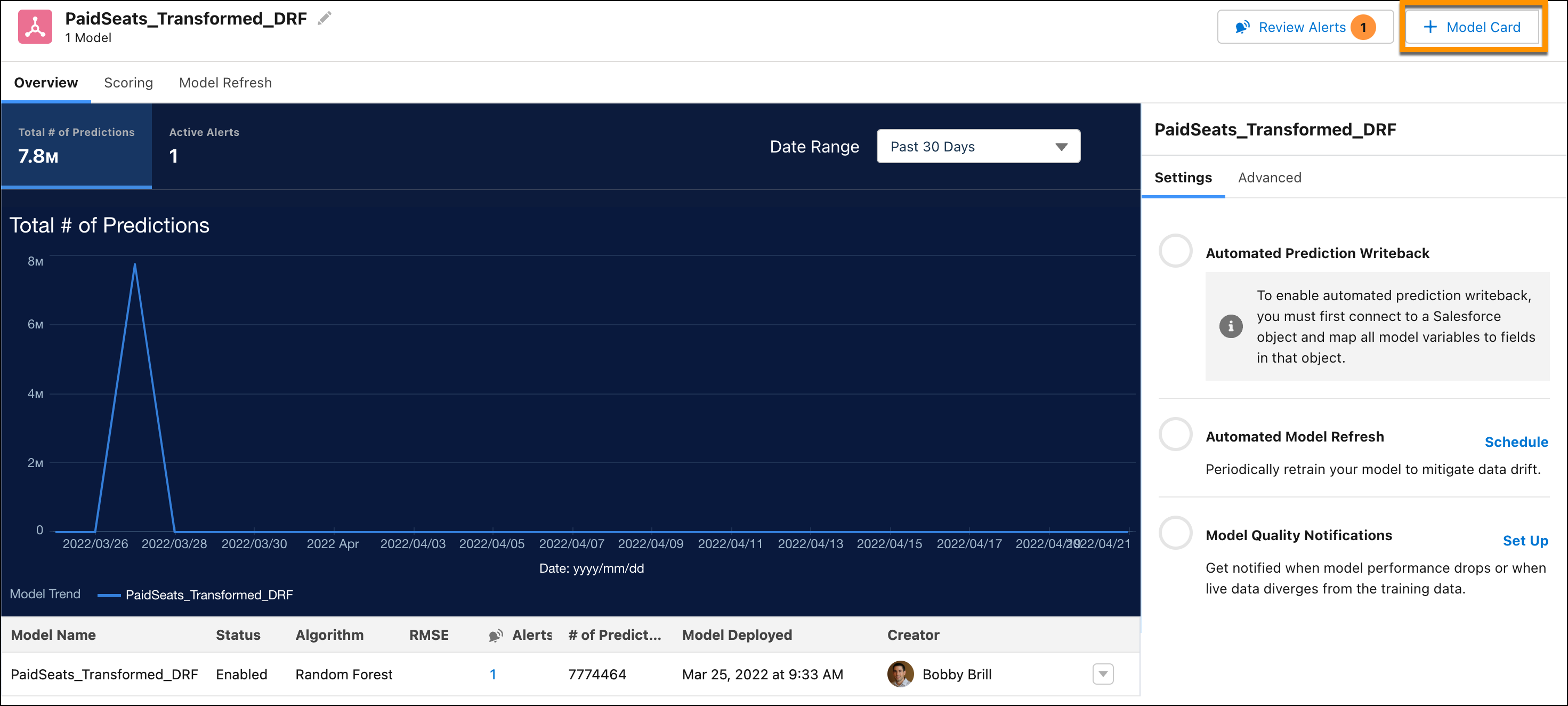
To add a model card, click + Model Card. To edit an existing
one, click + Edit Model Card.
-
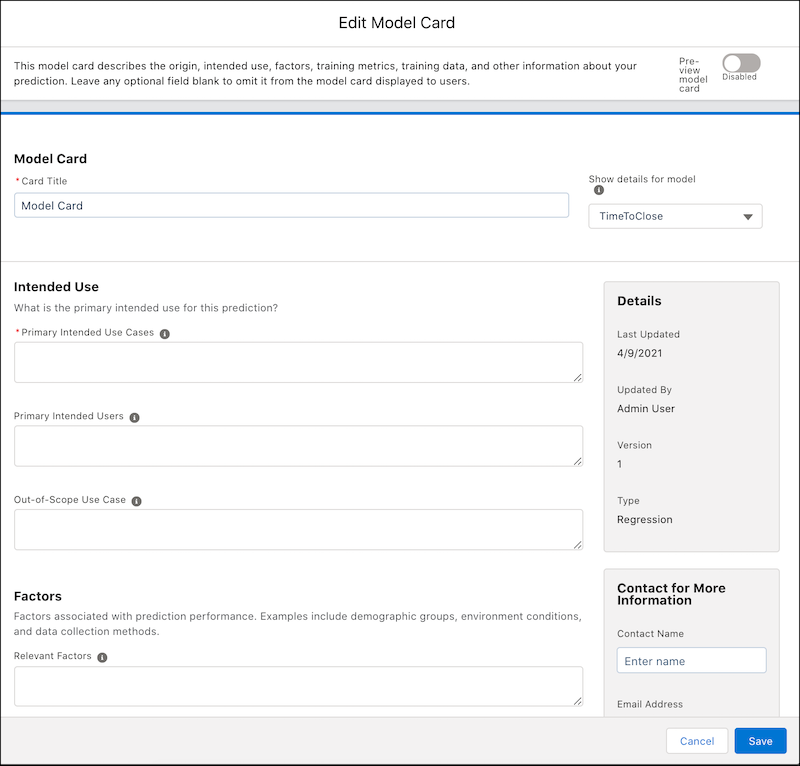
Specify the title for the model card (required).
-
Specify any other information you want to provide about the model. Empty fields are not
displayed to the user.
Section Description Intended Use Describe the intended use, intended users, and out of scope use cases. Factors Describe factors associated with prediction performance. Training Metrics Shows model metrics for when the model was trained.
 Note For multiclass classification models, select any classes that you want to show in the model card. For each selected class, Einstein displays individual training metrics on the model card.
Training Data Describe relevant data sources, design motivation, and data prep for the training data. Ethical Considerations Describe any ethical considerations associated with the design of this model. Caveats and Recommendations Describe other issues or concerns regarding this model. Additional Information Describe additional resources and provide citation details. -
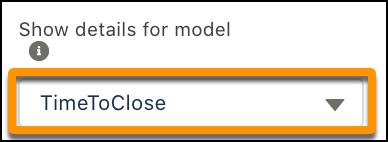
If a prediction definition contains multiple models, to see details about a different
model, select the model name from the Show details for model
list.
-
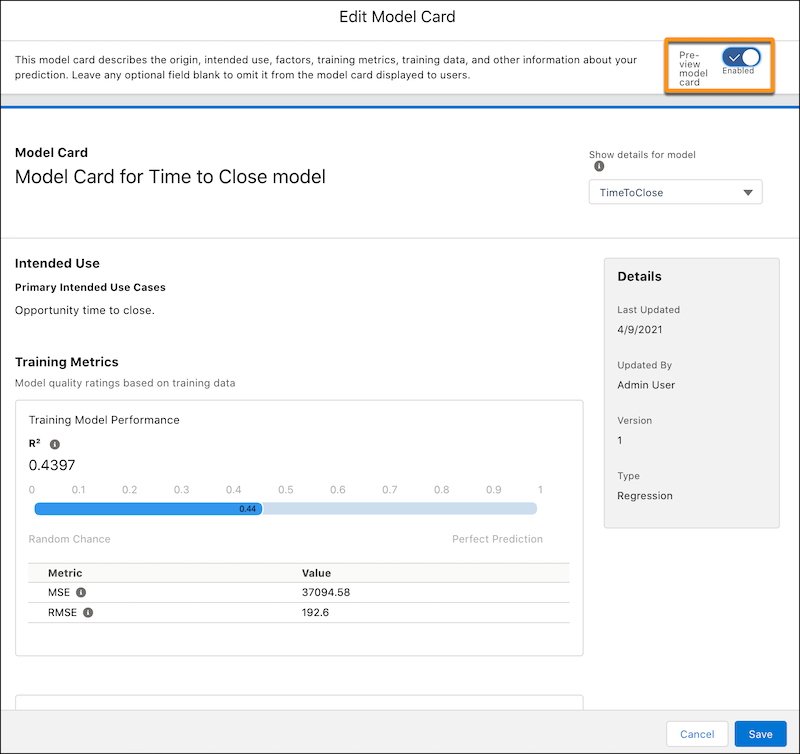
To see a preview of your settings, enable Preview model
card.
- Save your changes.
-
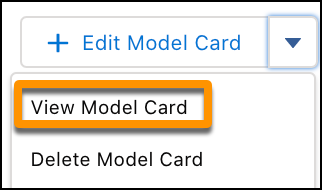
To share a model card, download it as a .pdf file. Choose View
Model from the Edit Model Card menu, and then click
Download.
-
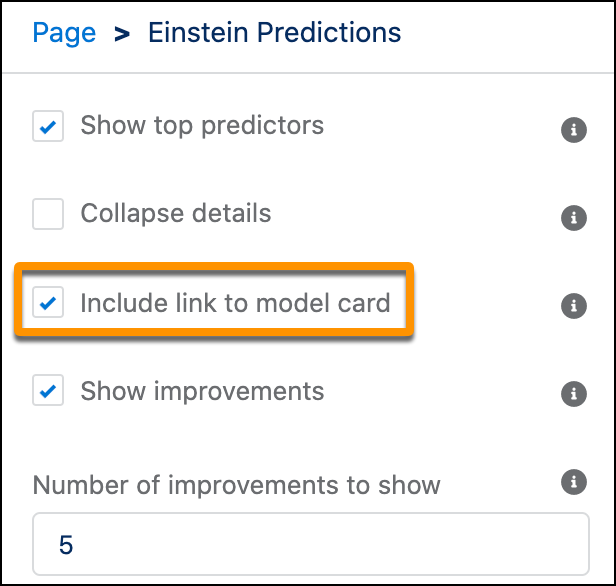
To allow users to view the model card on a Lighting record page, edit the page in
Lightning App Builder, configure the Einstein Prediction component, enable
Include link to model card, and save.
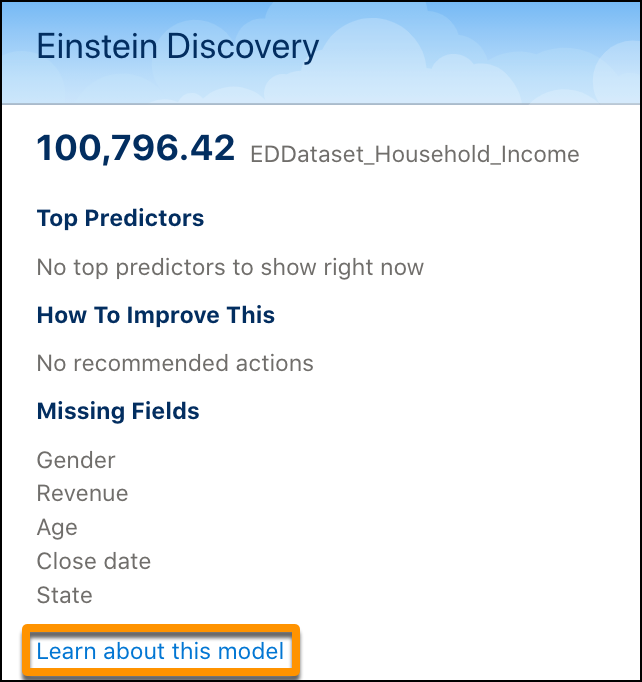
On the Lighting record page, users can click Learn about this model to see the model card you configured.
To learn more, see Get Predictions on Lightning Pages.
