
You are here:
Configure Automated Prediction Writeback for a Prediction Definition
Automated prediction writeback saves numeric prediction scores to a field in a Salesforce object. Using this feature requires that you deploy a model that outputs a numerical prediction (regression) or score (binary classification) and for which you can map all model fields back to Salesforce fields. You can use an existing AI Prediction field or create a custom field by specifying a label.
- In Model Manager, open a prediction definition.
-
In the settings panel, click Enable next to Automated Prediction
Writeback.
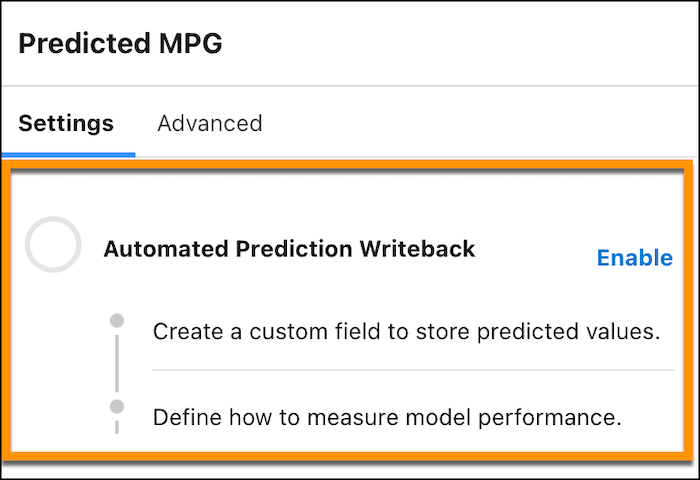
-
Select one of these following options.
Option Description Create a prediction field Have Einstein create the prediction field using the prediction field label you specify. Einstein stores prediction results in this custom prediction field. You must choose a Salesforce object. All fields must be mapped from the model to corresponding fields in the Salesforce object. Field mapping is supported for any field on that object for which the prediction definition was deployed, or for any parent object. Use an existing prediction field Have Einstein store prediction results in an existing prediction field. Don't store predictions Don’t store the prediction value in a prediction field, or store results in a custom field that you configure later. Select this option if you don’t use automated prediction fields. This kind of prediction is run programmatically via the Get Predictions and Improvements with Einstein Prediction Service using REST API calls or implementations.  Note For additional instructions, see Display Einstein Predictions Using Automated Prediction Writeback.
 - Click Save. To configure performance alerts, click Save and Next, then proceed to Configure Model Quality Notifications.
Did this article solve your issue?
Let us know so we can improve!
