
You are here:
Configure Automatic Model Refresh for a Prediction Definition
Use automatic refresh to schedule regular, unattended model updates on a weekly or monthly basis.
Over time, a deployed model's performance can drift. The model becomes less accurate in predicting outcomes due to changes in the business environment, data, or requirements. To combat drift, refresh your model periodically.
- View a Prediction Definition in Model Manager.
-
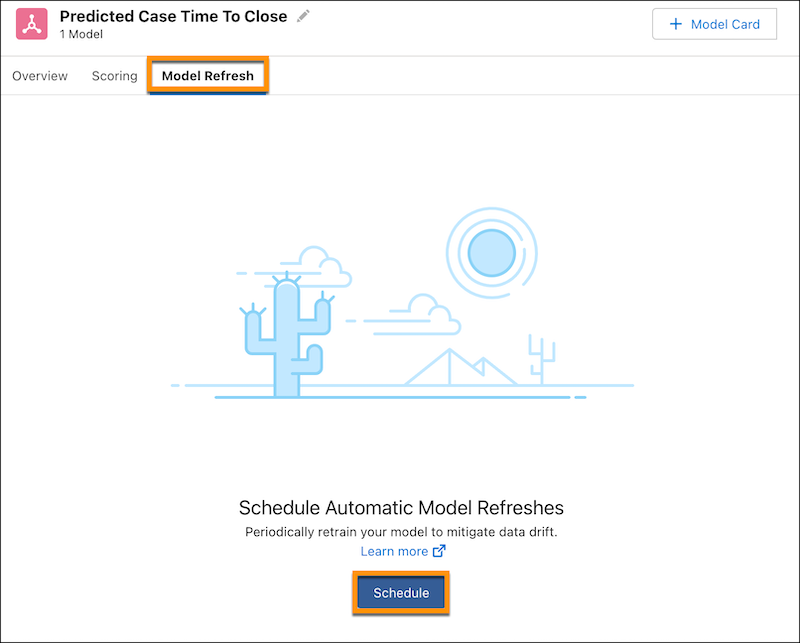
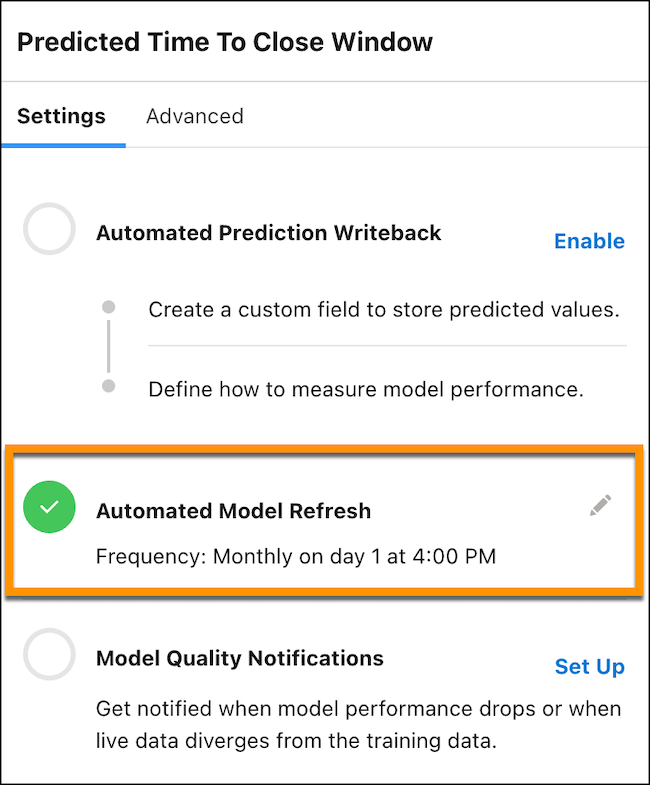
In the settings panel, click Schedule next to
Automated Model Refresh, or click the Model
Refresh subtab and then click Schedule.
-
Select Automatically refresh model data and configure the refresh schedule
settings.
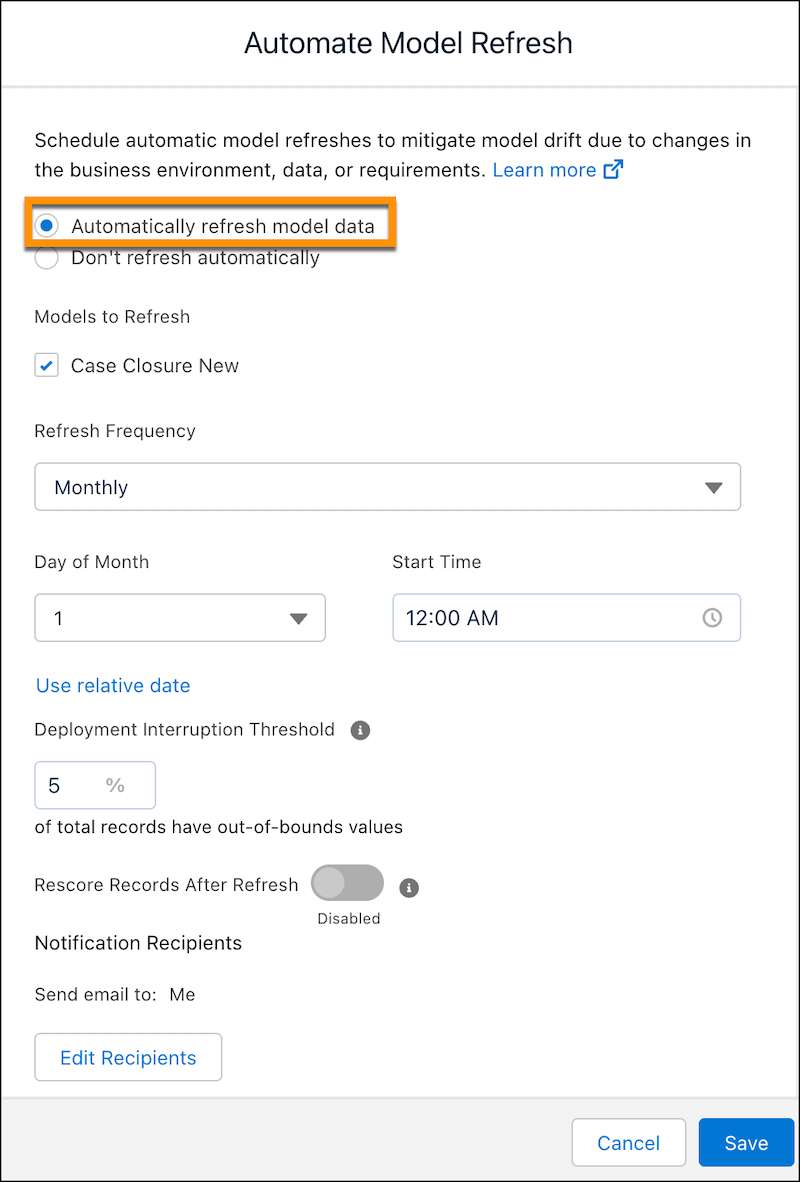
Field Description Models to Refresh Select one or more models to refresh. Refresh Frequency Monthly or Weekly. Day of the Week / Month Day of the week or month, depending on the refresh frequency. Start Time Start time for the refresh job. Use relative / calendar date - Use calendar date to specify a specific day of the week or month.
- Use relative date to specify a pattern, such as the first Monday of the month.
Deployment Interruption Threshold Specify a threshold for out of bounds values. Einstein does not deploy automatically if the percentage of out of bounds values exceeds this threshold. Re-score records after refresh Enable to rescore records and write back predictions after refresh. -
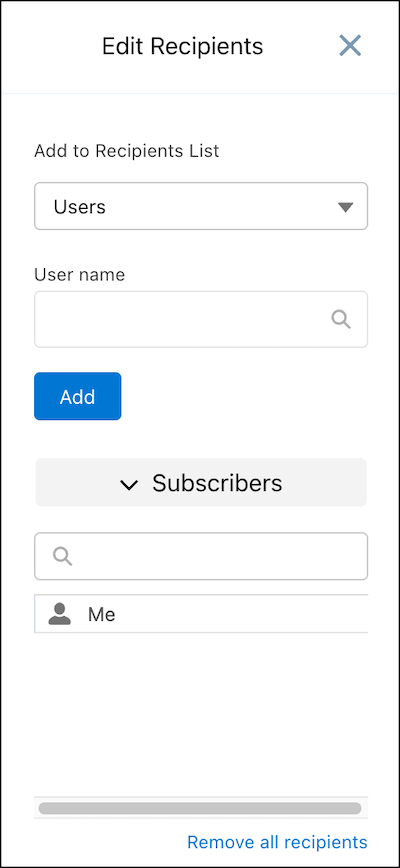
Configure the recipients of refresh notification. Click Edit Recipients, add or
update recipients in the subscribers list, and close the window when finished.
-
Click Save.
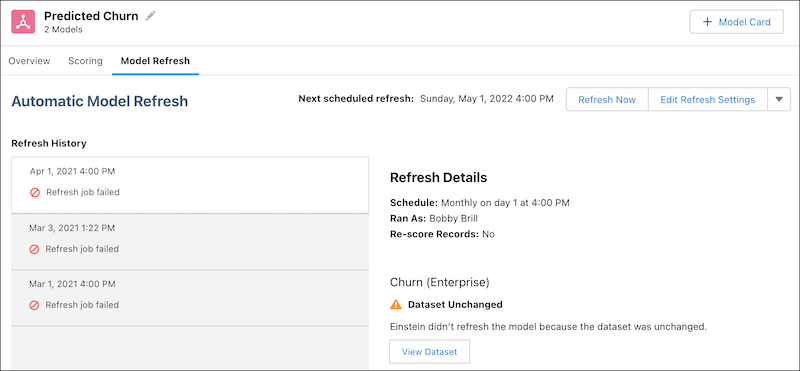
After you schedule a refresh job, click the Model Refresh subtab to view status and edit settings.
- To refresh the model on demand, click Refresh Now and click Continue to confirm that you want to run the refresh job.
- To configure refresh job settings, click the dropdown and choose Edit Refresh Sheetings.
- To disable a refresh job, click the dropdown and choose Disable Automatic Refresh.
Whenever the refresh job completes, subscribed recipients receive an email notification, and the Model Refresh page displays the job history. In the following example, the refresh jobs did not run because the dataset was unchanged.
Did this article solve your issue?
Let us know so we can improve!
