
You are here:
Get Predictions With Bulk Scoring
You can score predictions on multiple records at a time. For example, use bulk scoring to refresh all prediction scores after you deploy an updated model. You can also run bulk scoring on historical data to see how well your model performs. With bulk scoring, you can score all records, a segment of the records, or records that have not reached the completed state.
To view a model:
- View a Prediction Definition in Model Manager.
-
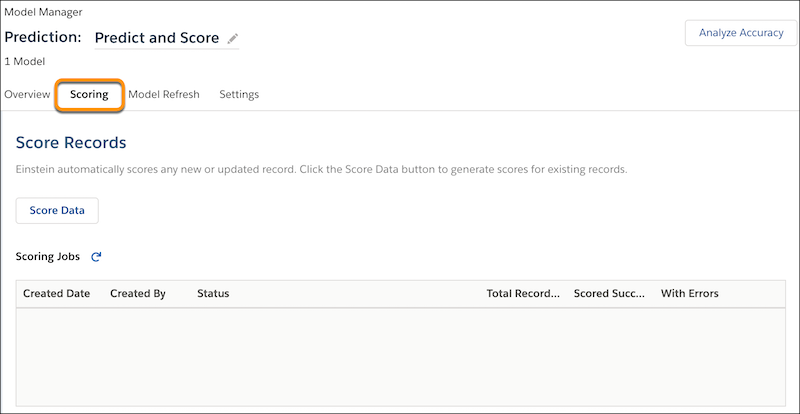
Click the Scoring tab.
-
Click Enable.
-
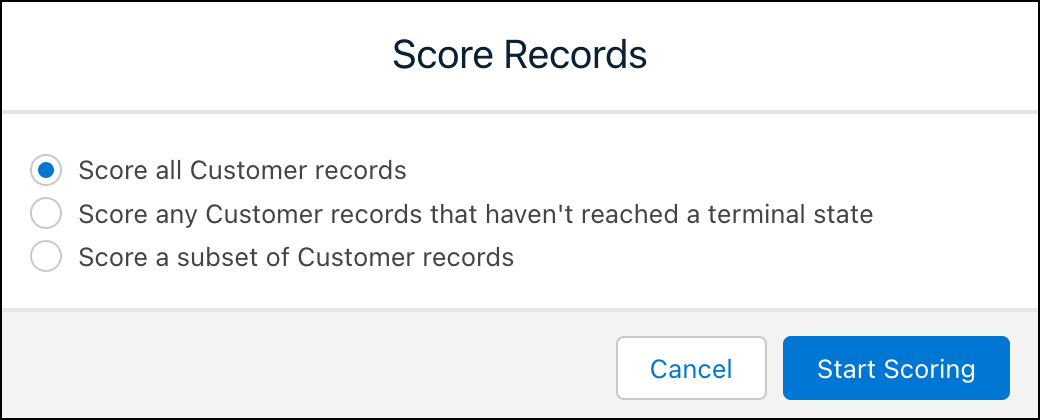
Select the scope of the records you want to score.
Column Description Score all ObjectName records Score all records. Score any ObjectName records that haven't reached a terminal state Score any records that have not yet reached a terminal state. Score a subset of ObjectName records Select a subset of records (segment). Specify one or more filter conditions for the records you want score.
 Note
Note- Filter expressions are case-sensitive. The value you specify must be an exact match. For example, "software" and "Software" are different matches. If your data contains variations in capitalization, consider cleansing your data during data prep to standardize patterns of uppercase and lowercase characters. For instructions on preparing data and data integration options, see Integrate and Prepare Data for Analysis.
- Einstein displays object fields to which you have access. If you don't see an object field you expect, check the field-level security settings for your user account to ensure that you have at least read access to that field in the Salesforce object.
- Click Start Scoring.
-
To verify that you want to proceed, click Continue.
Model Manager creates a new scoring job and displays scoring progress. When finished, Model Manager displays the results of the scoring job.
Column Description Created Date Date when the scoring job was created. Created By User who created the scoring job. Status Status of the scoring job. Total Records Selected Number of records selected for scoring. Scored Successfully Number of records that were scored successfully. With Errors Number of records with scoring errors. Note If the daily predictions limit is reached in your org, active scoring jobs are paused, then resumed the next day.To manage scoring jobs:
- Click Cancel to cancel a scoring job in progress.
- Click Run Again to run a scoring job again.
- Click Delete to delete a scoring job.
See Also
Did this article solve your issue?
Let us know so we can improve!
