You are here:
Detect and Remove Bias from a Model
Einstein Discovery helps you practice ethical use of AI by detecting bias in your data so that you can remove its distorting effects on your analysis and predictions. Bias indicates that variables are being treated unequally in your model.
Required Editions

| Available in Salesforce Classic and Lightning Experience. |
| Available with CRM Analytics, which is available for an extra cost in Enterprise, Performance, and Unlimited Editions. Also available in Developer Edition. |
Examples of bias include:
- Proxy variables, where a variable is highly correlated to a sensitive variable, such as a loan applicant's street address and ethnicity.
- Disparate impact is a type of analysis we do to try to understand how different groups are being treated by the model.
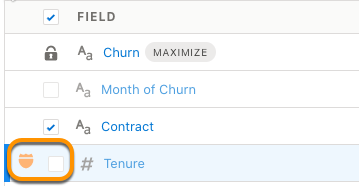
Einstein Discovery lets you flag data that could potentially be associated with unfair treatment—such as race, gender, religion, national origin, sexual orientation, disability, age—as sensitive variables. Einstein Discovery then displays a shield icon next to models and insights associated with sensitive variables as a reminder of possible bias while you investigate your data. Removing biased variables from your model can produce more ethical and accountable insights. For an overview, take the following Trailhead modules:
To detect and remove bias in your model:
-
In Model Setup, select a variable that you suspect can indicate bias, click the
Settings tab in the right panel, and select Analyze
for Bias.
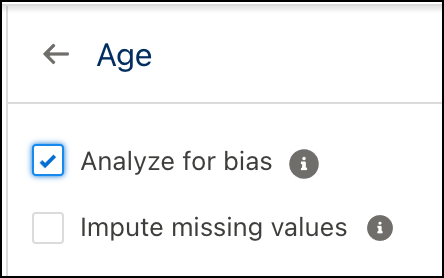
- Click Update Model to create a new model version.
-
To filter the list so that it contains only insights associated with sensitive variables,
click the shield button.
 The shield icon indicates that this insight is associated with a variable that has been flagged as sensitive.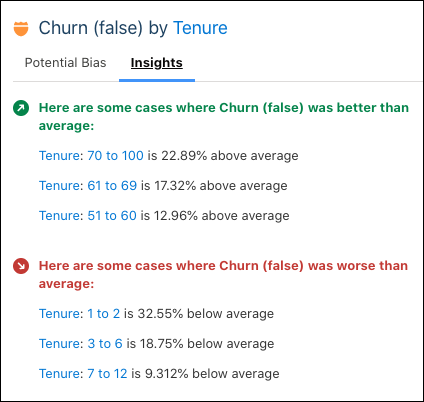
-
Select an insight card.
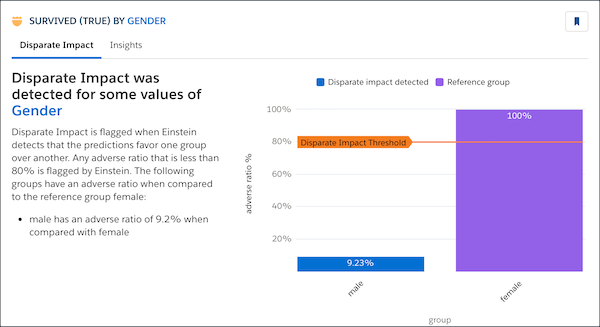
- Einstein Discovery shows you a disparate impact analysis if there is a significant
discrepancy in the way different classes are being treated by the model.
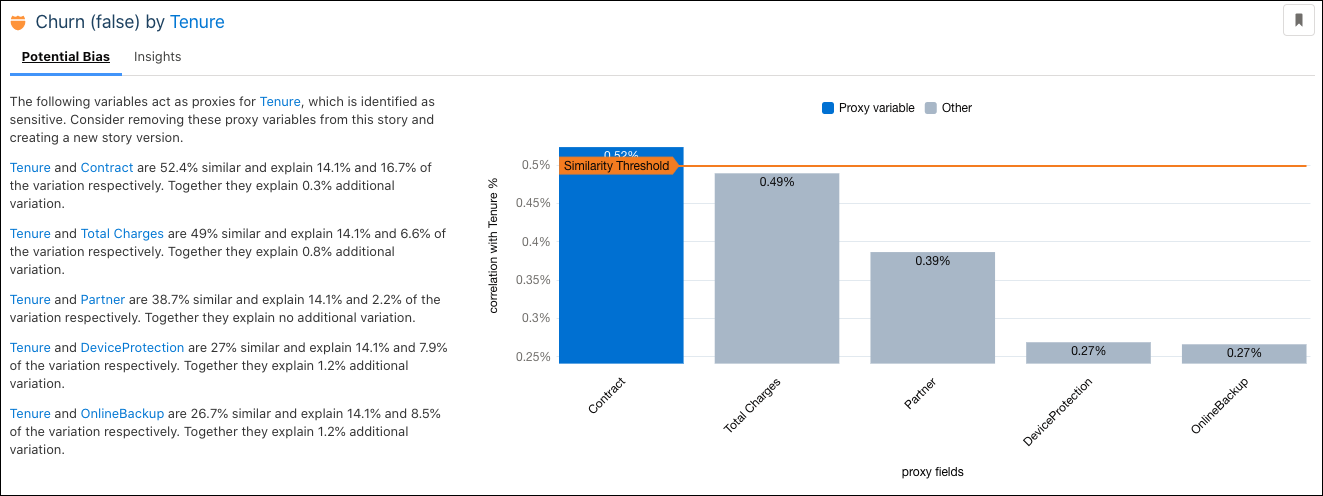
- Einstein Discovery shows you a potential bias analysis if it detects possible proxy
variables.
- Einstein Discovery shows you a disparate impact analysis if there is a significant
discrepancy in the way different classes are being treated by the model.
-
Click Edit Model to view model settings. Notice how Einstein
displays the shield icon and the Disparate Impact data alert for
the variable.

-
Investigate your model’s insights to help you decide whether to include a sensitive
variable (because it serves your analysis), or to exclude it and remove its biased
influence from the model. To remove a variable, simply disable it and click
Update Model to create a new model version without it.