
You are here:
Edit Model Settings
Working with models is often an iterative process of further refinement. As you investigate insights in your model, you can decide to improve it by revising your settings and creating a newer version. For example, you can include or exclude a column and rerun the analysis. By interacting with the model, you overlay your intuition and domain knowledge to make the model more insightful and its recommendations more pertinent.
Required Editions

| Available in Salesforce Classic and Lightning Experience. |
| Available with CRM Analytics, which is available for an extra cost in Enterprise, Performance, and Unlimited Editions. Also available in Developer Edition. |
| User Permissions Needed | |
|---|---|
| To update model settings: | Create and Update Einstein Discovery Models |
- Open the model.
-
From the Model Toolbar, click Edit Model.
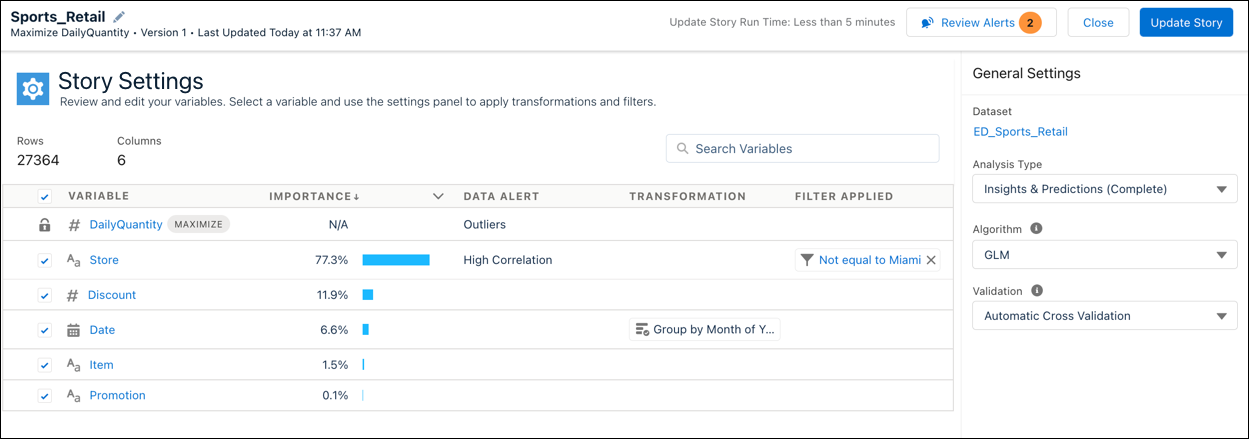
If you see a banner indicating that the dataset has changed since the model was created, select Review model settings using the latest data, review the model settings, and the click Update Model to create a model version based on the latest available data.

-
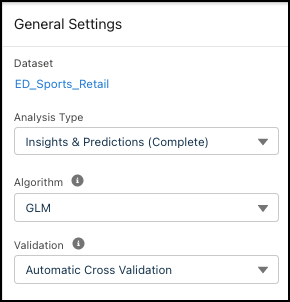
Change the model’s general settings in the right side panel. To learn more, see Edit General Settings for a Model.
-
Use the table to select which variables to include in your model.
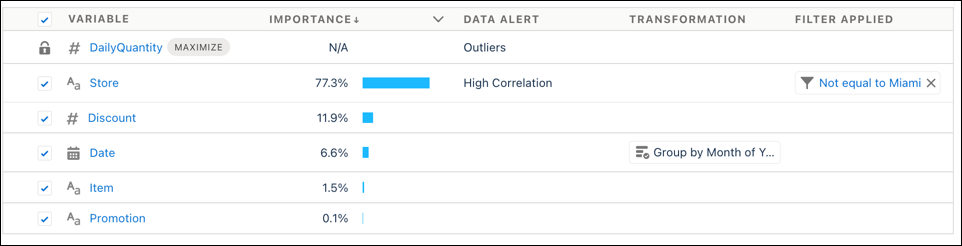
Column Description Selection Select the checkbox to include the variable in the model. Select at least 2, and no more than 49, variables. The row with the lock icon indicates the model’s outcome variable, or target. It’s automatically included in the model. It can’t be deselected. Variable Dataset column, or field. Also known as a feature variable. Each row represents a column in the dataset, and is marked as a number, text, or date variable.
Sort the table by variable in ascending or descending order by clicking the column header.
- The list of variables includes numeric, text, and date columns with at least 25 rows of data from the dataset.
- Multivalue fields, which are fields that contain multiple values (such as a list or array), aren’t supported in Einstein Discovery. To learn more, see Einstein Discovery Capacities and Requirements.
Importance or Correlation Einstein shows metrics to help you decide which variables to include. Correlation shows the strength of association between the variable and the outcome, and importance shows how much the model uses the variable when predicting the outcome. For example, when predicting energy usage, temperature might be the highest correlated, while air conditioner type is the most important.
To choose what you want to see, use the column’s dropdown menu.
- Importance shows how much the variable influences the outcome. Importance indicates the degree by which the model chooses to use the variable when predicting the outcome. The higher the importance, the greater the impact.
- Correlation shows how much the variable is associated with the outcome. The higher the correlation, the stronger the relationship between the variable and the outcome.
- Use these metrics to evaluate variables relative to one another. Consider top and bottom rather than absolute values.
- When importance and correlation are different, best practice is to consider importance. Importance is a more advanced metric that understands interactions between variables. For example, when predicting global sales, product and region may be weakly correlated individually, while together they’re highly important.
- If a variable has little or no importance or correlation, consider deselecting it to improve the model.
Data Alert Displays data alerts. Transformation Displays transforms, or configured changes. Filter Applied Displays excluded values. -
To configure settings for an individual variable, select it in the table and use the
right panel.
For each variable, Einstein uses up to 100 values. If the variable has more than 100 values, then the values that occur the most are used while the rest are grouped into Other. To increase the number of values used in a variable to 200, enable high cardinality. For more information, see High Cardinality Alert.
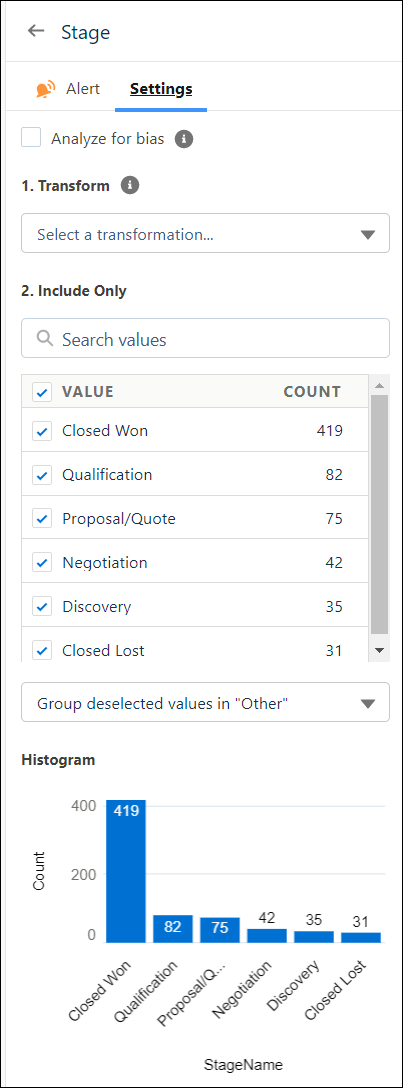
Tab Description Alert Identifies possible issues detected in the data, such as outliers or duplicates. Review alerts and recommended actions to get better insights, predictions, and improvements. To learn more, see Handle Quality Alerts. Settings Analyze for bias—select to subject the text variable to bias detection so you can remove distorting or unethical effects on your analysis and predictions. To learn more, see Detect and Remove Bias from a Model.
Transform—Use transforms in the variable’s settings to improve data for analysis. Transformations affect the model, and don’t impact the dataset. When applied, transformations use all values in the variable from the dataset.For instructions, see
Buckets—For numeric variables.
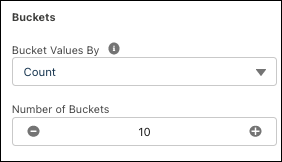
- Choose a bucketing method with the Bucket Values By dropdown.
- Count: Buckets proportionally by occurrence.
- Width: Buckets proportionally within the total range of values.
- Manual: Specify your own bucket ranges.
- Select the number of buckets.
Include Only—Displays values in the variable, including its label and row count. Values that occur fewer than 25 times are grouped as “Other.”
- To group or bucket values as other, deselect them and choose Group deselected values in “Other” in the dropdown.
- To filter out values, deselect them and choose Exclude deselected values in the dropdown.
Histogram—Chart displays distribution of the values by occurrences, or row count.
Apply filters after transformations. Transformations ignore excluded value filters.
- Choose a bucketing method with the Bucket Values By dropdown.
-
Click Update Model. Optionally, add notes to describe the new
version, then click Update.
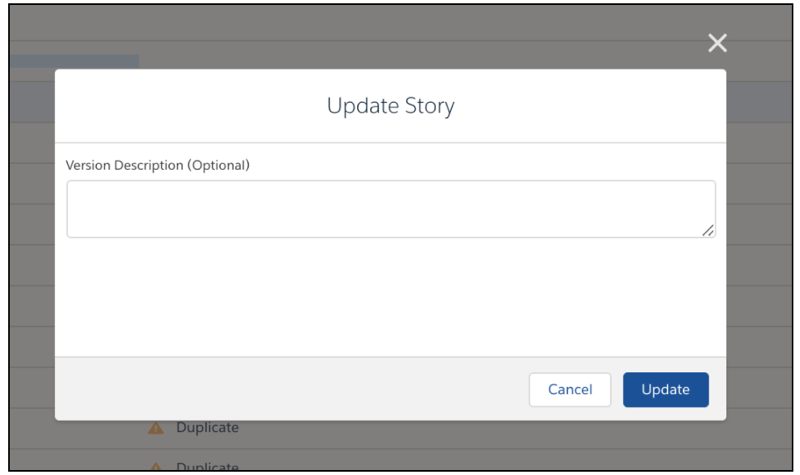
- To abandon edits, click Cancel in the Update Model window, and then click Close in the top toolbar.
Einstein Discovery analyzes the data and creates a new version of the model. When finished, it displays the new model.
- Edit General Settings for a Model
You can edit general settings for a model. View the CRM Analytics dataset and select the algorithm and validation type. - Smart Sampling
Model training is faster with smart sampling. Smart sampling downsizes large datasets to representative samples. Einstein evaluates the data and then selectively reduces the number of rows used to train the model. - Configure Number Variables
Configure settings for individual number variables in your model. - Configure Text Variables
Configure settings for individual text variables in your model. - Configure Date Variables
Configure settings for individual date fields in your model. - Detect and Remove Bias from a Model
Einstein Discovery helps you practice ethical use of AI by detecting bias in your data so that you can remove its distorting effects on your analysis and predictions. Bias indicates that variables are being treated unequally in your model.
