You are here:
Add Filters to Explore Tableau Views
Add filters to explore Tableau content and unlock additional insights.
Required Editions
| Available in Salesforce Classic and Lightning Experience. |
| Available with CRM Analytics, which is available for an extra cost in Enterprise, Performance, and Unlimited Editions. Also available in Developer Edition. |
- Select the Tableau view and click the Parameter tab.
- Click Add Parameter.
- Click Filter Field and select a Tableau dimension field as the filter.
- Add a name to Parameter Name.
-
Click Value Type then specify how to use values for the
filter.
- Select Static to add static values.
- Select Dynamic to filter values using a CRM Analytics dashboard filter.
- Click Save.

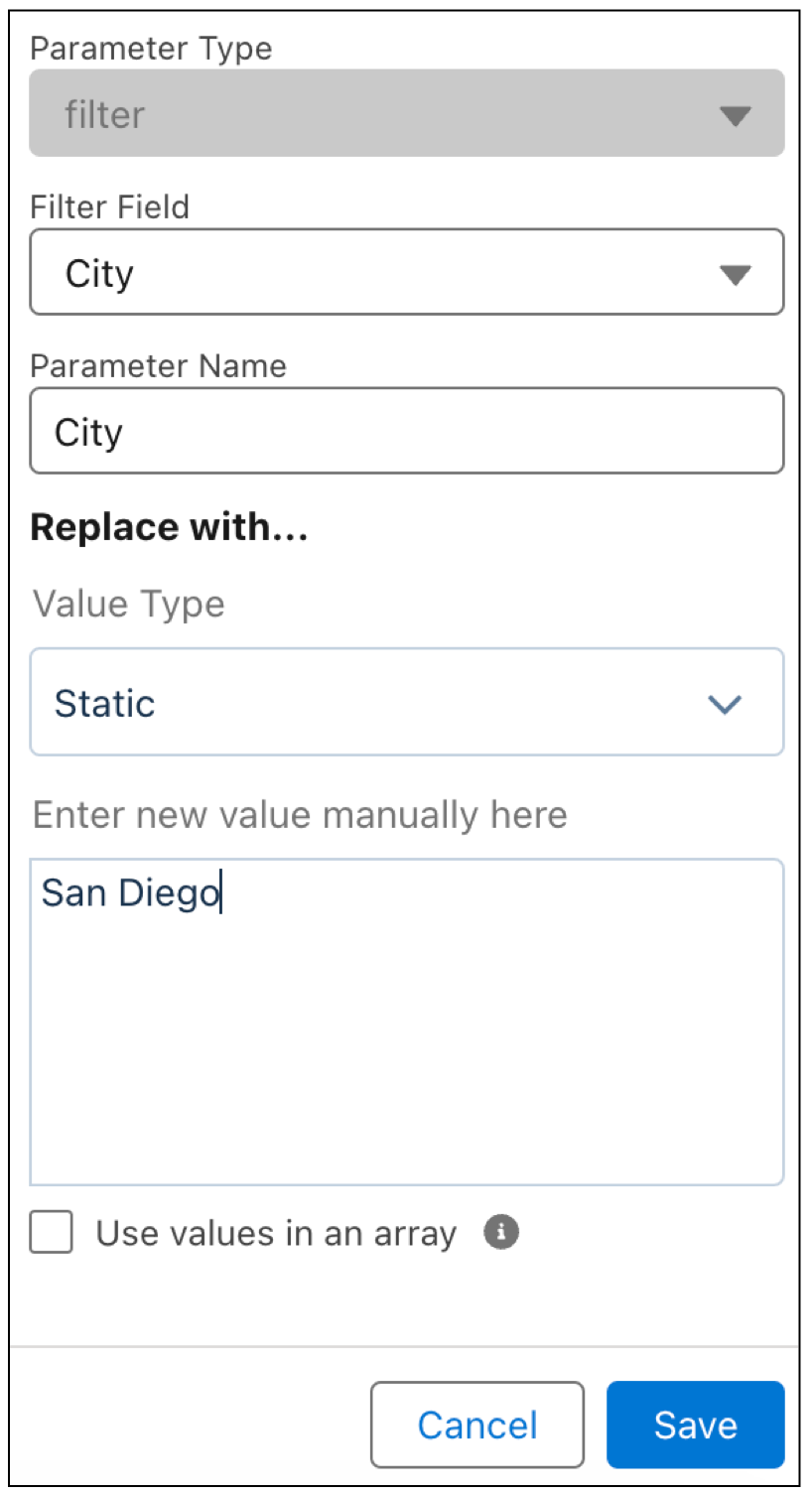
Follow steps 1 through 4 outlined at the beginning of this document to create the parameter.
Select Static in the Value Type menu, then type San Diego in the text field. Click Save.
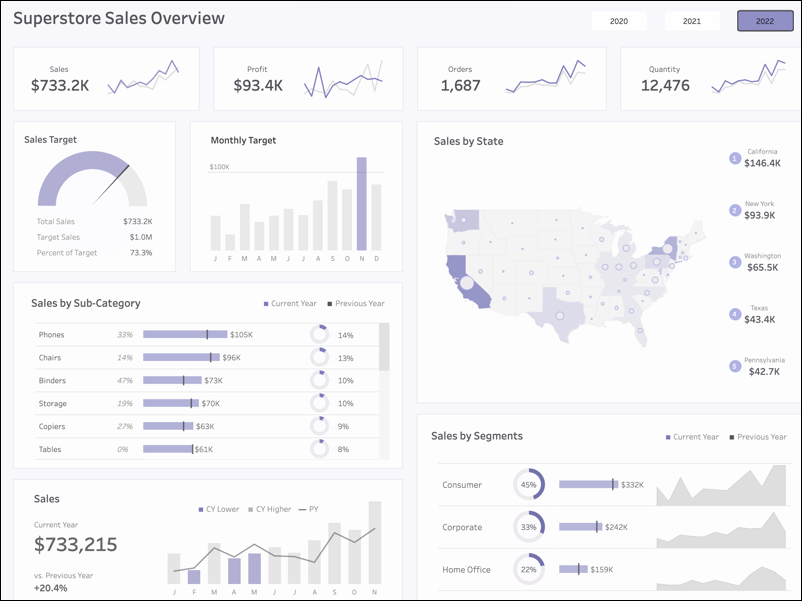
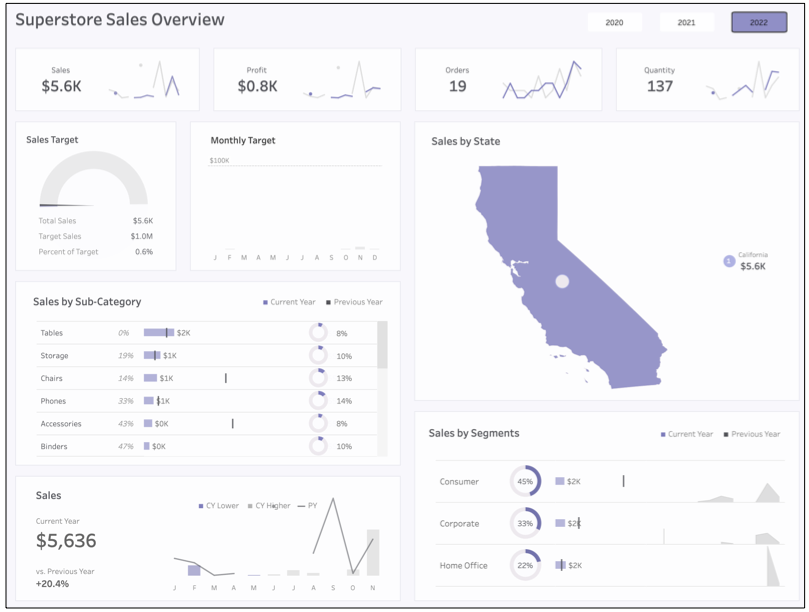
The view is filtered with the city value San Diego.

To filter an array of values, separate each value with a comma, then click Use values in an array.
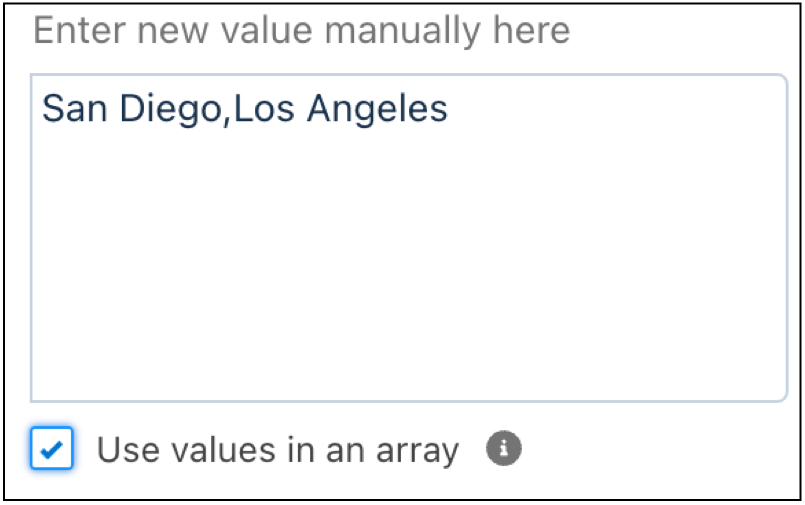
The view is filtered with the city values of San Diego and Los Angeles.
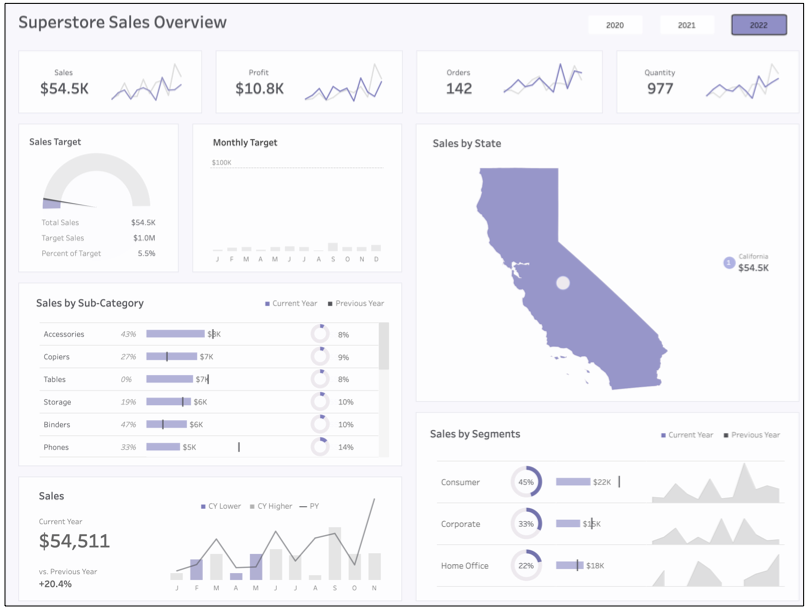
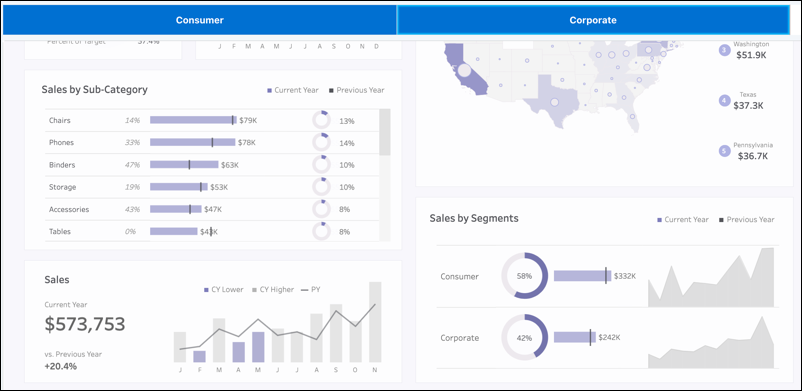
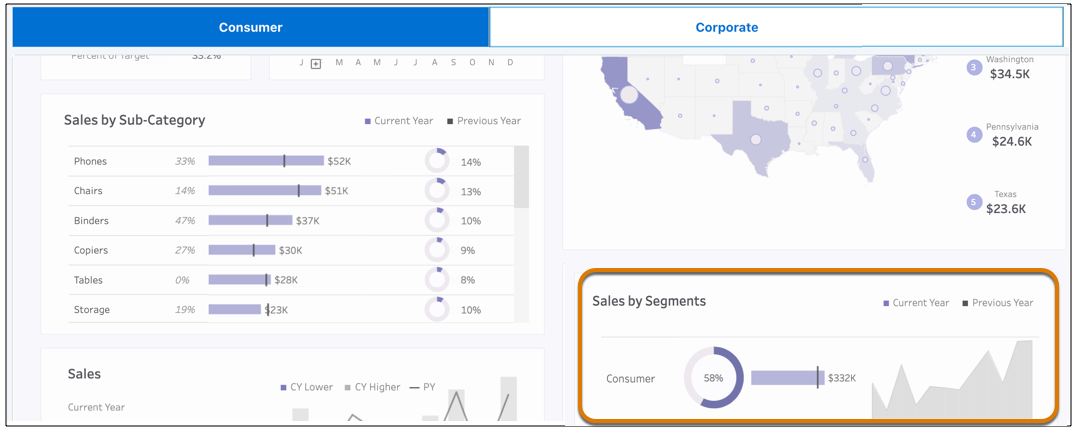
Dashboard stakeholders are requesting to update the view as needed by customer segment. Add a filter to the CRM Analytics dashboard with customer segment values then set up a dynamic parameter that links the filter to the Tableau view.
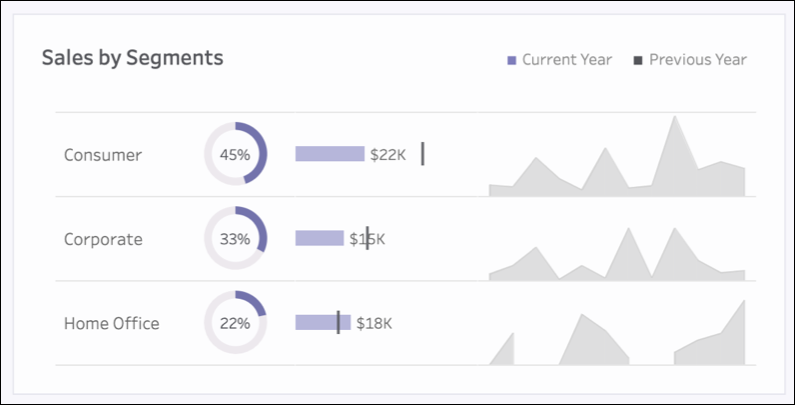
Create a custom query filter with display and values for customer segment.

Follow steps 1 through 4 outlined at the beginning of this document to create the parameter.
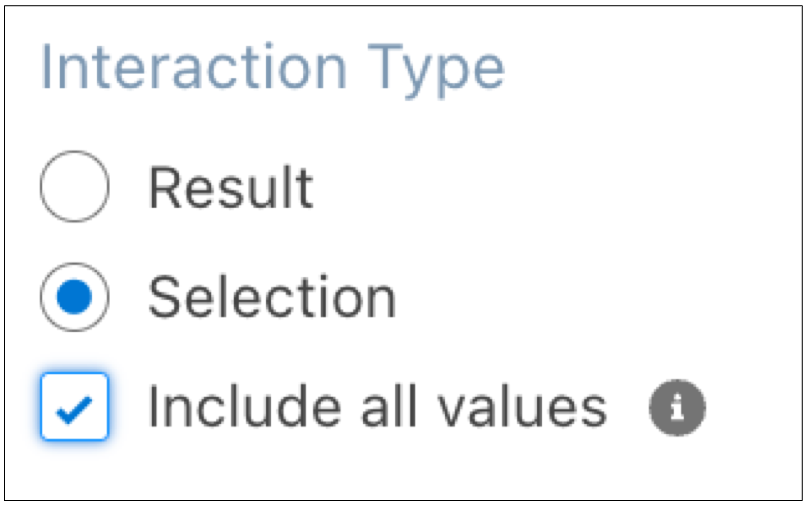
Select Dynamic in the Value Type menu, then select the filter query as the Data Source, the filter value as the New Value, and the filter interaction type. Click Save.
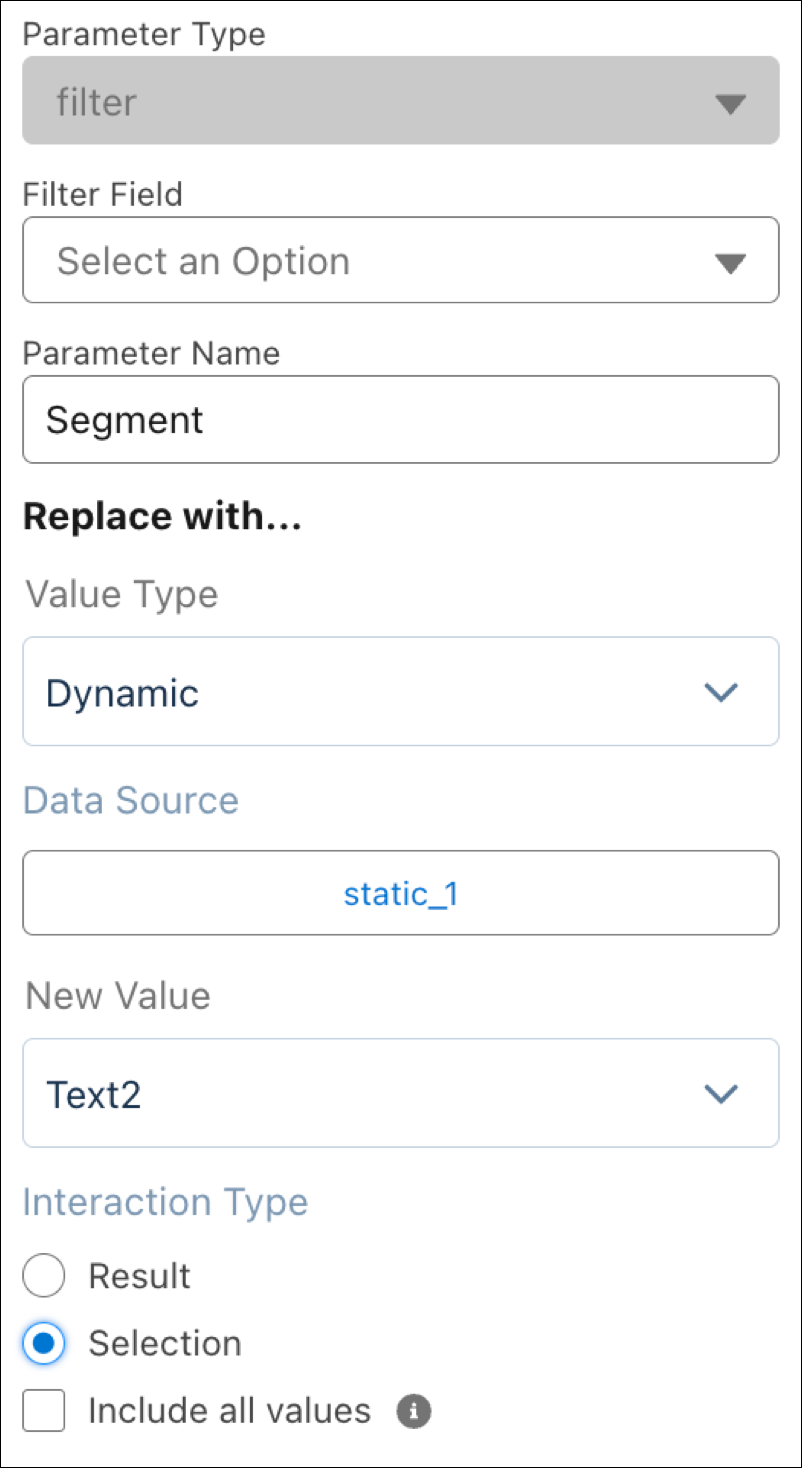
The view now updates by selections from the filter.
To filter as an array, select Multiple selection as the dashboard filter’s Selection Type. Click Include all values in the parameter.
The view updates by multiple selections from the filter.