
You are here:
Column Properties
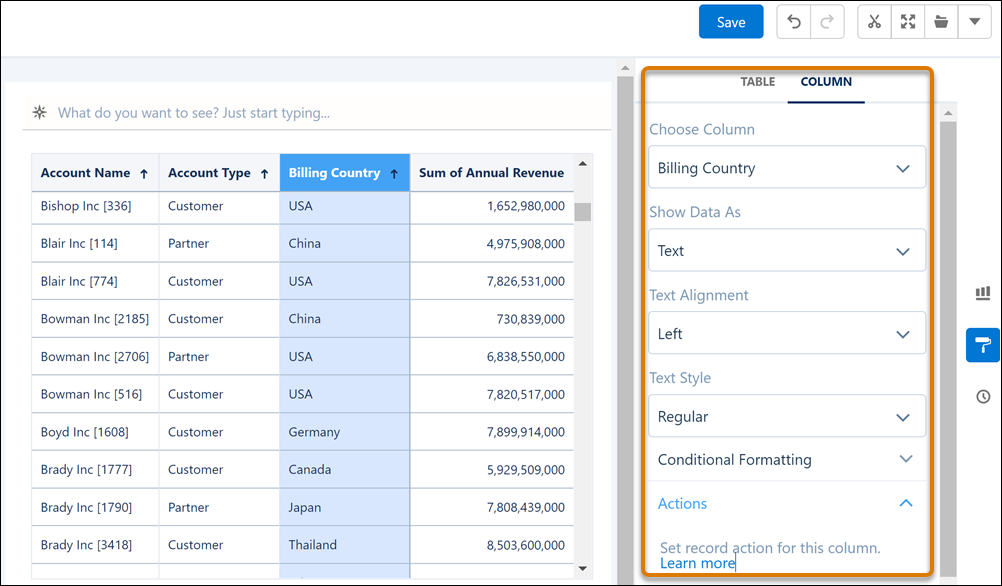
The Column Properties panel lets you jazz up the columns you want in compare, values, and pivot tables. To highlight data that meets specific criteria, set conditional formatting rules on a column. Or, highlight data based on conditions set on a reference column. To make a column stand out without applying any conditions, you can use text alignment and text styles. In addition to displaying data in the text format, you can set a measure column’s data type as a bar.
To set a column’s properties, select the column in the table or from the Choose Column list in Column Properties.
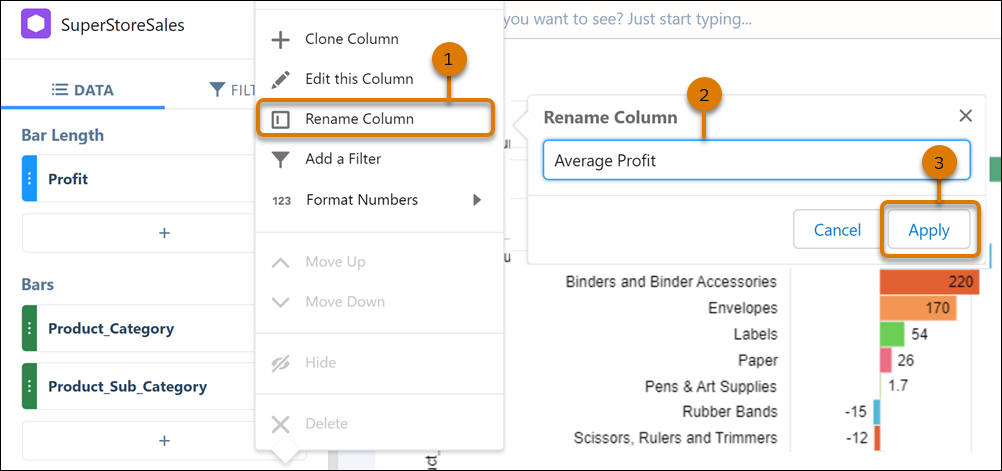
You can also get to the Column Properties panel from a column’s context menu. To rename a measure or dimension column, select the column in lens mode and click Rename Column from its context menu (1). Enter the new name (2) and apply your changes (3). The new name displays in tables, charts, and filters that use the column. The name change also persists when you save the lens or clip it to a dashboard, but it doesn’t appear in the data source or other queries using the same data source.
Dynamically renaming a column header using interactions isn’t supported in Compact form 2.0. As a workaround, switch to compact form 1.0, or rename the column alias using interactions instead.
