
You are here:
Navigate Compare Table Columns
Create columns and navigate between existing ones using clicks or keystrokes.
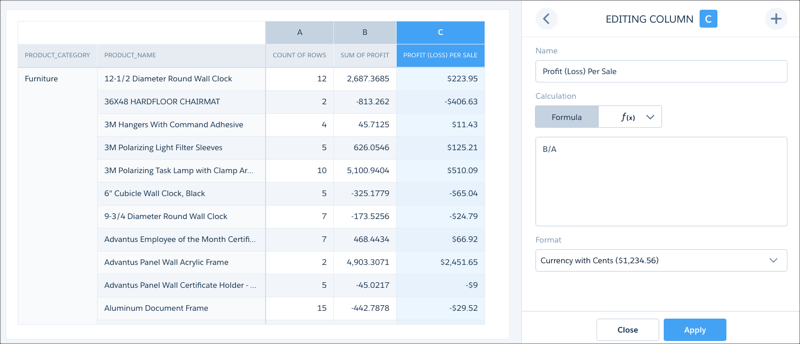
You can navigate columns in the column editor using arrow buttons or your keyboard's left and right arrow keys.
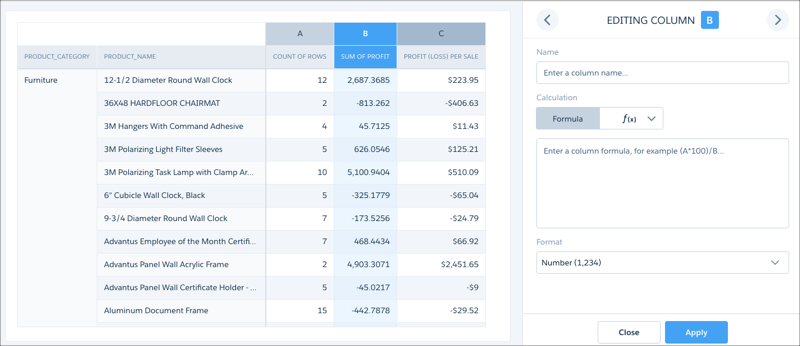
When you reach the right-most column, the right arrow button becomes an add-column button. You can click the add-column button or use your keyboard's Enter key to add a formula column.

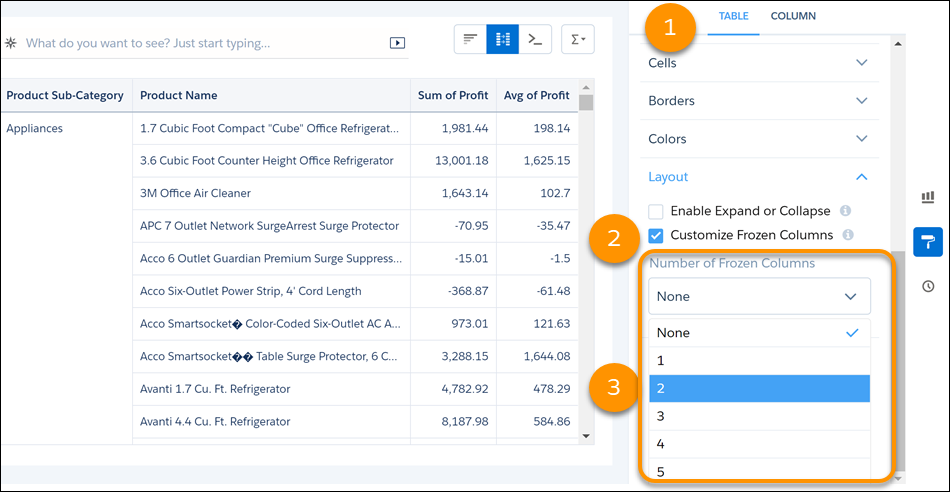
As you navigate through a compare table, you can freeze up to five columns while you scroll through the remaining data. From a column header’s dropdown menu, select Freeze Columns Up to Here.
Alternatively, go to the Layout section in the table properties panel (1). Select Customize Frozen Columns in the Layout section (2) and set the number of table columns to freeze (3). A dark gray line indicates the end of the freeze pane.
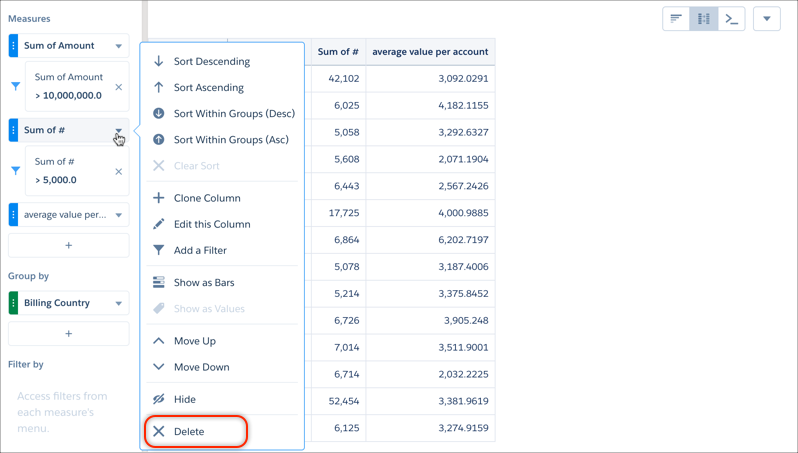
You can also delete columns from the compare table by selecting Delete in the context menu of any measure or dimension.
Use the Close button to exit the column editor without applying changes to the column.
Turn on Repeat Row Values to replicate group dimension values, such as region, product, on every row. Repeat Row Values improves the readability of large datasets because you won't need to scroll back to see the first occurrence of the group value. Click the Formatting icon and expand the Layout section. Click Repeat Row Values to enable.
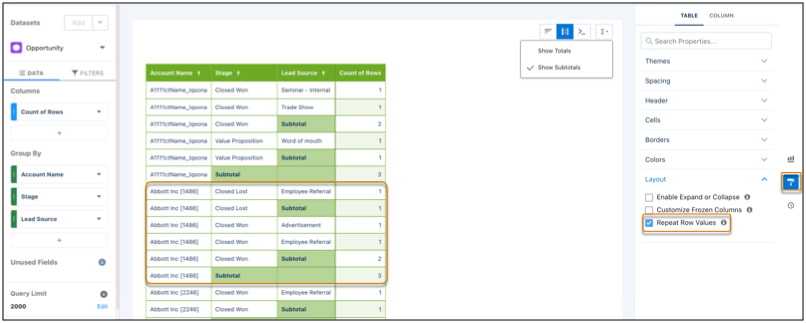
The table must have a minimum of three field groupings and Show Subtotal must be on.
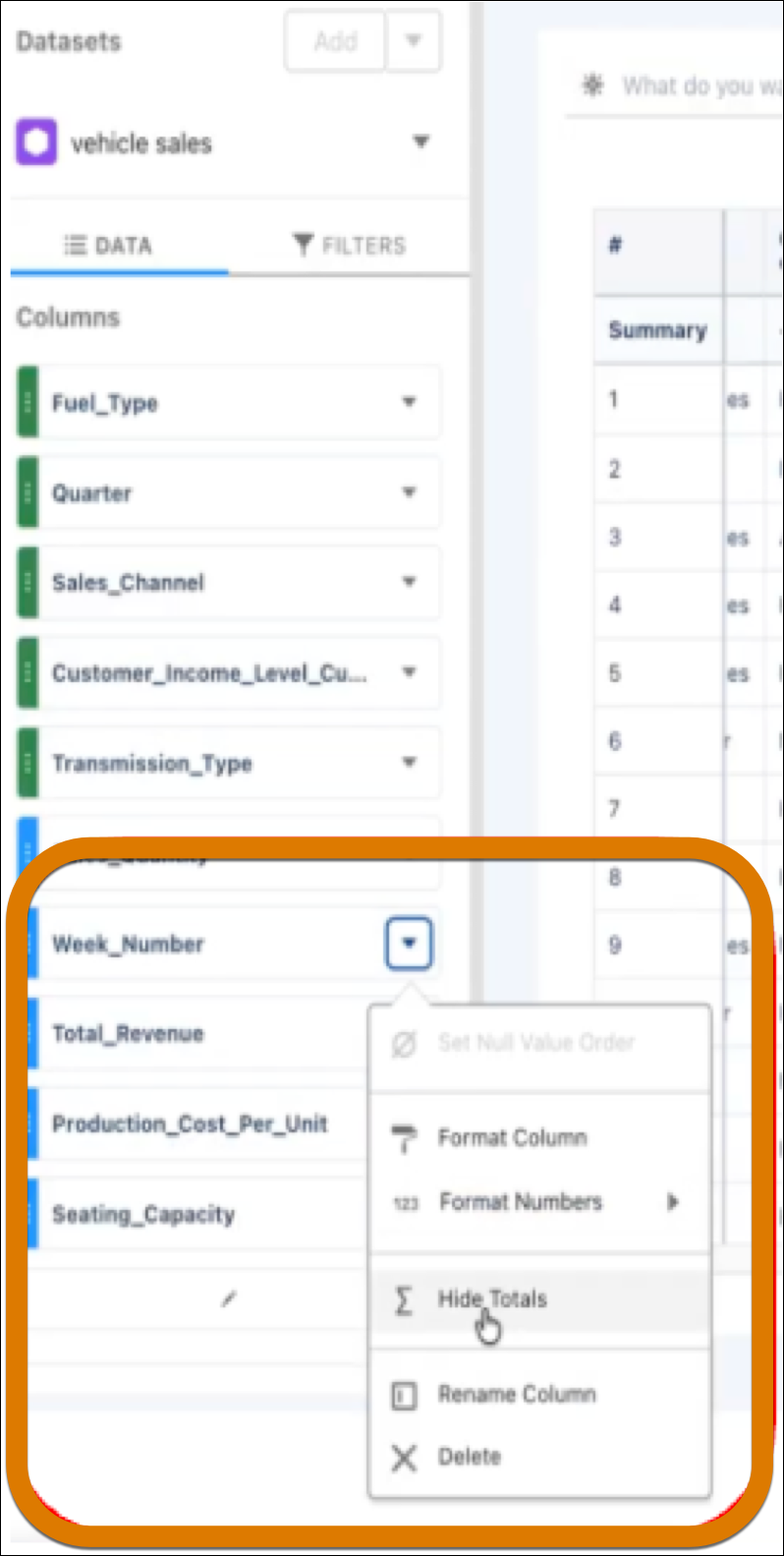
To show or hide column totals, enable Show Totals then select Show or Hide Totals on the column.
Compare Table Considerations
To avoid this issue, keep subtotals enabled for all dimensions to expand or collapse rows. If it’s necessary to turn off subtotals, avoid collapsing the first dimension.
