You can view, hide, and rename dataset columns. Users with view-only access to the
dataset can view the names and API names of columns. You can also change the display format of
measure columns. You can also configure column properties for fields from Snowflake live
data.
Required Editions
Available in Salesforce Classic and Lightning Experience.
Available with CRM Analytics, which is available for an extra cost in
Enterprise, Performance, and Unlimited Editions. Also available in
Developer Edition.
User Permissions Needed
To view visualizations:
Use CRM Analytics
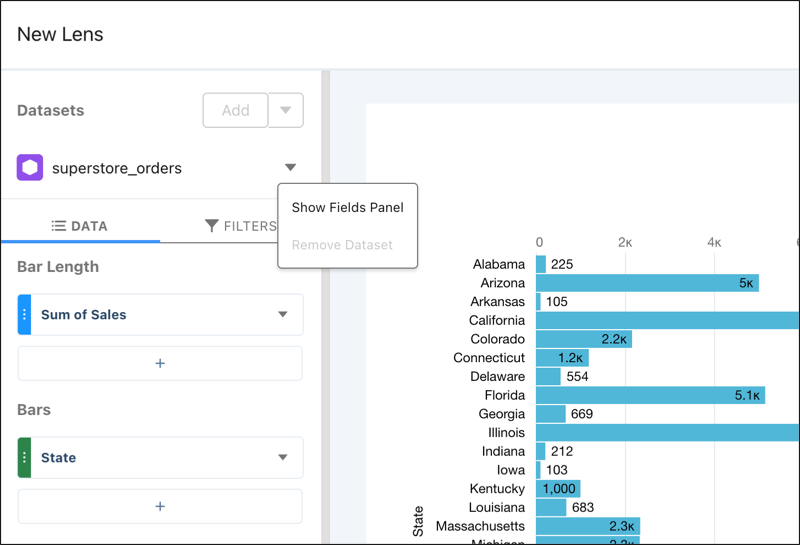
To configure the dataset columns, click the down arrow across from the dataset, and
select Show Fields Panel.
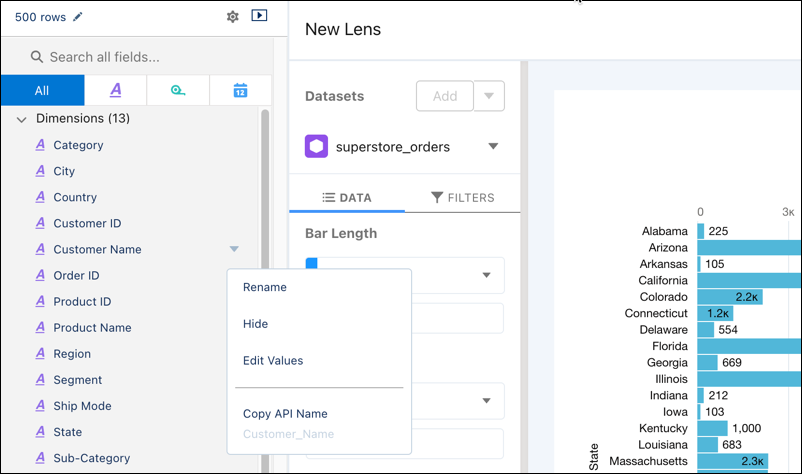
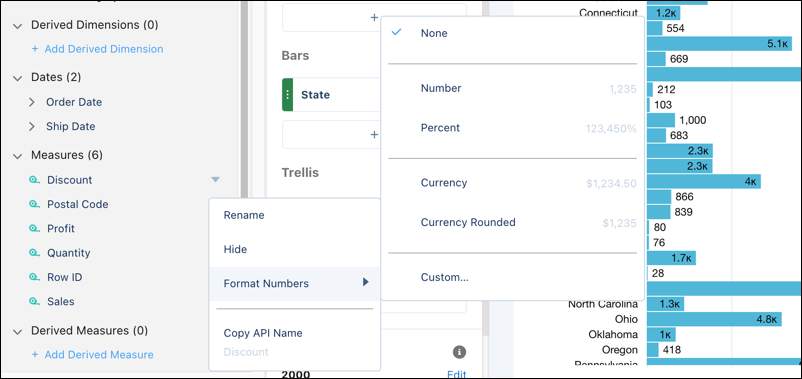
To reveal a column's context menu, hover over the right edge of the column.
Click the arrow to reveal the context menu.
Select Rename to rename the column's visible name.
Instead of using the menu, you can click any column's name to edit it.
To hide a column, select Hide from its context menu.
The column is hidden from the Dataset Fields list of columns, and hidden from users
who explore the dataset, and hidden from all lenses or dashboards that currently use the
dataset. However, the column is still accessible via lens and dashboard JSON, Analytics
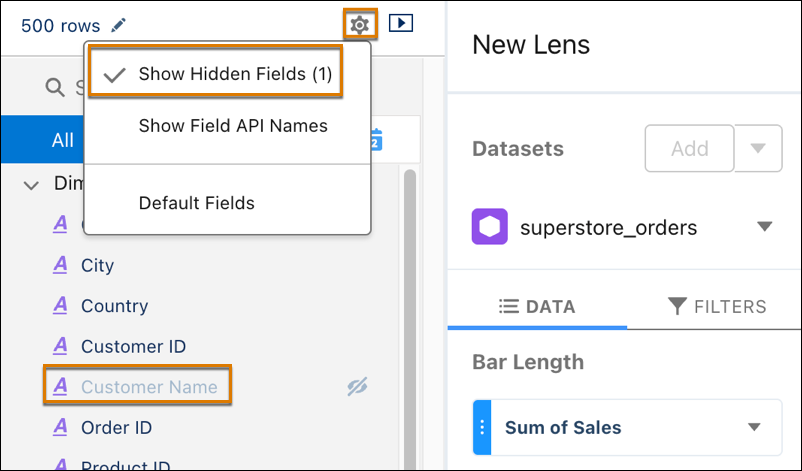
REST API, and SAQL queries. To view hidden columns in the Dataset Fields list, click
Show Hidden Fields.
You can copy the column's API name, but you cannot change it. To display every
column's API name in the Dataset Fields list of columns, select Show Field API
Names.
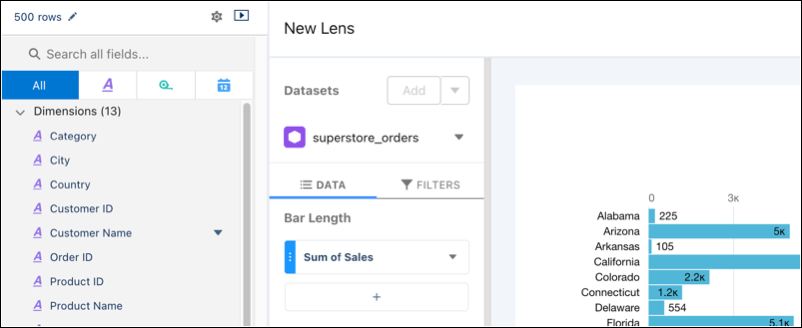
To locate a column, go to Search all fields... and type in a
column name or API name.
For measures, you can choose to apply a number format.
Click Save to save the changes.
Did this article solve your issue?
Let us know so we can improve!
Loading
Salesforce Help | Article
Cookie Consent Manager
General Information
Required Cookies
Functional Cookies
Advertising Cookies
General Information
We use three kinds of cookies on our websites: required, functional, and advertising. You can choose whether functional and advertising cookies apply. Click on the different cookie categories to find out more about each category and to change the default settings.
Privacy Statement
Required Cookies
Always Active
Required cookies are necessary for basic website functionality. Some examples include: session cookies needed to transmit the website, authentication cookies, and security cookies.
Functional Cookies
Functional cookies enhance functions, performance, and services on the website. Some examples include: cookies used to analyze site traffic, cookies used for market research, and cookies used to display advertising that is not directed to a particular individual.
Advertising Cookies
Advertising cookies track activity across websites in order to understand a viewer’s interests, and direct them specific marketing. Some examples include: cookies used for remarketing, or interest-based advertising.