
You are here:
Add the Input Widget to Formula Queries
Retrieving values from the input widget to use in a formula can be done through the UI. You can add the input widget as a column in a query or with SAQL. The input widget works as a data source by collecting user inputs for use in other parts of the dashboard.
Steps in this section show you how to add the input widget to a calculation through the UI. To learn more using the input widget with interactions, see Create Interactions with Clicks
- Add the Input Widget to a Formula Query
Use the input widget to build a formula in a new or existing query. - Add the Input Widget to a SAQL Query
Add the input widget to a new or existing query using SAQL.
Add the Input Widget to a Formula Query
Use the input widget to build a formula in a new or existing query.
-
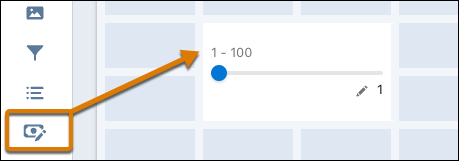
Add an input widget to your dashboard.
-
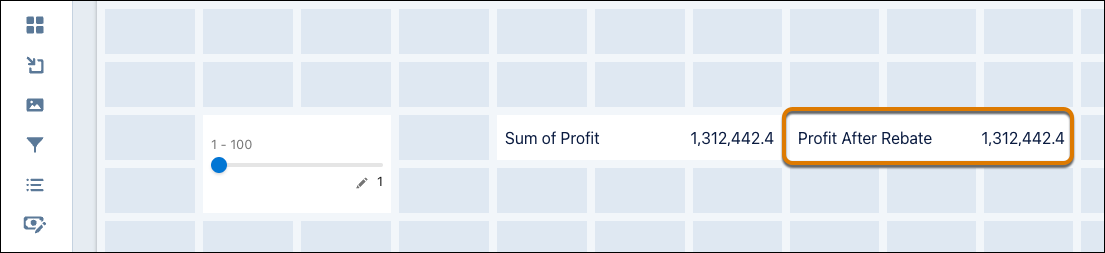
Create a query or select an existing query for building your formula.
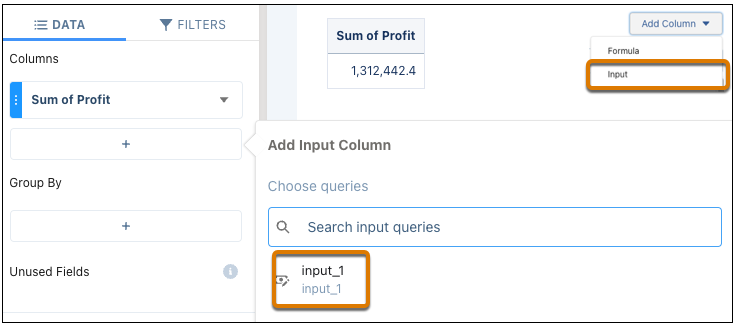
- Edit the query you’re using to build your formula result.
- Add a column to the query and select Input.
-
Search and select an input query.
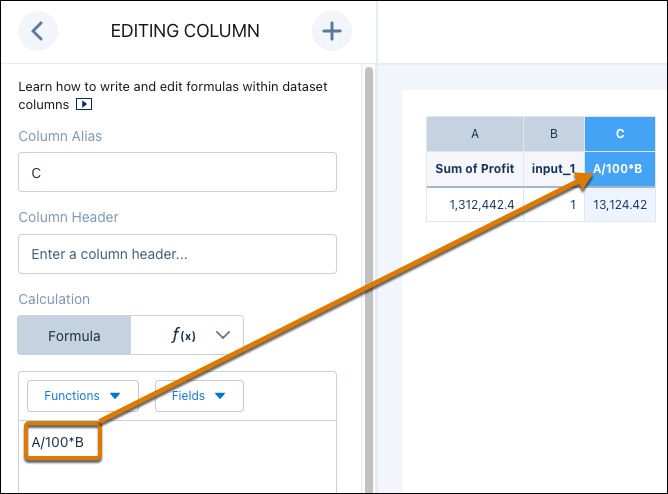
- Add another column and select Formula.
-
Use the formula editor to create a calculation using values from the input query.
Add the Input Widget to a SAQL Query
Add the input widget to a new or existing query using SAQL.
- Add an input widget to your dashboard.
- Create a query or select an existing query for building your formula.
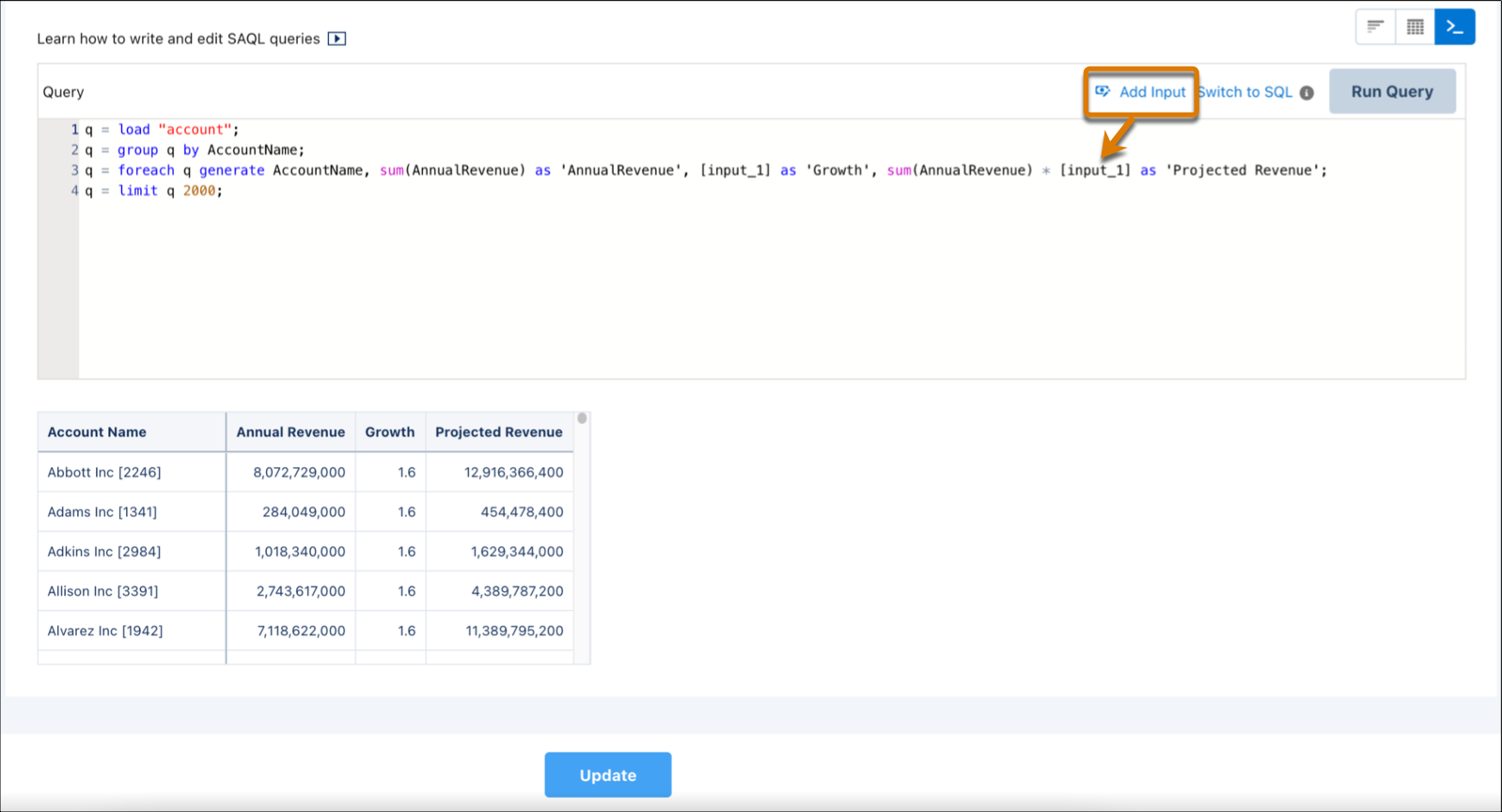
- Edit the query you’re using to build your formula, and click Query Mode.
-
Position your cursor in the SAQL code where to add values from the input query, and
click the Add Input link.
Did this article solve your issue?
Let us know so we can improve!
