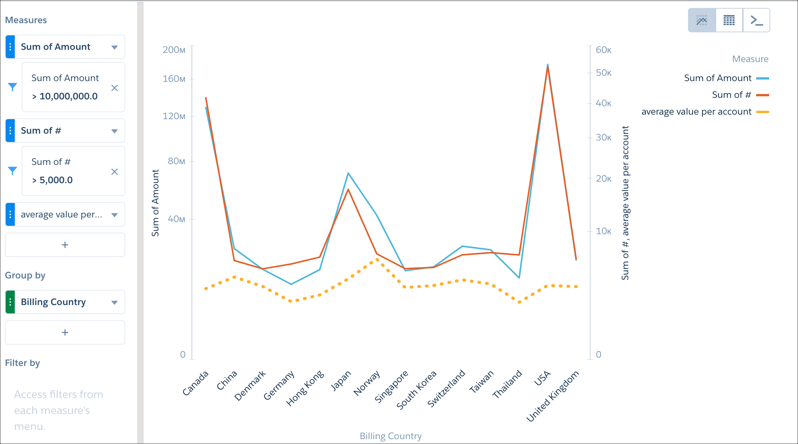
Apply filters in a lens to unclutter your chart and focus on the subset of data that’s
most relevant for your business. You can create partial filters on measures and dimensions. You
can also create global lens filters on measures, dimensions, or dates and apply them to the
compare table in a single step. You can even apply filter logic to a lens or a dashboard
step.
Required Editions
Available in Salesforce Classic and Lightning Experience.
Available with CRM Analytics, which is available for an extra cost in
Enterprise, Performance, and Unlimited Editions. Also available in
Developer Edition.
User Permissions Needed
To view visualizations:
Use CRM Analytics
Tip Don’t want filters to be applied to the dataset as you drill down? Then, define
filters on individual measures, which don’t persist. On the other hand, global lens filters are
preserved when you switch to View Details or the values table.
Here’s an example to limit the view of opportunities to the ones with a substantial amount in
agriculture or healthcare.
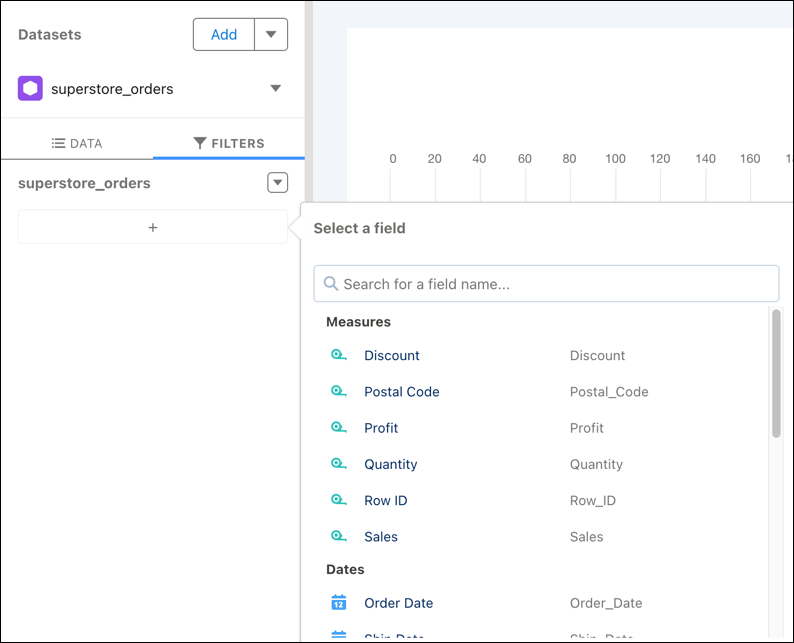
On the Filters tab, click the filters plus button.
In the filters dialog box, aggregated measures and measures are listed at the top, followed
by dates and dimensions.
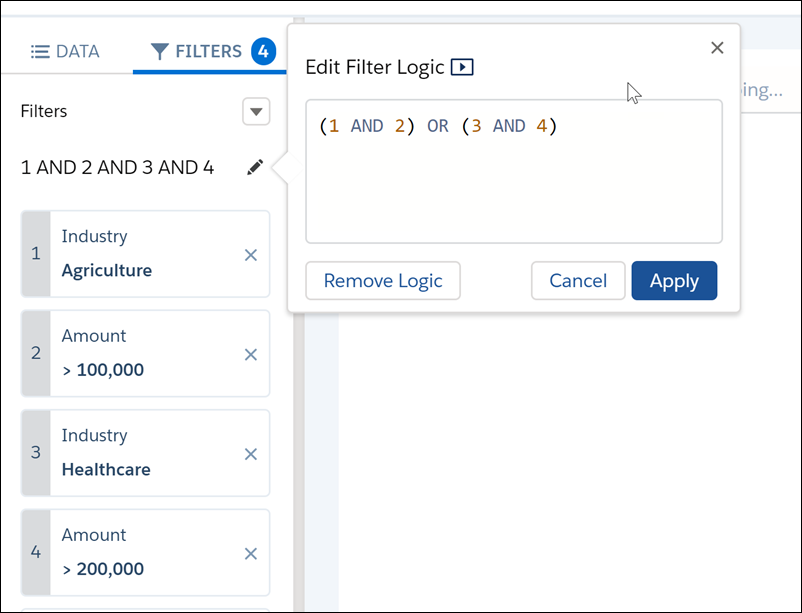
In the filters dialog box, add the following filters:
Industry equals Agriculture
Amount greater than 100,000
Industry equals Healthcare
Amount greater than 200,000.
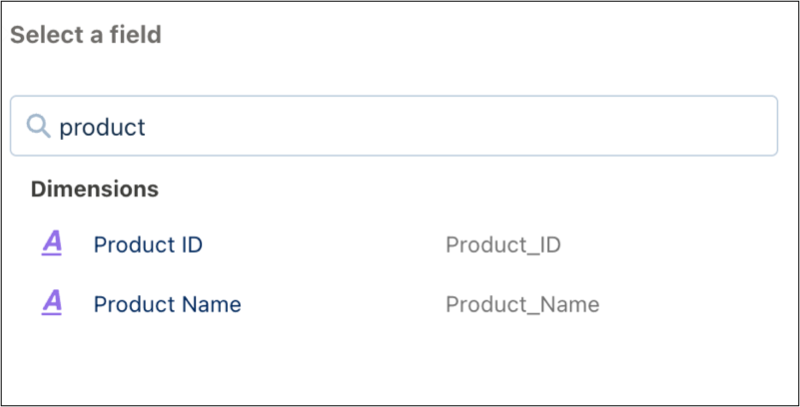
Note You can select a field from the data source by choosing it from the list of fields
or by typing its API name into the search field.
To add filter logic, click in the Filters tab.
Select Add Filter Logic.
In Edit Filter logic, build the filter logic as follows: (1 AND 2) OR (3 AND
4) and click Apply.
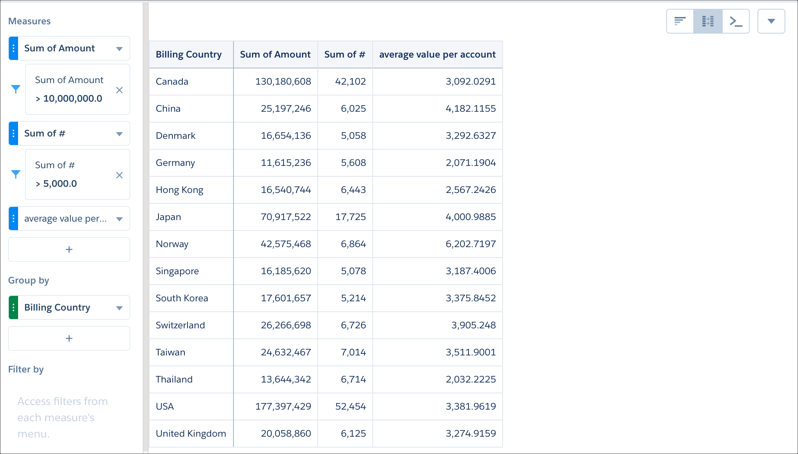
Normally, measure filters in multiple-column steps remain in the filter panel. However, in
table mode, filters move to the measures to which they apply.
If a calculated column is created in table mode, then filters remain with their measures even
if the lens is set to chart mode.
You can apply filters to new measures using their context menus.
Did this article solve your issue?
Let us know so we can improve!
Loading
Salesforce Help | Article
Cookie Consent Manager
General Information
Required Cookies
Functional Cookies
Advertising Cookies
General Information
We use three kinds of cookies on our websites: required, functional, and advertising. You can choose whether functional and advertising cookies apply. Click on the different cookie categories to find out more about each category and to change the default settings.
Privacy Statement
Required Cookies
Always Active
Required cookies are necessary for basic website functionality. Some examples include: session cookies needed to transmit the website, authentication cookies, and security cookies.
Functional Cookies
Functional cookies enhance functions, performance, and services on the website. Some examples include: cookies used to analyze site traffic, cookies used for market research, and cookies used to display advertising that is not directed to a particular individual.
Advertising Cookies
Advertising cookies track activity across websites in order to understand a viewer’s interests, and direct them specific marketing. Some examples include: cookies used for remarketing, or interest-based advertising.