CRM Analytics uses Salesforce Analytics Query Language (SAQL) or Salesforce Object Query
Language (SOQL) behind the scenes in lenses and dashboards to gather data for visualizations. You
can view and edit the underlying code that’s written as you explore, or copy it for use
elsewhere.
Required Editions
Available in Salesforce Classic and Lightning Experience.
Available with CRM Analytics, which is available for an extra cost in
Enterprise, Performance, and Unlimited Editions. Also available in
Developer Edition.
User Permissions Needed
To view visualizations:
Use CRM Analytics
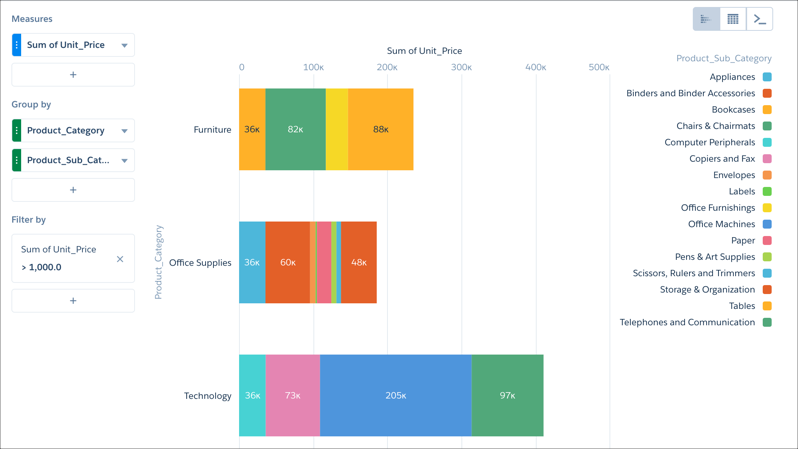
Explore a dataset to get the visualization or table of data you want.
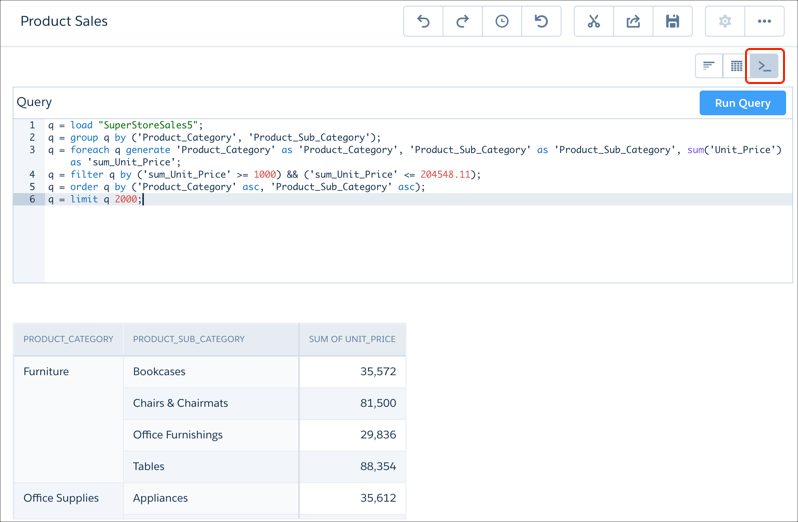
Click Query Mode to view the query's SAQL or SOQL code.
To change the query, edit the code and then click Run Query.
Query results appear in a table below the query editor.
Tips and Considerations when Working with Lens Queries
Keep these tips and considerations in mind when working with the queries behind your
lenses.
To work with multiple datasets simultaneously, reference them in the JSON editor for the
currently running lens. To open the editor, press Ctrl + E or Cmd + E and use the load statement to load each dataset you want to explore.
If you run a query while exploring, the filters become read-only while in chart and table
modes. To make the filters editable, click and return to a point in the
history before you ran the query.
If you save the lens with filters in read-only mode, they remain in read-only mode. Your
exploration history isn’t saved with the lens and can’t be used to undo the read-only
state.
If you want to work in query mode and apply conditional or number formatting to a column,
or rename the column, run the query before making these changes.
If your query includes interactions and you switch to Query Mode, continue making all
subsequent changes in Query Mode. Editing a query using the interface afterward will disrupt
existing interactions.
Did this article solve your issue?
Let us know so we can improve!
Loading
Salesforce Help | Article
Cookie Consent Manager
General Information
Required Cookies
Functional Cookies
Advertising Cookies
General Information
We use three kinds of cookies on our websites: required, functional, and advertising. You can choose whether functional and advertising cookies apply. Click on the different cookie categories to find out more about each category and to change the default settings.
Privacy Statement
Required Cookies
Always Active
Required cookies are necessary for basic website functionality. Some examples include: session cookies needed to transmit the website, authentication cookies, and security cookies.
Functional Cookies
Functional cookies enhance functions, performance, and services on the website. Some examples include: cookies used to analyze site traffic, cookies used for market research, and cookies used to display advertising that is not directed to a particular individual.
Advertising Cookies
Advertising cookies track activity across websites in order to understand a viewer’s interests, and direct them specific marketing. Some examples include: cookies used for remarketing, or interest-based advertising.