
You are here:
Control Who Sees What in an App with Asset Visibility
App Managers and Editors can use the Asset Visibility feature to control the visibility of select assets. Asset visibility is limited for users that are assigned ‘Viewer’ sharing access. Assets remain visible to app Managers and Editors regardless of the asset’s status.

This feature isn't a security control. Hiding an asset removes it from the UI only. All data related to the asset is still accessible. For more information on security controls, see Set Up Dataset Security to Control Access to Rows.
-
Hide an asset in an app.
- Open the app and locate the asset to update.
- Click the row level action dropdown menu.
- Change the asset’s visibility by clicking Hide.
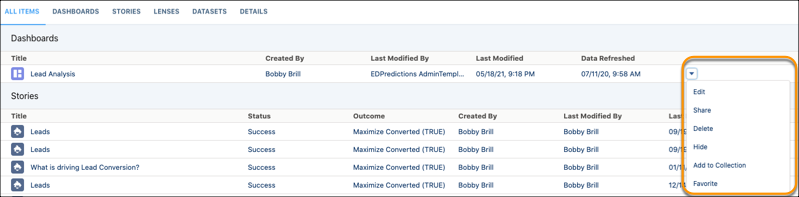
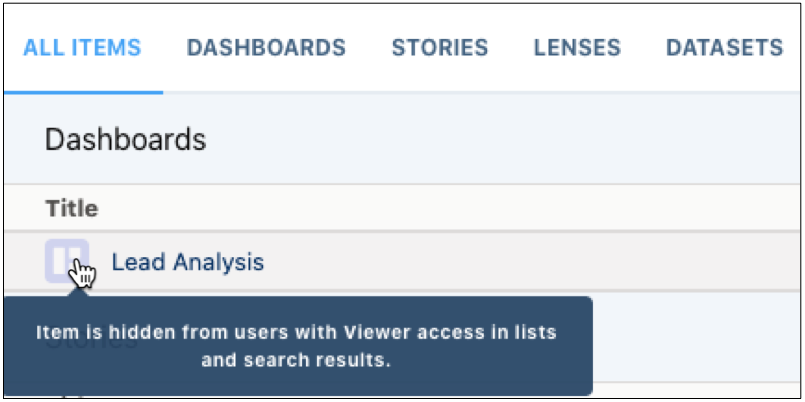
Hidden assets display a transparent state giving app managers an at-a-glance view of an asset’s status. Asset status is also available in the asset tooltip.
- Show an asset in an app.
- Open the app and locate the asset to update.
- Click the row level action dropdown menu.
- Change the asset’s visibility to visible by clicking Show.
As an app manager, the asset visibility settings go beyond the shared app and impact other areas of CRM Analytics for app members with Viewer status. Consider the following before updating asset status.
Analytics Studio
Hidden assets aren’t available in CRM Analytics Home, which includes Recent Dashboards, Favorites, Created by Me, Shared with Me
Hidden assets can’t be browsed, seen in All Items, or any other list
Hidden assets don’t appear in a search’s Recents listing
Hidden assets don’t appear in search results, including pop-over and the full search results page
URLs associated with a hidden dashboard or lens are blocked
Users can access hidden dashboards that are embedded (included in a Salesforce page or report)
If the dashboard is embedded users can add items from a hidden dashboard to a watchlist
Users receive a “Resource not found” error while navigating to a hidden source dashboard from watchlist or notification
Users can define notifications and subscriptions using items from a hidden dashboard that’s embedded
Analytics Tab
Hidden assets aren’t available in Recents
Hidden assets don’t appear in a search’s most recently used (MRU) pop-over
Access is blocked to hidden assets in Salesforce global search results, including pop-over and the full search results page
CRM Analytics Mobile
Hidden assets aren’t accessible at all for users with Viewer status
Salesforce Mobile
Users can access hidden dashboards that are embedded in a Salesforce page
Asset Types
Asset visibility can be managed for datasets, lenses, and dashboards
