End users can pin and hide their collections giving them more options with customizing
their homepage. Admins and managers have the option to pin collections to end-user homepages and
promote trusted content among groups and teams.
Required Editions
Available in: Lightning Experience
Available in: Essentials, Group, Enterprise, Professional,
Unlimited, and Developer Editions.
Also available with CRM Analytics, which is available for an extra cost in
Performance, Enterprise, Unlimited, and Developer
Editions.
User Permissions Needed
To pin and hide a collection:
Enhanced Folder Sharing
Run Reports AND Create and Customize Dashboards
To pin and hide a collection with CRM Analytics items:
Use CRM Analytics
Pin and hide a collection for another end user:
Manage CRM Analytics
Pin a collection to your home page.
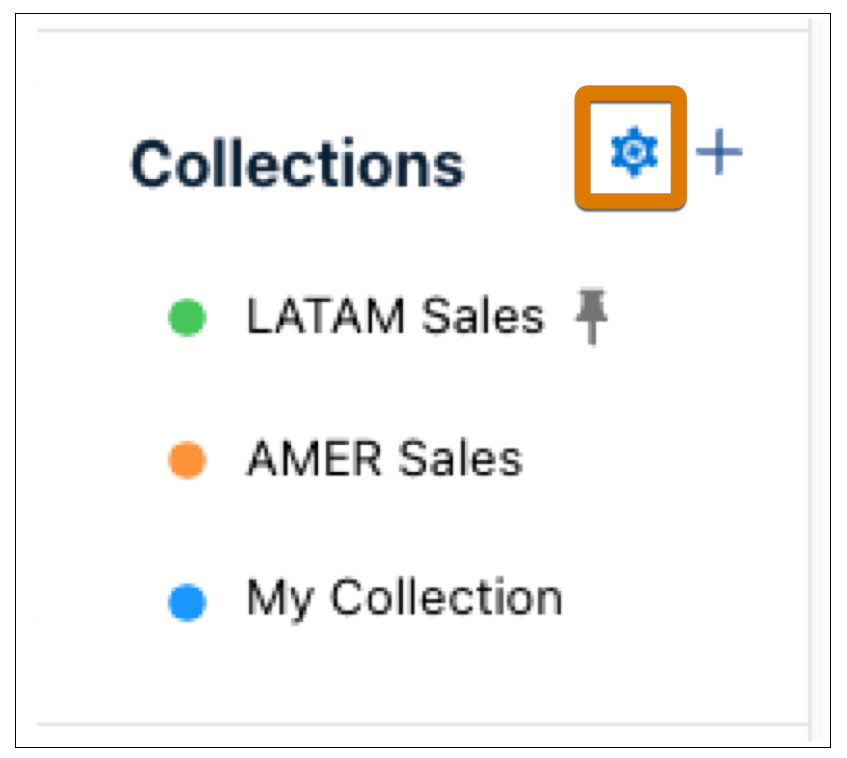
Click the gear icon in the Collections panel on your homepage.
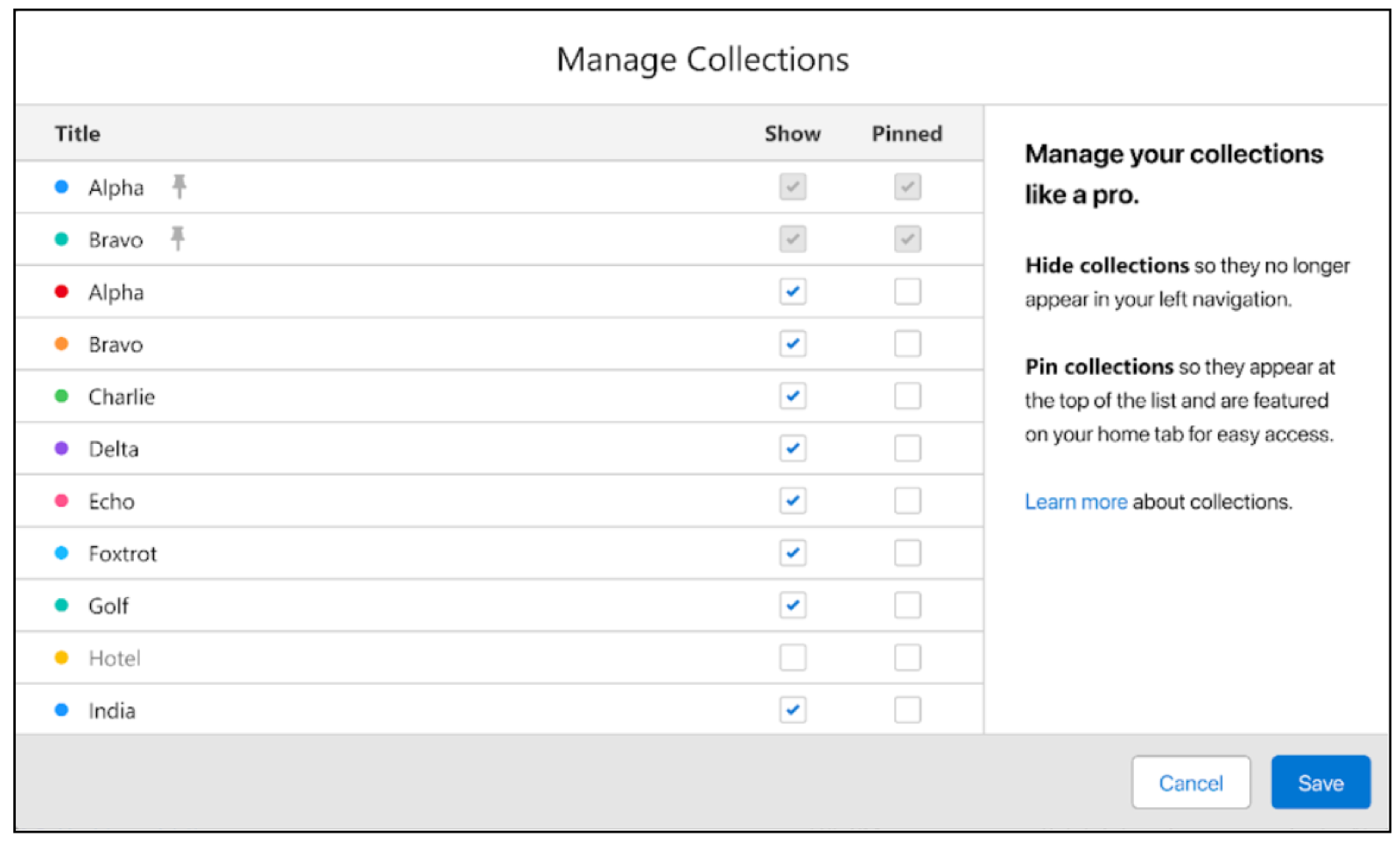
Locate the collection you want to pin on the Manage Collections page and click the
checkbox in the Pinned column for the collection.
Click Save.
Hide a collection from your home page.
Click the gear icon in the Collections panel on your homepage.
Locate the collection you want to hide and uncheck the checkbox in the Show column.
Click Save.
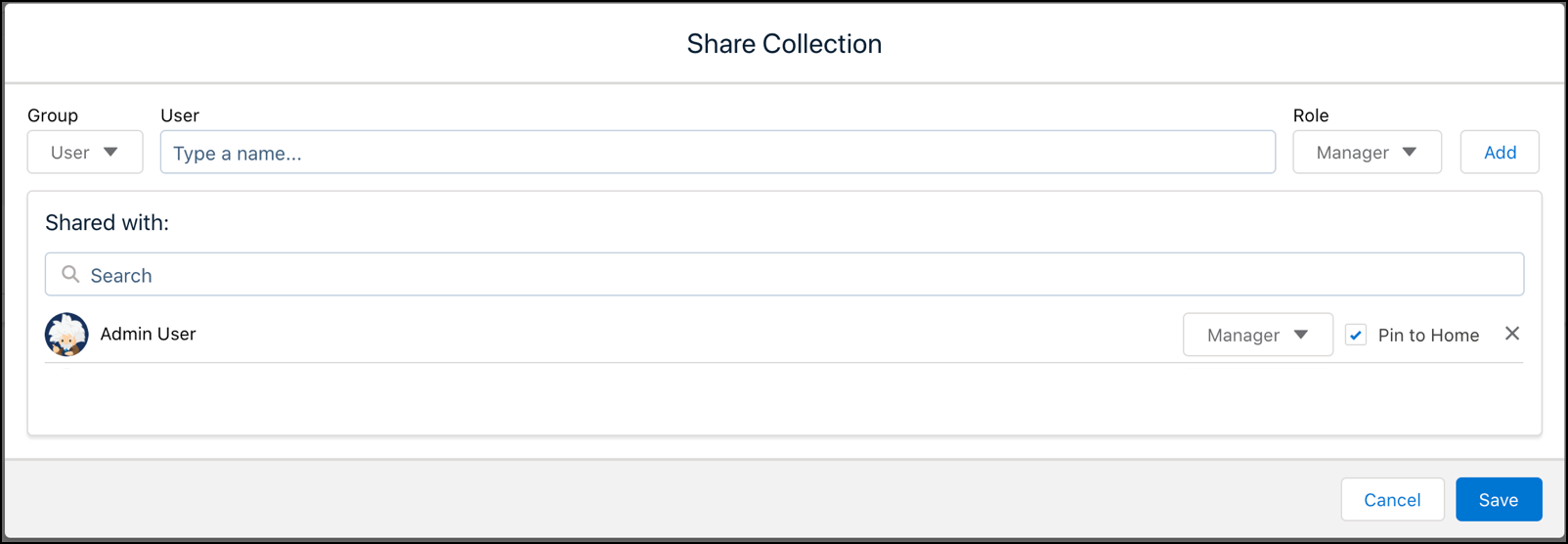
Pin or hide a collection for another end user. Requires the Manage Analytics
user permission.
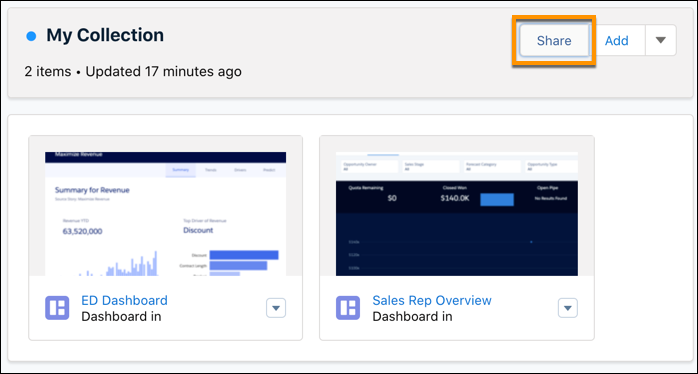
Open a collection.
Click the Share button.
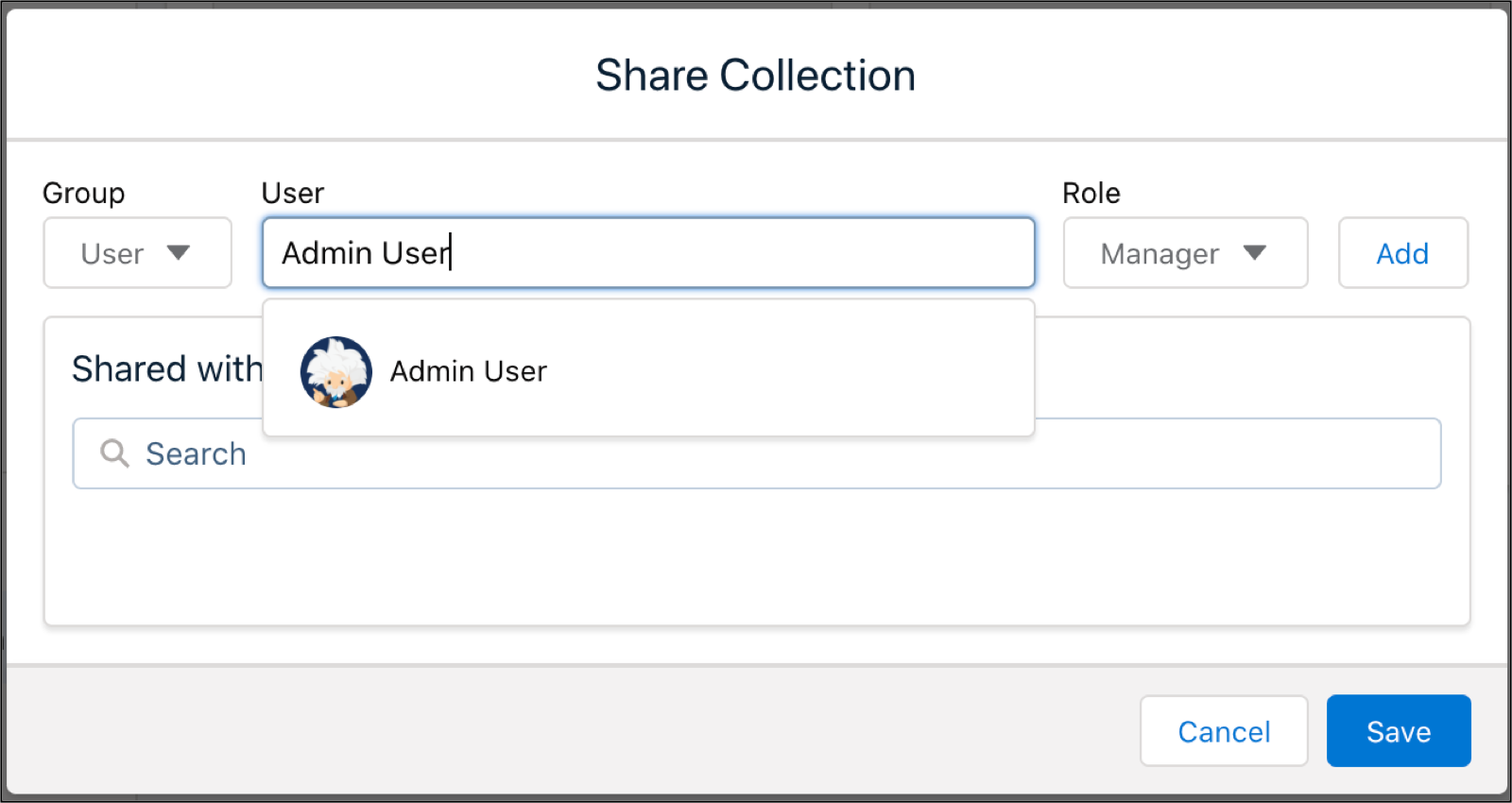
Use the Group dropdown menu to filter your search by user, group,
or role.
Type in a name in the User field. Click the match that it
finds.
Assign a role by clicking the Role dropdown menu.
Collection Roles
Viewer
View contents of the collection.
Editor
Add, remove, and reorder items in the collection.
Manager
Change sharing settings, edit collection properties, and delete the
collection.
Click Add.
Click the Pin to Home checkbox. To hide a collection that’s
already pinned, you can uncheck Pin to Home to remove the collection
from the end user’s home page.
Click Save.
Did this article solve your issue?
Let us know so we can improve!
Loading
Salesforce Help | Article
Cookie Consent Manager
General Information
Required Cookies
Functional Cookies
Advertising Cookies
General Information
We use three kinds of cookies on our websites: required, functional, and advertising. You can choose whether functional and advertising cookies apply. Click on the different cookie categories to find out more about each category and to change the default settings.
Privacy Statement
Required Cookies
Always Active
Required cookies are necessary for basic website functionality. Some examples include: session cookies needed to transmit the website, authentication cookies, and security cookies.
Functional Cookies
Functional cookies enhance functions, performance, and services on the website. Some examples include: cookies used to analyze site traffic, cookies used for market research, and cookies used to display advertising that is not directed to a particular individual.
Advertising Cookies
Advertising cookies track activity across websites in order to understand a viewer’s interests, and direct them specific marketing. Some examples include: cookies used for remarketing, or interest-based advertising.