
You are here:
augment Transformation
The augment transformation adds columns to a dataset from another related dataset. The resulting, augmented dataset enables queries across both related input dataset. For example, you can augment the Account dataset with the User dataset to enable a query to return account records and the full names of the account owners.

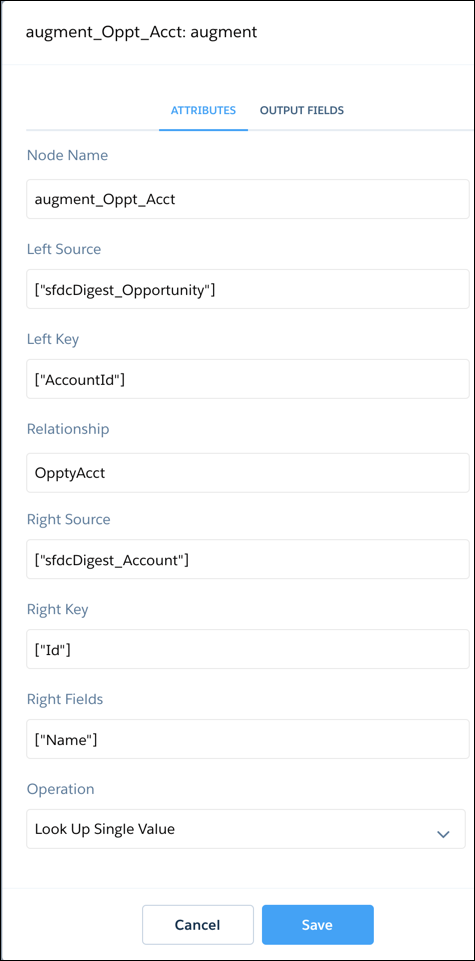
When you create the transformation, you identify each input dataset as the left or right dataset and specify the relationship between them. CRM Analytics combines all the columns of the left dataset with only the specified columns from the right dataset. (Keep in mind that each dataset can’t have more than 5,000 (including up to 1,000 date fields) columns.) CRM Analytics adds the relationship to column names from the right dataset, which is useful when the left and right dataset have columns with the same names.
For each record in the left dataset, the augment Transformation transformation performs a lookup to find a matching record in the right dataset. To match related records, the augment Transformation transformation uses a match condition. You specify the match condition based on a key from each dataset. A key must be a dimension. A key can be a single-column key or a composite key. For a match condition based on a composite key, the keys for both dataset must have the same number of columns, specified in the same order.


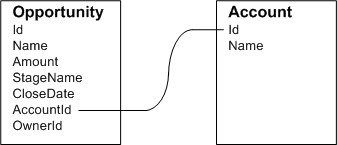
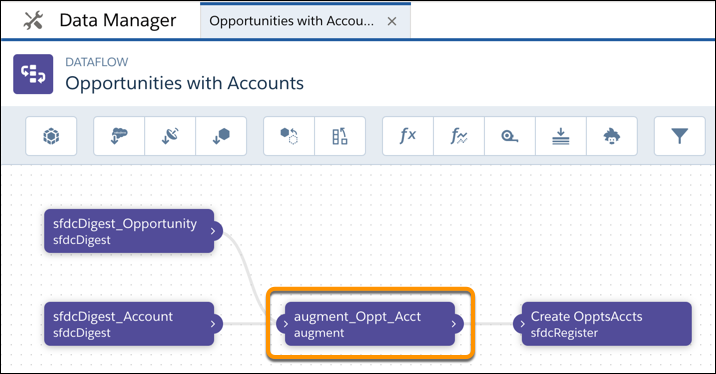
Let’s look at an example of the augment Transformation transformation. In this example, you want to extract data from the Opportunity and Accounts objects, and then match the data based on the account ID field.
| Dataflow | Augment Node in Dataflow |
|---|---|
|
|
Here’s the dataflow JSON.
{
  "sfdcDigest_Account": {
    "action": "sfdcDigest",
    "parameters": {
      "fields": [
        {"name": "Id"},
        {"name": "Name"}
      ],
      "object": "Account"
    }
  },
  "sfdcDigest_Opportunity": {
    "action": "sfdcDigest",
    "parameters": {
      "fields": [
        {"name": "Id"},
        {"name": "Name"},
        {"name": "Amount"},
        {"name": "StageName"},
        {”name": "CloseDate"},
        {"name": "AccountId"},
        {"name": "OwnerId"}
      ],
      "object": "Opportunity"
    }
  },
  "augment_Oppt_Acct": {
    "action": "augment",
    "parameters": {
      "operation": "LookupSingleValue",
      "left": "sfdcDigest_Opportunity",
      "left_key": [
        "AccountId"
      ],
      "relationship": "OpptyAcct",
      "right": "sfdcDigest_Account",
      "right_key": [
        "Id"
      ],
      "right_select": [
        "Name"
      ]
    }
  },
  "Create OpptsAccts": {
    "action": "sfdcRegister",
    "parameters": {
      "alias": "Opportunity_Account",
      "source": "augment_Oppt_Acct",
      "name": "Opportunity_Account"
    }
  }
}
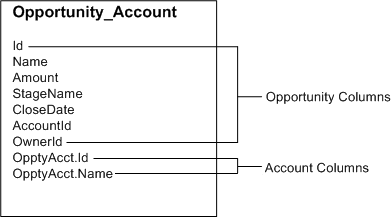
After you run the dataflow, CRM Analytics creates and registers the Opportunity_Account dataset. It also adds the relationship as a prefix to all columns from the right dataset.
- Special Cases for Matching Records with the augment Transformation
For each record in the left dataset, the augment transformation performs a lookup to find a matching record in the right dataset. However, it’s critical that you understand how the augment transformation handles special cases when matching records. - augment Parameters
When you define an augment transformation, you set the action attribute toaugmentand specify the parameters.
