
You are here:
Google Analytics 4 Connection
Create a remote connection using the Google Analytics 4 connector to sync Google Analytics data to CRM Analytics.
Create the Connection
- On the Data Manager Connections tab, click New Connection.
- Click the name of the connector, and click Next.
- Enter the connector settings.
- To validate your settings and attempt to connect to the source, click Save & Test. If the connection fails, CRM Analytics shows possible reasons.
Connection Details
Use a Google service account instead of a user account to grant access to your Google Analytics data. For more information, see Understanding Service Accounts.
Generate a JSON file containing the required client email and private key from the IAM & Admin page in the Google Cloud Platform Console.
Connection Settings
All settings require a value, unless otherwise indicated.
| Setting | Description |
|---|---|
| Connection Name | Identifies the connection. Use a naming convention that lets you easily distinguish between different connections. |
| Developer Name | API name for the connection. This name can’t include spaces. The API name is used in your recipes to reference data extracted through this connection. You can’t change the name after you create the connection. |
| Description | Description of the connection for internal use. |
| Client Email | Enter the client_email value from the JSON
file. |
| Private Key | Enter the Don’t include |
Advanced Object Properties
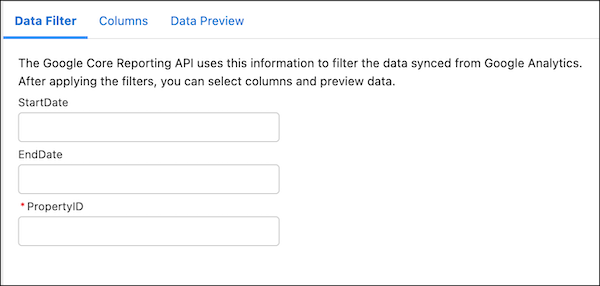
Each time you connect to an object with a Google Analytics connection, you also provide advanced properties for the object. The Google Analytics Data API uses these properties to query the object in Google Analytics. All settings require a value.
| Property | Value |
|---|---|
| StartDate | The start date of the date range that you want to sync. Enter YYYY-MM-DD, or use a relative date keyword, such as today, yesterday, or NdaysAgo, where N is a positive integer. |
| EndDate | The end date of the date range that you want to sync. Enter YYYY-MM-DD, or use a relative date keyword, such as today, yesterday, or NdaysAgo, where N is a positive integer. |
| PropertyID | The Property ID for the Google Analytics account, which determines which data is available for sync. You can find the Property ID on the Admin page in Google Analytics. For more information, see [GA4] Navigate to your account and property. |

Google Analytics 4 Connector Considerations
Keep these considerations in mind when working with the Google Analytics 4 connector.
- A connected object name must start with a letter and can contain only letters, digits, or underscores. The name can’t end with an underscore.
- The connector can sync up to 10 million rows or 5 GB per object, whichever limit is reached first.
- Custom fields aren’t supported.
- Google Analytics stores your website data as a binary large object (blob). It uses SQL views to query the blob to create virtual objects that you can connect to.
- Knowledge of Google Analytics Data API is necessary when selecting which virtual objects to connect to. Google Analytics Data API rules for allowed object and metric interactions, described in Dimensions & Metrics Explorer, impact connecting to CRM Analytics. When troubleshooting, use the Google Analytics Query Explorer to confirm that the fields that you intend to query are valid.
- You can select up to 9 dimensions for each virtual object that you connect to per connection. Create another connection with the same properties to add more dimensions.
- You can sync up to one million rows for each virtual object. To sync more than one million rows for an object, consider using the Google BigQuery connector.
- Some tables have special conditions. For more information, see GoogleAnalytics4 Data Model.
- Your Google service account must be set up and enabled to work for this connector.
- Set up OAuth 2.0 for service accounts with Using OAuth 2.0 for Server to Server Applications.
- Save the credentials created by this process. The credentials are used for the GA4 Connector Private Key setting.
- Add your service account to your Google Analytics account with Add, edit, and delete users and user groups.
- Enable the Google Analytics Admin API using the Enable and disable APIs reference.
