
You are here:
Tableau Online Output Connection
Push your prepared data from CRM Analytics into Tableau Online with the Tableau Online Output connector and Data Prep recipes. Your transformed, merged, and cleaned data is pushed to Tableau Online as a .hyper file for further analysis. For example, prepare historical Opportunity data for struggling products in CRM Analytics, and then use Tableau Online’s analytics tools to identify helpful trends to optimize deals.
How the Tableau Online Output Connector Works
The Tableau Online Output connector, from CRM Analytics, allows you to write the outcome of a recipe to a Tableau Online project as a .hyper file. After you configure an output connector to Tableau Online, create a recipe using Data Prep. Add an Output node to the recipe, select the Tableau Online Output connection, and configure the node with the object (Tableau Online project). When the recipe runs, CRM Analytics writes the output dataset as a .hyper file to the selected project. When the recipe runs again we overwrite the .hyper file, but you can view the historical versions of files in Tableau Online.The credentials used to create the Tableau Online output connection must use the Creator license. The Creator role provides needed access.
Enable and Add the Tableau Online Output Connector
- From Setup, in the Quick Find box, enter Analytics, select Analytics, and then Settings.
- Select Enable Tableau Online output connection and then save your changes.
- In the Data Manager, click the Connections tab.
- Click New Connection.
- Click Output.
- Click the connector’s icon and enter its settings, as described in the Connection Settings section.
- Click Save & Test. Save & Test validates your settings by attempting to connect to the source. If the connection fails, CRM Analytics shows possible reasons.
All settings require a value, unless otherwise indicated
.
| Setting | Description |
|---|---|
| Connection Name | Identifies the connection. Use a convention that lets you easily distinguish between different connections. |
| Developer Name | API name for the connection. This name can’t include spaces. You can’t change the developer name after you create the connection. |
| Description | Description |
| Username | Optional setting*. User name for the Tableau Online account. |
| Password | Optional setting*. Password for your Tableau Online account. |
| Authentication Type | The variety of authentication used for this connection. Accepted values are "Password" or "PersonalAccessToken". If you use Password, enter a value in the Username and Password fields. If you enter PersonalAccessToken, enter values in the Personal Access Token Name and Personal Access Token Secret fields. |
| Personal Access Token Name | Optional setting*. The name associated with a personal access token from your Tableau Online account. Learn more about personal access tokens, including their 15 day expiration when unused, in Tableau's PAT documentation. |
| Personal Access Token Secret | Optional setting*. The secret code associated with a personal access token from your Tableau Online account. |
| Content URL | The subpath portion of your Tableau Online URL. To isolate the Content URL, sign into Tableau Online and pull the bolded portion of your URL: https://us-west-5a.online.tableau.com/#/site/exampleurl5a/home |
| Server URL | The base URL for your Tableau Online server, including the pod name. To isolate the Server URL, sign into Tableau Online and pull the bolded portion of your URL:https://us-west-5a.online.tableau.com/#/site/exampleurl5a/home |
*Enter the Username & Password or the Personal Access Token Name & Personal Access Token Secret fields.
Push Data to Tableau Online
With the Tableau Online Output Connector configured, build a Data Prep recipe that merges and transforms the data to push to Tableau Online. Add an output node and configure it to use the Tableau Online Output connector.
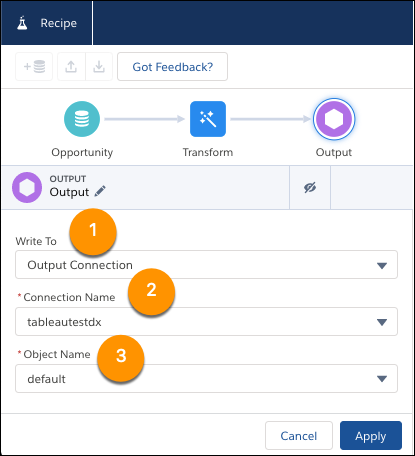
- Select to write to an Output Connection (1).
- Select the connection name of the Tableau Online Output connection you created (2).
- Select the destination Tableau Online project as the Object Name (3). Projects available to the username used to create the output connector are listed.
- Optionally, specify the .hyper file name in the Hyper File field. If you don't specify a file name, the file will is named Extract.hyper.
- Select Apply.
- Save the recipe.
Keep these behaviors in mind when working with the Tableau Online output connector and using a Data Prep recipe output node.
- You can use an output connection more than once per recipe, but each output node must use a different object. Each output node can use up to the connector's per-run limit independently, but is still subject to the rolling 24 hour limit.To push again from the same recipe, add another connection with the same credentials
- Output connections are only available for recipes built with Data Prep.
- The Free Trial version of Tableau Online isn’t supported by this connector.
- This connector requires the presence of your Tableau Online default project.
- The output file uses the column label as the header. All column labels must be unique, or the output fails and no data writes to Tableau Online. To customize column labels, add a transform node and use the Edit Attributes transformation.
- When a recipe runs, a new hyper file is created in Tableau Online if one doesn’t already exist. Tableau Online limits the initial file size to 64MB. Once the hyper file is present, subsequent runs of the recipe overwrite the existing file, and there is no file size limit for these overwrites.
- If a job run takes longer than 12 hours, the Tableau Online security token may reset and cancel the run. Before the 12th hour, to prevent reset of the security token, sign into Tableau Online with the credentials used to configure the connector.
