
You are here:
How CRM Analytics and Salesforce Data Pipelines Work Together
CRM Analytics and Salesforce Data Pipelines are unique products, but settings, limits, and assets sometimes are shared or interrelated when you use both products. These features are shared when you use CRM Analytics.
Unique or Shared Features by Product
| Unique or Shared per Product* | Notes | |
|---|---|---|
| Limits | Some unique, some shared, some pooled (contributory). See Limits pages for details. | |
| Datasets (including staged data) | Shared | Datasets generated in one product can be used in the other. Users with only one license type don’t see the other license type’s datasets. Datasets generated with the Data Pipelines license and used in conjunction with CRM Analytics support sharing inheritance & security predicates. Datasets generated with the Data Pipelines license and used outside of CRM Analytics don’t support sharing inheritance or security predicates. Exercise caution when using them to avoid exposing data to users that shouldn’t have access. If users have both license types, sharing inheritance and security predicates are supported. |
| Input and Output Connections | Shared | Connections built for one product can be used in the other. |
| Synced Data | Shared | Input, output, and synced out data from one product can be used in the other. |
| Recipes | Unique | A recipe built in one product can be reassigned to the other. During recipe creation, the user selects the product that the recipe is saved to, which determines which product’s limits and resource allocations to use. After the recipe is complete, the user can reassign the license as needed. |
| Licenses | Unique | A license providing access to one product doesn’t grant access to the other. |
| Data Monitoring and Asset Visibility | Shared | Users with access to both products can see job details, recipes, and data assets from both products. In some pages the user switches the product to see the other asset. |
Use Data Between Data Pipelines and CRM Analytics
When using both CRM Analytics and Data Pipelines, select which product’s limits you want a recipe’s run and dataset to use. Use either product’s datasets as inputs when you build recipes to avoid recreating and updating recipes in both products.
- When saving a recipe for the first time, select either product. The product determines which limits and queue are used and which users have access to the data. For example, a recipe is associated with Data Pipelines. The recipe uses your Data Pipelines allotted monthly job runtime, and its dataset isn’t available to CRM Analytics users unless they also have a Data Pipelines license.
- To use data from a CRM Analytics or Data Pipeline recipe in the other product’s recipe, add the dataset as an input node. Reassign the license on the recipe as needed. You must have a CRM Analytics and a Data Pipeline permission set to see datasets from both products.
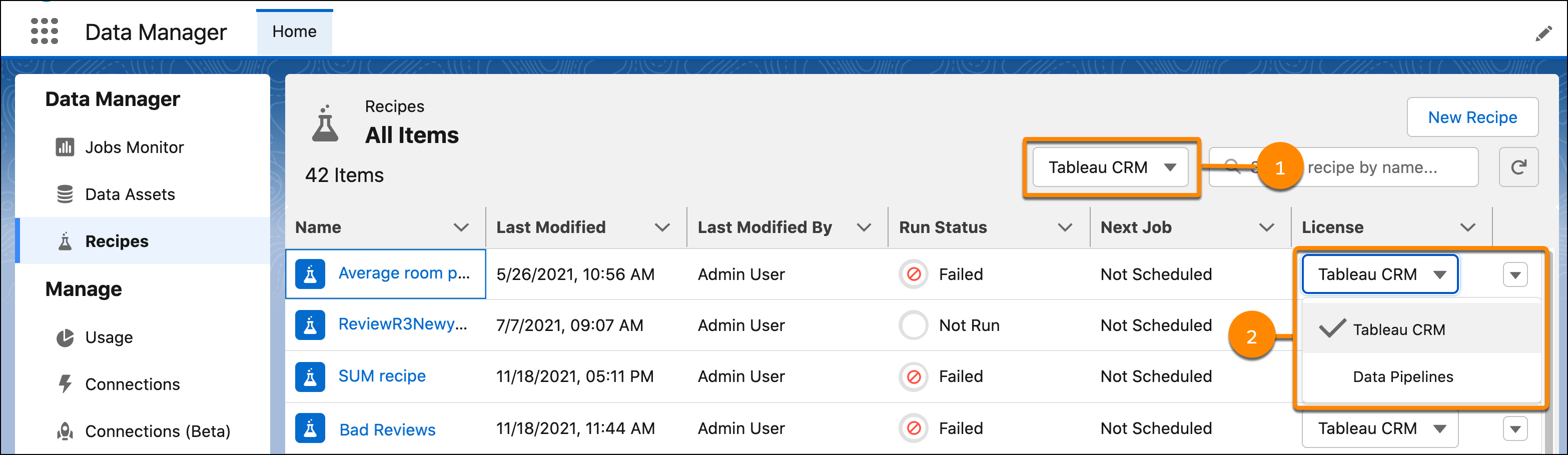
- Manage and track the product associated with recipes and datasets on the Data
Manager. On the Recipes tab, sort the recipes by product (1), or change the
association with the recipe’s License dropdown (2).
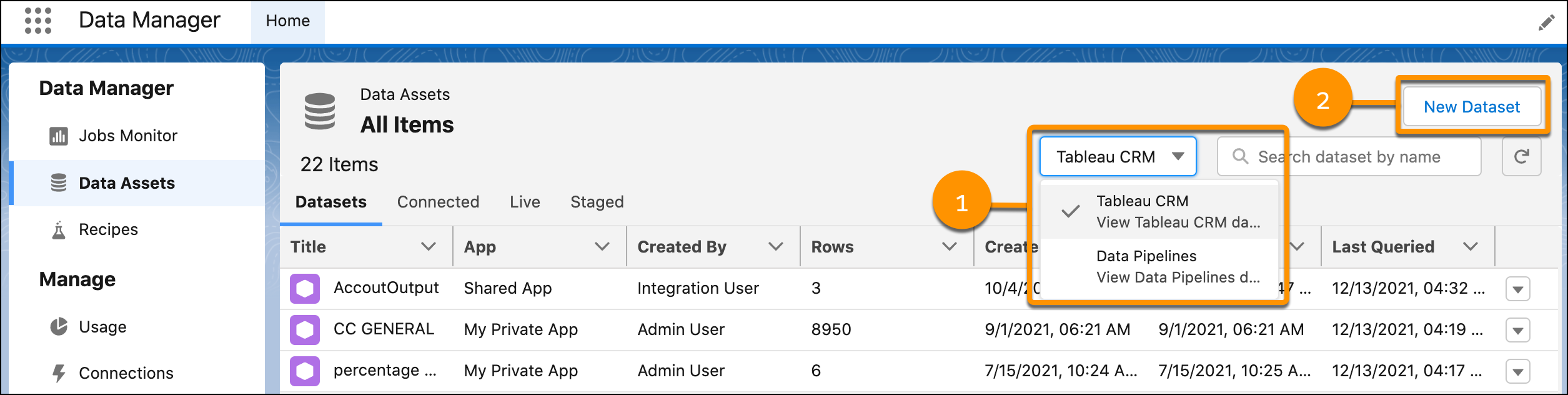
- On the Data Assets tab, view the data associated with each product by using the
product dropdown (1). Before you click New Dataset (2) to upload a local file, use the product dropdown to set which product’s limits and resources to use.
Did this article solve your issue?
Let us know so we can improve!
