
You are here:
Data Manager for CRM Analytics
The data manager is where you monitor your data jobs, prepare datasets with recipes and dataflows, and connect to data.
To open the data manager in CRM Analytics, click the gear icon ( )
and then click Data Manager.
)
and then click Data Manager.
The Data Manager consists of multiple tabs.
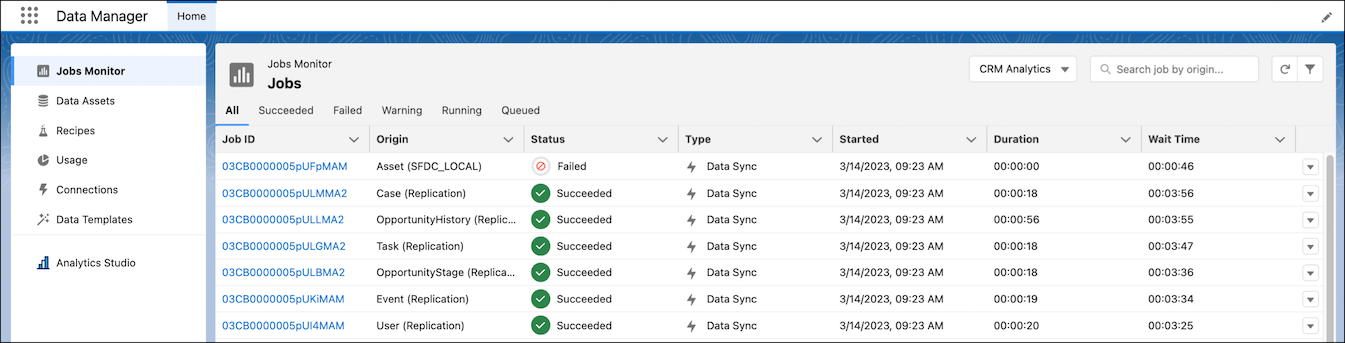

Use these Data Manager tabs to perform various tasks.
| Tab | Usage |
|---|---|
| Jobs Monitor | Monitor and troubleshoot jobs, like recipes that are currently running. |
| Data Assets | View data sources, including datasets and connected objects, that you can use in recipes. Upload CSV files to get access to other data sources that don’t have prebuilt connectors. |
| Recipes | View, edit, delete, and run recipes. You can also access Data Prep to create a recipe from this tab. This tab is the only one visible to users with the Recipes View Only permission. When these users open this tab, they can open the recipe in the editor and examine its details. However, they can’t change recipes. They also can't delete or create recipes. |
| Usage | Monitor Data Pipeline usage and limits. View data about the number of rows in all datasets, the output to Salesforce and CSVs, the number of external data uploads, the combined number of dataflow and recipe runs in a 24-hour period, and more. You can also view this information on the Getting Started page in setup. The limits vary based on your licenses. |
| Connections | Create, edit, and delete connections to different source and target systems. A connection enables recipes to access data in that system. Data Pipelines provides out-of-the-box connectors that allow you to quickly create connections. |
| Data Templates | Create common use case data tasks from templates to accelerate your data pipeline experience. |
Jobs Monitor Details
On the Jobs Monitor tab, the number of jobs is limited to 500 rows. Use the Search bar to find older jobs as needed.
To get details about a running job, like progress, who started it, or why it was canceled, click the job ID.
If a job fails or completes with a warning, open the job to see which rows have warnings. Click the warning icon in the rows' status column, then Job Details, to download a log with more information.
For different job types, different user permissions are required to view logs.
In all cases, the job owner can view any error log(s).
For data sync jobs, recipe jobs, and dataflow jobs, scheduled or manual, users need Edit CRM Analytics Dataflows, Edit Dataset Recipes, Manage CRM Analytics, or View All Data.
For file upload jobs, users need Job creator or View All Data and Edit CRM Analytics Dataflows or Manage CRM Analytics.
