
You are here:
Set Up the Preview in a Recipe
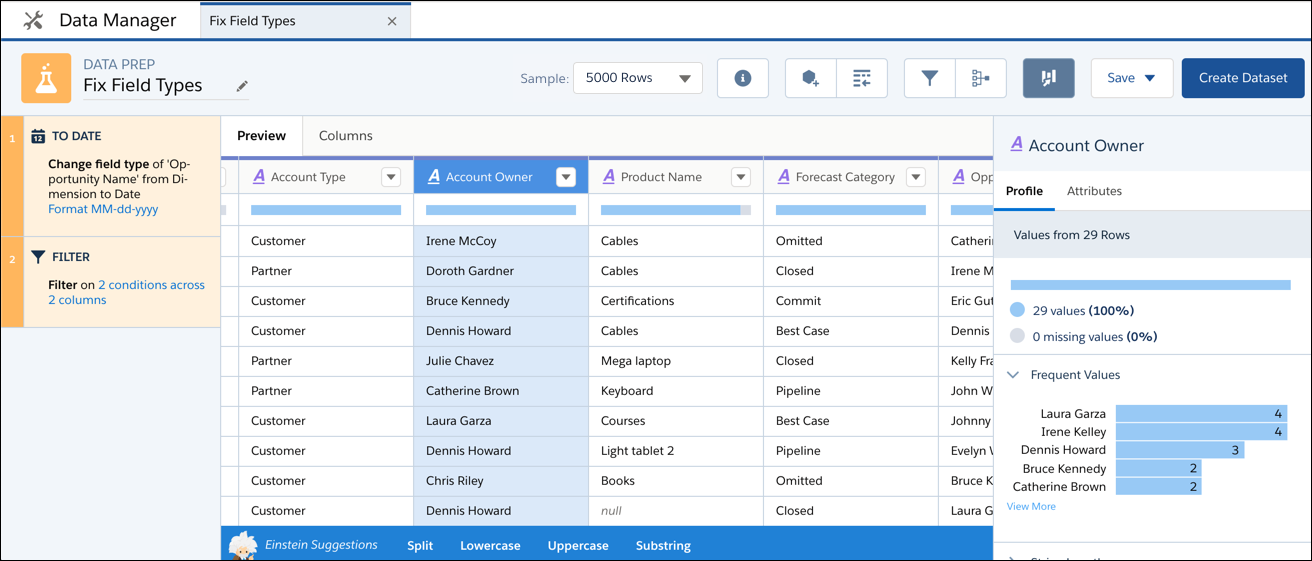
A recipe displays a preview of your data on the Preview tab as you work. You can set the columns and number of rows that appear in this preview. If you are working with a large set of data, reducing the size of the preview speeds up the data refresh as you add steps to your recipe.

If you’re working with a connected object of more than 10,000 rows, CRM Analytics loads a sample of 10,000 rows into the recipe. As you work in a recipe, the sample size used in the preview is always visible at the top of the page. Use the selector to choose to see the first 1000, 5000, or 10,000 rows.
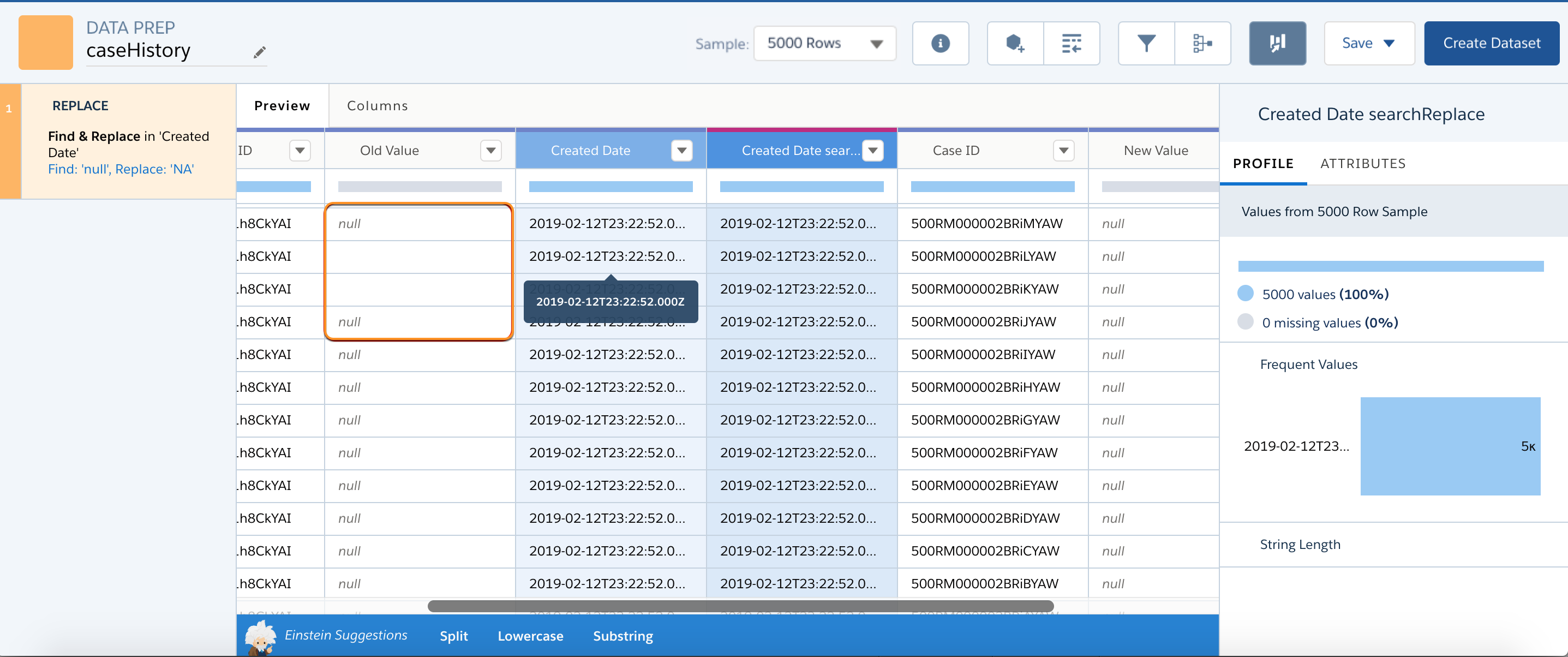
To help you distinguish between nulls and empty strings, the preview shows null values as “null” in gray italics and empty strings as blank values.
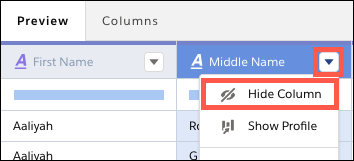
If you don’t need a column in your preview, select Hide Column from the column menu.
If you’re working with numerous columns, click the columns tab to work from a list view of columns without the data.
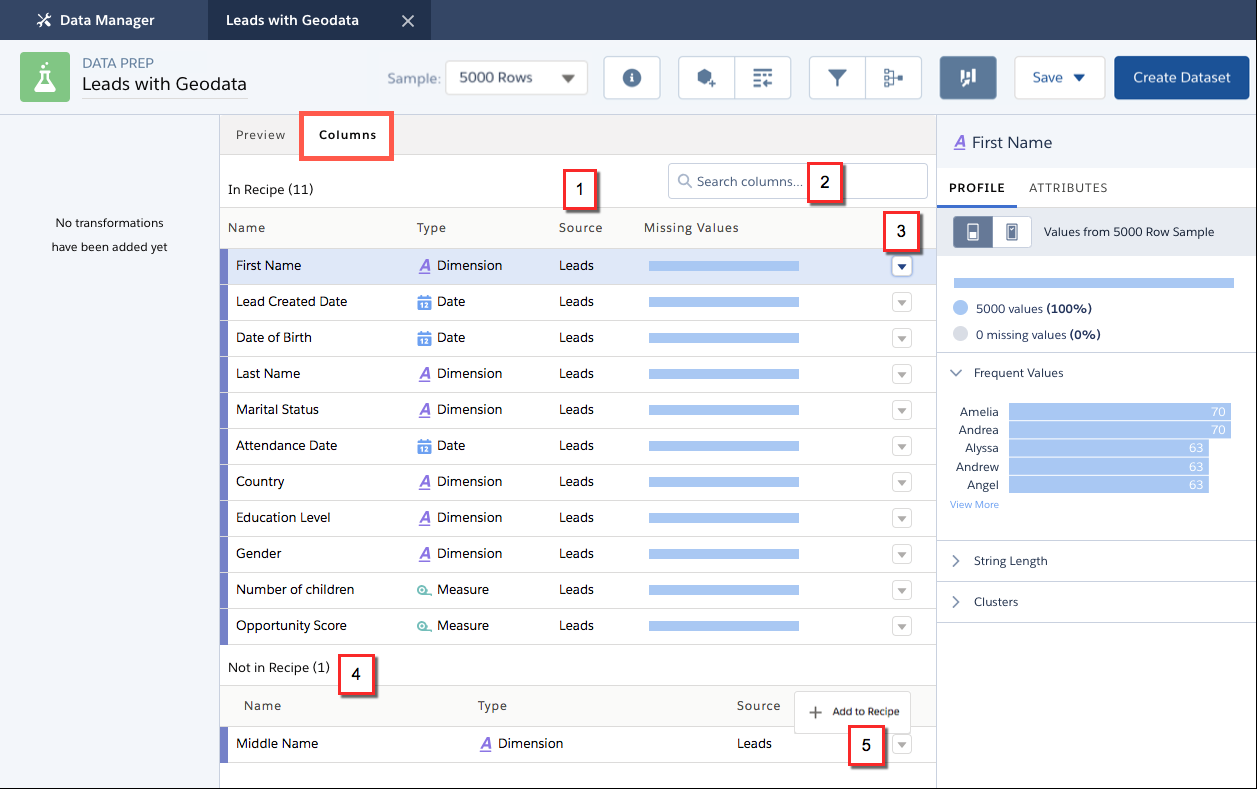
All the columns included in your recipe appear first (1), color-coded by source, with their type, the dataset they come from, and a missing values indicator. To find a column, start typing the name in the search box (2) to narrow down the list. To hide a column, click its menu button and select Hide Column. Columns that you hide in the recipe appear in a separate list (4). To add one of these columns back, select Add to Recipe from its menu (5).
To work on a column in either the Preview or Columns tab, click it. The column menu options and smart suggestions available are the same on both tabs.
