You are here:
Add More Data in a Recipe
You can add columns of data from related objects to existing data in a recipe. Depending on how you want to combine the new data, use one of the following methods: lookup, left join, right join, inner join, or full outer join.
Required Editions
| Available in Salesforce Classic and Lightning Experience. |
| Available with CRM Analytics, which is available for an extra cost in Enterprise, Performance, and Unlimited Editions. Also available in Developer Edition. |

Watch a Demo:  Add Data
in a Recipe (English Only)
Add Data
in a Recipe (English Only)
When you add data to a recipe, you select the dataset or connected object that contains the fields that you want to add. You also select the key fields to match the records between the existing and new data streams. For example, to add User fields to Opportunity records, use the User Id field from the User object and Opportunity Owner Id field from the Opportunity object as the keys. When defining the key, you can use a single field or, if necessary, multiple fields. Note that multivalue fields can't be used as keys.
Let’s look at an example to illustrate how you add data. Imagine you started a recipe from an opportunities dataset, and you want to add more opportunity details from another dataset. You can use the opportunity ID field from each dataset as the keys.
- On the recipe page, click the Add Data button (
 ).
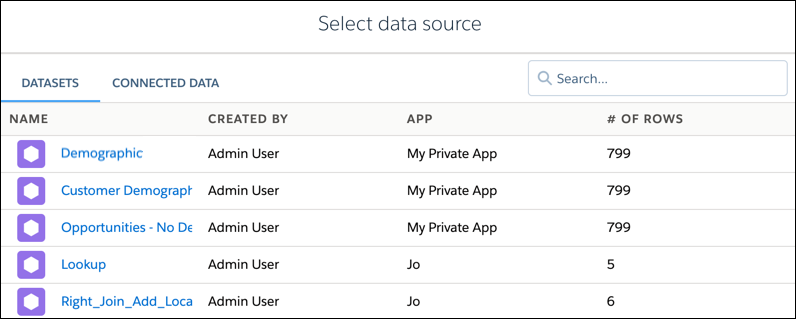
). - Select either the Datasets or Connected Data tab, and click the dataset or object that
you want to add.
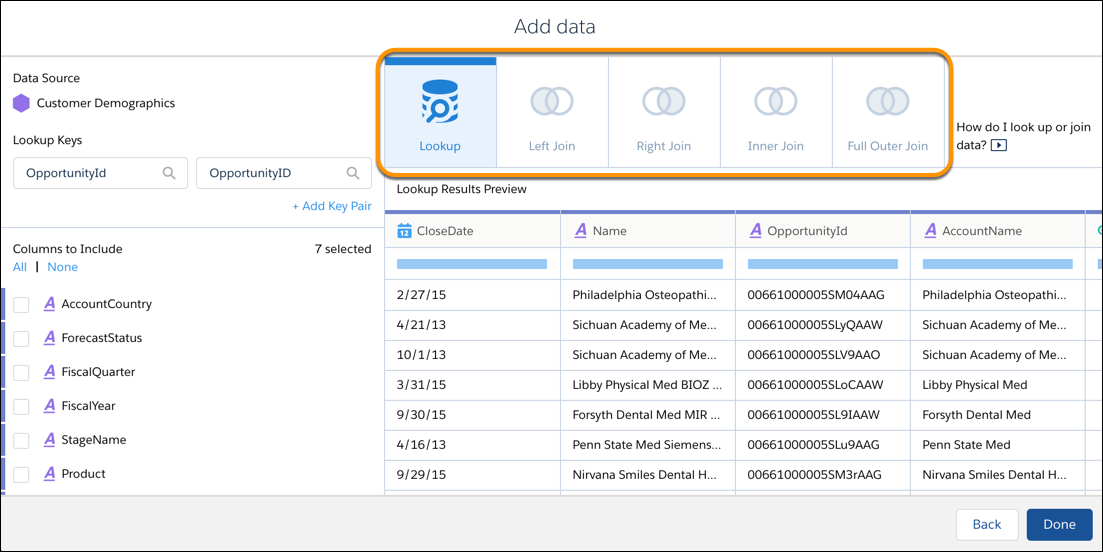
- Choose the join type. By default, Lookup is selected.
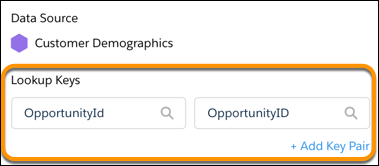
- Select the keys from the left and right data streams. The left data stream is the
existing data. The right is the new data that you want to add. CRM Analytics suggests keys
if it finds related fields.
- To select additional keys, click +Add Key Pair.
If needed, use multiple keys to match records. For example, imagine you’re adding contact information to lead data. Using names alone to match can result in duplicate matches when different leads have the same name. Use two keys to match on name and company to ensure you’re matching the right data. You can use up to 5 keys.
 Important
CRM Analytics datasets contain date and time component fields, such as Year, Quarter, and Month, that are derived automatically from existing date and time fields. Use of these component fields as keys isn’t supported.
- In the Columns to Include section, select the columns to include
in the recipe.
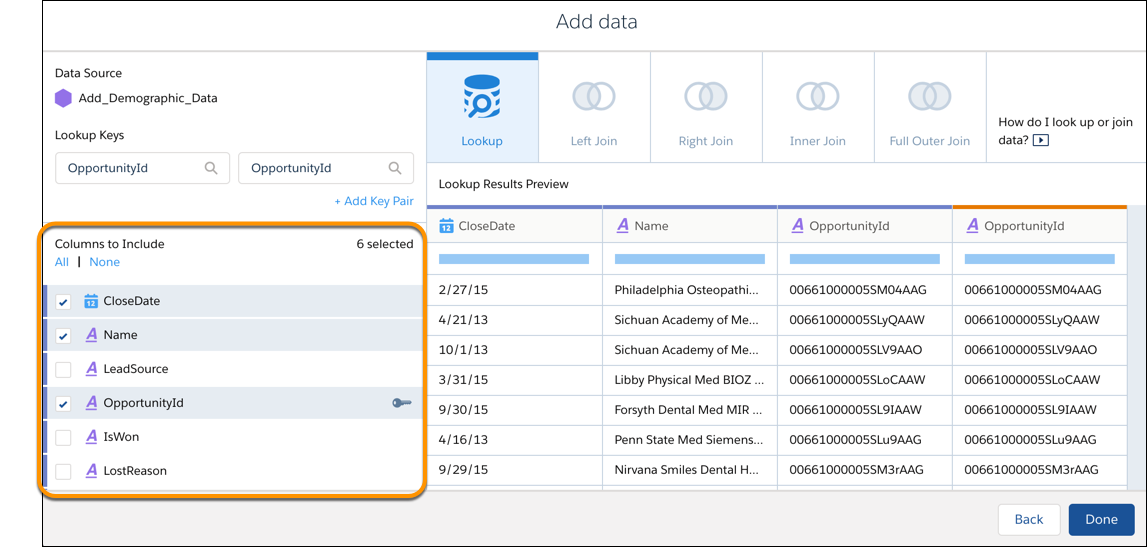 Only the key columns are selected by default. So make sure that you select all the columns that you need in the recipe. The columns are color coded to indicate their source.Note The results preview can display up to 100 columns. Modify the preview or deselect columns to ensure that you can see just the columns that you need.
 - Click Done.
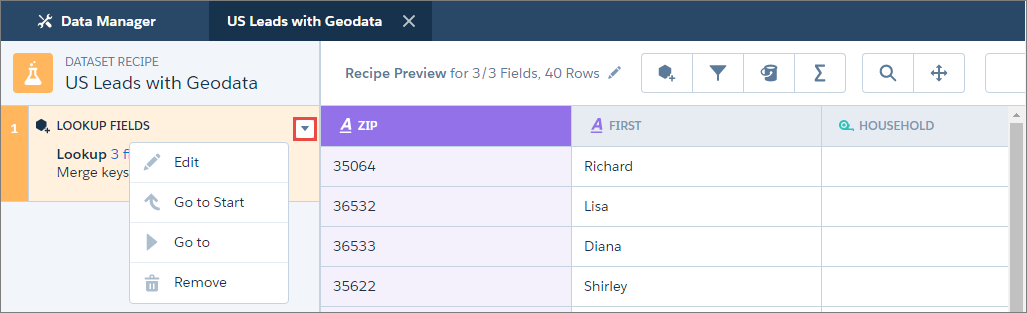
Each time you add data, a new step is created in your recipe, and the added fields
appear in your recipe preview. Hover over a step and click  to
access the Edit and Remove options.
to
access the Edit and Remove options.