
You are here:
Add Rows in a Recipe with Append
Use append to add rows to the data in your recipe from another dataset or connected object. Fields are mapped automatically, or you can map them manually.
Required Editions
| Available in Salesforce Classic and Lightning Experience. |
| Available with CRM Analytics, which is available for an extra cost in Enterprise, Performance, and Unlimited Editions. Also available in Developer Edition. |
| User Permissions Needed | |
|---|---|
| To create a recipe: | Edit CRM Analytics Dataflows OR Edit Dataset Recipes |

Let’s look at an example of how you can use append in a recipe. Imagine you’re a US company that uses separate Salesforce orgs for its US and Canada operations. You sync the US opportunities in your local org, and use a remote Salesforce connection to sync your Canada opportunities. You want to combine these US and Canada opportunities to create a single North America opportunities dataset.
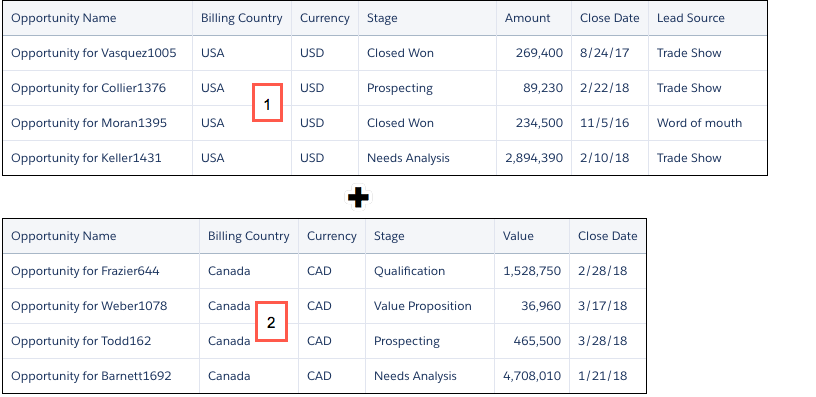
You’ve already started the recipe from your synced US opportunities (1), to which you now want to append data from your synced Canada opportunities dataset (2). Notice that the fields are not exactly the same. The US data has an Amount field and the Canada data has a Value field. The US data has a Lead Source field, which the Canada data doesn’t have. These kinds of differences affect how appended fields can be mapped to fields in the recipe.
- Appended fields are mapped automatically to recipe fields with the same name and type. You can change these mappings. In this example, the Currency field will be mapped automatically.
- Appended fields with different names are not mapped automatically, but you can map them to any fields of the same type. In this example, you have to manually map the Value field to the Amount field.
- Fields with different types can’t be mapped.
- Recipe fields that are not in the appended data are added to the appended rows and
populated with nulls. In this example, the Lead Source field will be added to the appended
rows.Note If null measure handling in datasets isn’t enabled for your org, measure fields are populated with zeros when they’re added to appended rows.
Follow these steps to append data in a recipe.
- On the recipe page, click the Append Data button (
 ).
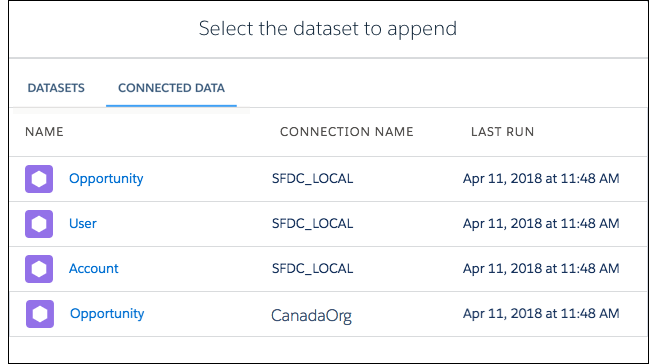
). - Select either the DATASETS or CONNECTED DATA tab, and click the dataset or object that
you want to add. In our example, you would select the Opportunity dataset from the
CanadaOrg connection.
- On the map fields dialog, review how CRM Analytics has mapped the recipe fields in the
first column to fields from the data to append in the second column. Remember, fields with
the same name and type are mapped automatically.
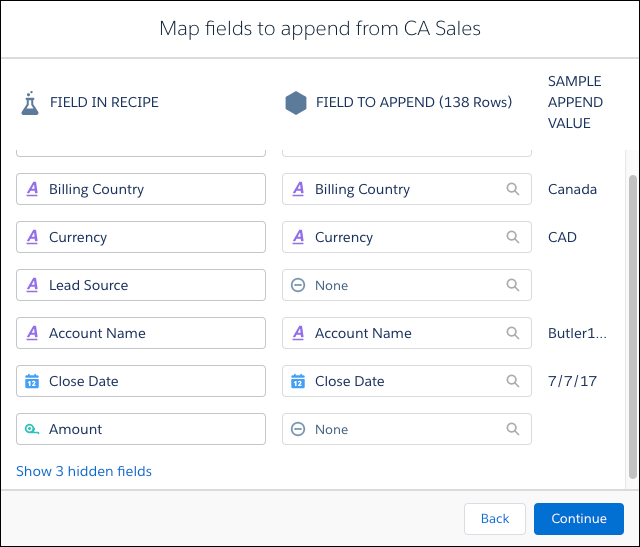 Note By default, hidden fields in your recipe aren’t mapped. To map hidden fields, click the Show hidden fields link and accept or change the mappings.
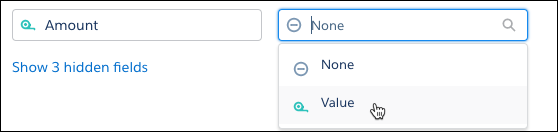
 - To change a field mapping, click the field in the FIELD TO APPEND column, and select a
field. You can only select from fields of the same type as the recipe field that you’re
mapping to.In our example, you don’t have a field to map to the Lead Source field, so you leave that as it is. The Amount field has not been mapped because the corresponding field in the Canada data was named Value. So you map the Value field to the Amount field.
- When you finish mapping fields, click Continue.
- On the confirmation message, click Append.Note Rows that you append in a recipe do not appear in the recipe preview, but are added to the target dataset when you run the recipe.
When you append data, a new step is created in your recipe.
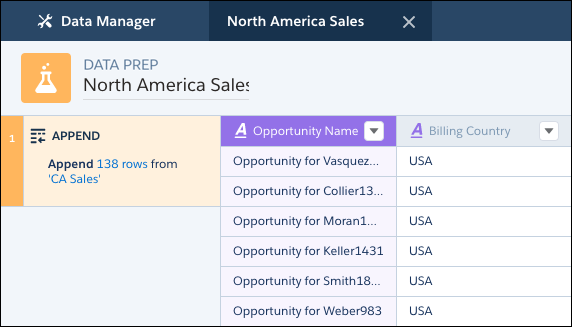
When you run the recipe, the rows are appended in the target dataset.
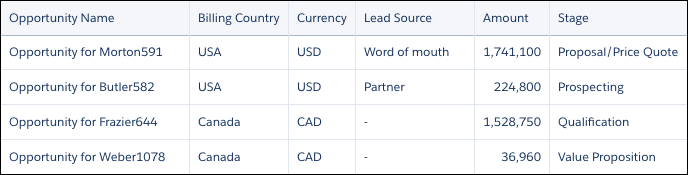
Here, the Lead Source field has been added to the Canada rows and populated with null values. The Value values from the Canada rows now appear in the Amount column.
