
You are here:
Bucket a Measure Field in a Recipe
Add a field to a recipe to bucket values in a specified measure field.
Required Editions
| Available in Salesforce Classic and Lightning Experience. |
| Available with CRM Analytics, which is available for an extra cost in Enterprise, Performance, and Unlimited Editions. Also available in Developer Edition. |
| User Permissions Needed | |
|---|---|
| To create a recipe: | Edit CRM Analytics Dataflows OR Edit Dataset Recipes |

Note To bucket numeric values in a Data Prep recipe, see Categorize Measure Column Values into Buckets.
A bucket field lets you create new values based on existing values in another field. For example, use a bucket field to categorize households as small, medium, or large, based on the number of people in the household.
| No. of People in Household | Size Category |
|---|---|
| 1–2 | Small |
| 3–5 | Medium |
| 6 or more | Large |
- On the column header of the measure field you want to bucket, click
 , and then select Bucket.Bucket settings appear in the Add Transformation panel below the preview data.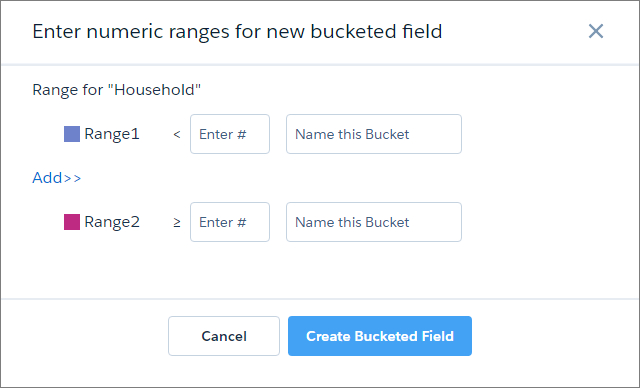
- For Range1, enter a value and name for the first bucket. Rows with values below the
Range1 value are assigned this bucket name. In this example, rows with values less than
3 are assigned a value of Small in the new
bucket field.
 The Range2 value populates with the value you enter for Range1.
 - If your bucket field has more than two buckets, click Add>> to add another range.
- For each additional range you add, enter the range of values and the bucket name. Rows
with values greater than or equal to the first value, and less than the second value are
assigned the bucket name. In this example, rows with values 3,
4, or 5 are assigned a value of
Medium in the new bucket field.

- Repeat steps 4–5 to add any additional buckets that you need.
- For the final range, enter a value and bucket name. Rows with values greater than or
equal to this value are assigned this bucket name. In this example, rows with values
greater than or equal to 6 are assigned a value of
Large in the new bucket field.

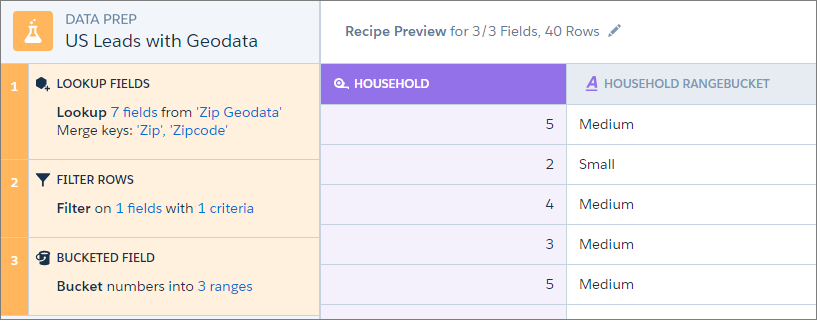
- When you have completed all the ranges, click Add.The new bucket field appears next to the source field in the recipe preview.

Tip You can use a bucket field to filter rows in a recipe.
Did this article solve your issue?
Let us know so we can improve!
