
You are here:
Bucket a Dimension Field in a Recipe
Add a field to a recipe to bucket values in a specified dimension field.
Required Editions
| Available in Salesforce Classic and Lightning Experience. |
| Available with CRM Analytics, which is available for an extra cost in Enterprise, Performance, and Unlimited Editions. Also available in Developer Edition. |
| User Permissions Needed | |
|---|---|
| To create a recipe: | Edit CRM Analytics Dataflows OR Edit Dataset Recipes |

Note To bucket dimension values in a Data Prep recipe, see Categorize Dimension Column Values into Buckets.
A bucket field lets you create new values based on existing values in another field. For example, use a bucket field to categorize products in support cases according to their type.
| Product | Product Category |
|---|---|
| HVAC Ctrl, HeatWave, Home A/C | HVAC |
| Humidity Ctrl, Humidity Unit, Home Humidity | Humidity |
| Compressor, Condenser, Thermostat | Parts |
- On the column header of the dimension field you want to bucket, click
 , and then select Bucket.Bucket settings appear in the Add Transformation panel below the preview data.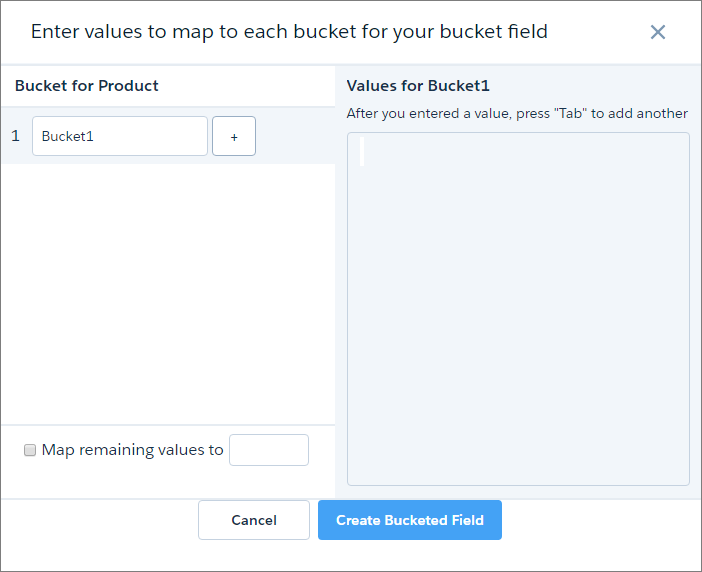
- In the Bucket1 field, enter a name for the first bucket.
- In the Values for...box, enter the values to be assigned to this
bucket. Press Tab after each value to enter the next.In this example, rows containing HVAC Ctrl, HeatWave, or Home A/C product values are assigned a value of HVAC in the new bucket field.

- To add more buckets, click
 and repeat steps 2–3.
 - To bucket remaining values that you have not bucketed, select Bucket
remaining values and enter a bucket for these values.If you don’t select this option, rows with unbucketed values keep the same value in the new bucket field.
- When you have completed all the buckets, click Add.The new bucket field appears next to the source field in the recipe preview.
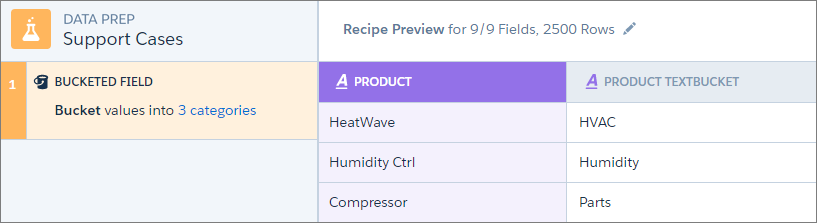

Tip You can use a bucket field to filter rows in a recipe.
Did this article solve your issue?
Let us know so we can improve!
