
You are here:
Add a Formula Field in a Recipe
Add a formula field to calculate new values from measures and dimensions in your recipe.
Required Editions
| Available in Salesforce Classic and Lightning Experience. |
| Available with CRM Analytics, which is available for an extra cost in Enterprise, Performance, and Unlimited Editions. Also available in Developer Edition. |
| User Permissions Needed | |
|---|---|
| To create a recipe: | Edit CRM Analytics Dataflows OR Edit Dataset Recipes |

Note To create a calculated column based on a formula in a Data Prep recipe, see Formula Transformation: Create a Calculated Column Based on an Expression. To do
it in a dataflow, see computeExpression Transformation.
A formula field lets you calculate new values based on existing values in fields. To help you, a formula builder suggests fields and functions as you type.
- To start creating a formula field, choose one of these methods.
- To create the formula from scratch, click
 on any field column header, and then select
Formula.
on any field column header, and then select
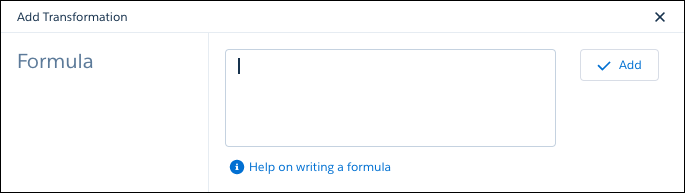
Formula.The formula builder appears in the Add Transformation panel below the recipe preview.
- To use a suggested function, click the field that you want to use in the recipe
preview, and then click a function in the suggestions bar below the preview.

The formula is started for you, using the field and function that you selected.

- To select multiple fields for use in your formula, while pressing Shift or Ctrl (Cmd
on Mac), click the fields that you want to use in the recipe preview. Then click an
function in the suggestions bar below the preview.
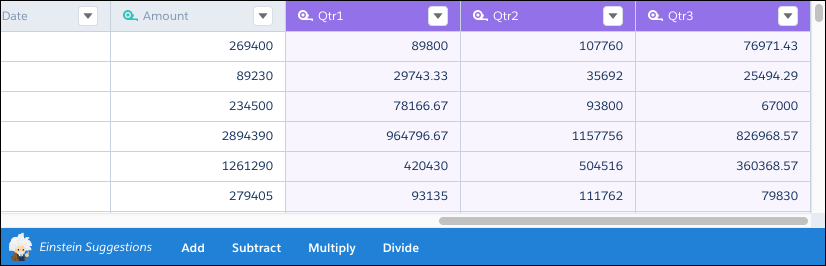
The formula is started for you, using the fields and operator that you selected.

- To create the formula from scratch, click
- In the formula builder, enter the formula. If the formula has been started for you, you
can edit it here.Note Here are some tips for entering or editing your formula.
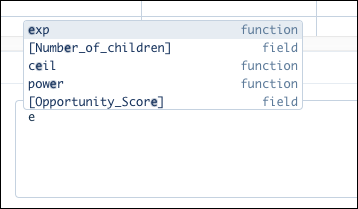
- Just start typing to see matching functions and fields.
- To select a match, either click it, or use your cursor up and down keys to select it and then press Enter or Tab.
- Use your keyboard to enter parentheses, arithmetic operators, and numbers as needed.
- When you have completed the formula, click Add.The new formula field appears in the recipe preview.
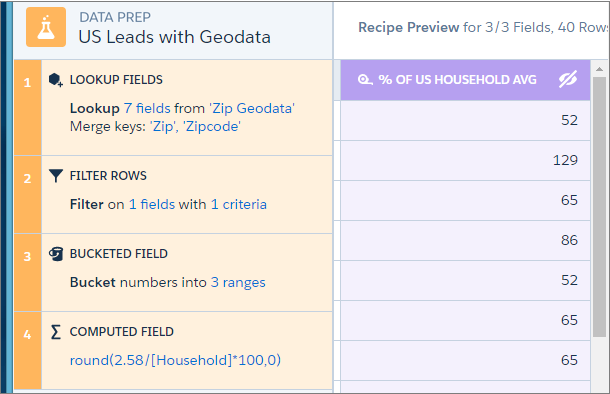

Tip You can bucket a formula field or reference it in other formulas in the
recipe.
- Numeric Functions for Formula Fields
Use numeric functions to calculate new values from measures in your recipe. For example, you can round, truncate, and determine the absolute value of a number. The arguments in each function can be numbers or measure columns. - String Functions for Formula Fields
Use string functions to create values in a formula field based on one or more dimension columns in your recipe or strings. For example, you can change the casing of text strings, concatenate values from multiple columns, and replace values.
Did this article solve your issue?
Let us know so we can improve!
