
You are here:
Navigate Columns in a Recipe
As you add data and transform fields, the number of columns in your recipe preview increases, which makes it harder to find the columns that you want to work with. Use the column view to quickly find the columns that you need, and hide the ones you don't.
To open the column view, click the Columns tab at the top of the recipe editor.
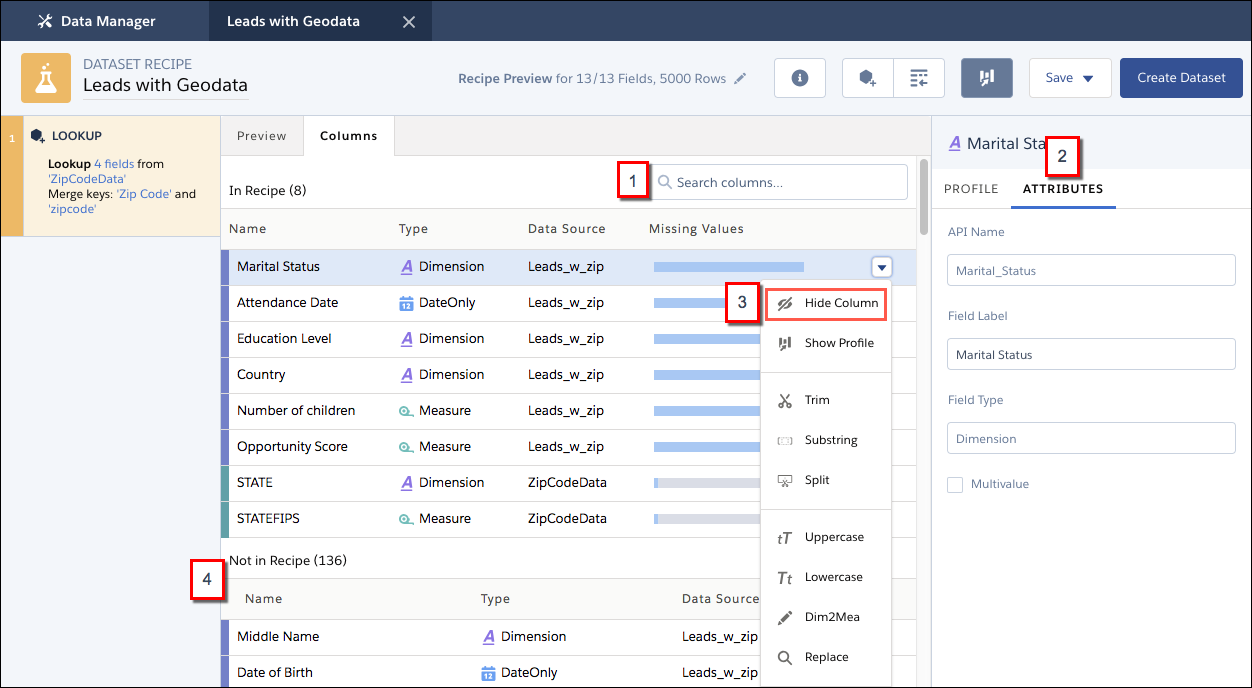
Columns are color-coded to distinguish columns from different sources. To quickly find a column, start typing its name in the Search columns box (1) to narrow down the list of columns. When you see the column that you want, click it to see its column profile on the right. To view or edit the column’s metadata, click Attributes (2) in the profile pane. Here you can edit the API names and labels of new columns that you create in a recipe, and the labels of existing columns. If you decide that you don’t need the column in the recipe, select Hide Column (3) from the column menu. Columns that you hide appear in a separate list (4). To add a hidden column to the recipe, select Add to Recipe from its menu.

